Why remote access is not available by default
TalkToHumans does not use cloud automation to reproduce your LinkedIn session on a remote server, unlike many other automation tools, because doing so is less safe (see why here). The tradeoff: a teammate cannot remotely open someone else’s LinkedIn account through TalkToHumans unless their browser is also logged into that account. We think protecting a valuable LinkedIn account is worth that constraint.TalkToHumans fully supports multiple users in the same organization working from a single LinkedIn account. Contacts, conversations, tags, inboxes, and sequences are shared across the team.
Recommended setup: use dedicated Chrome profiles
This is the easiest setup to try, and the one we recommend starting with.1. Invite your teammates
Invite every person who will work from the shared account to your TalkToHumans organization. Each teammate should use their own TalkToHumans user. This keeps team access, ownership, and future analytics clear, even though everyone is working from the same LinkedIn account.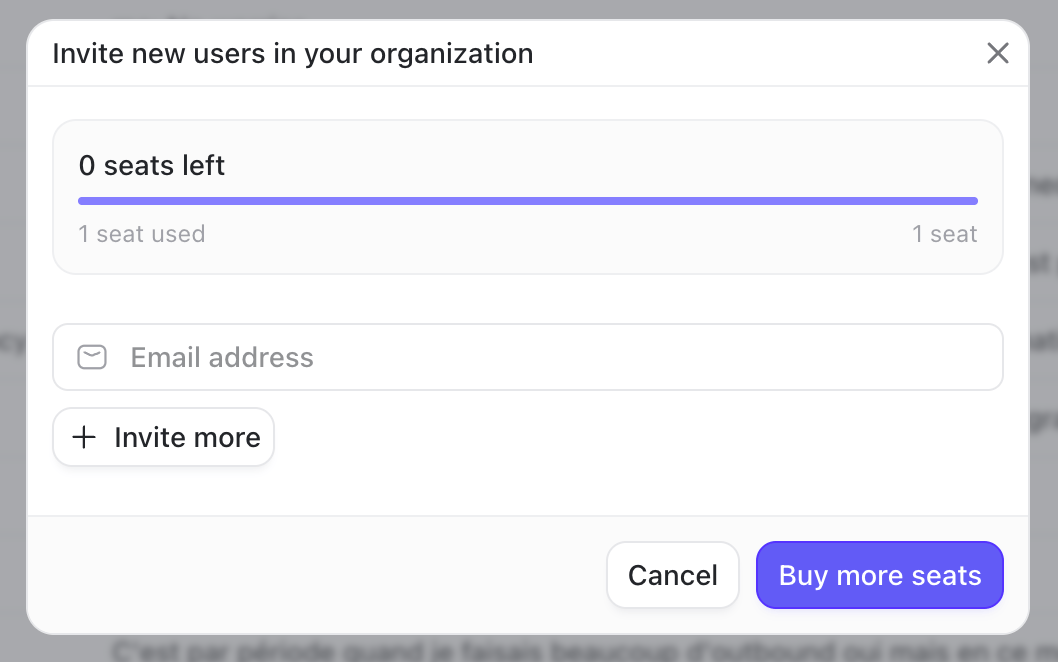
2. Create a dedicated Chrome profile
Each teammate should create a separate Chrome profile on their computer for the shared LinkedIn account, so you keep a clear separation:- Your default profile = your own LinkedIn account
- Your secondary profile = the shared LinkedIn account
3. Log into the shared LinkedIn account
Inside that dedicated Chrome profile:- Log into the LinkedIn account your team will share.
- Install the TalkToHumans extension.
- Log into TalkToHumans with your own user account.
- Keep the browser open whenever you want scheduled LinkedIn actions to run.
4. Ramp up usage slowly
Since LinkedIn will see the account being used from different browsers and IP addresses, you may occasionally get logged out. This is more likely when people access the shared account from different countries or distant regions. To keep things safe, we recommend slowly ramping up usage on each new browser and device over the first few days.Assign conversation ownership with tags
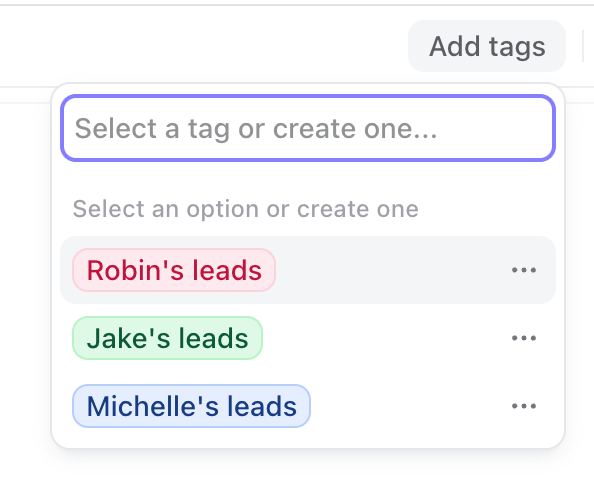
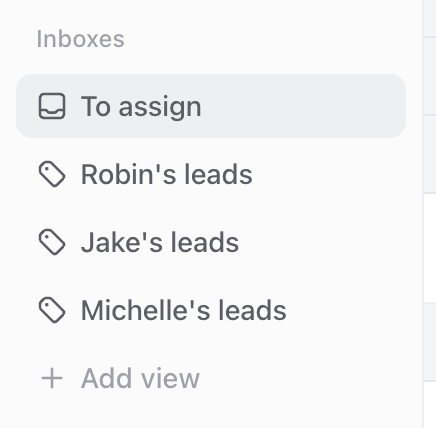
Once everyone has access, you need one simple rule: every active lead has one owner. TalkToHumans uses tags and inboxes to make this visible.1. Create one owner tag per teammate
For example:- Robin’s leads
- Jake’s leads
- Michelle’s leads
2. Create a “To assign” inbox
Create a custom inbox called “To assign” and filter out conversations that already have an owner tag.
3. Let teammates claim conversations
Open “To assign” and work through it as a queue. When someone takes ownership of a conversation, they add their owner tag. The conversation disappears from “To assign” and appears in their owner inbox. From there, the owner can reply, schedule a sequence or follow-up, or archive the conversation when no action remains. With that setup:- “To assign” shows what still needs an owner.
- Each teammate’s inbox shows what they own.
- The whole team can see who is responsible for the next step.
Advanced setup: use GoLogin
If your team manages several shared LinkedIn accounts or needs a more centralized browser setup, you can use a browser-profile tool such as GoLogin. The setup is similar:- Create one GoLogin browser profile per LinkedIn account.
- Log into LinkedIn inside each profile.
- Install the TalkToHumans extension in each profile.
- Log into your shared TalkToHumans organization inside each profile.
- Use the same “To assign” and owner-tag workflow to split conversations.
Safety limits are account-level
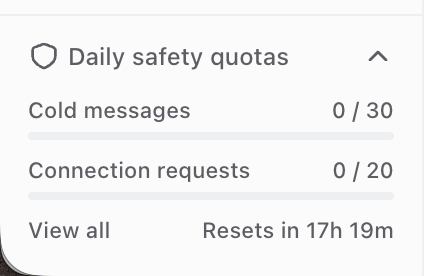
Daily LinkedIn caps are shared across everyone operating the account. Adding teammates does not multiply the safe capacity of the LinkedIn identity. If one teammate sends most of the day’s connection requests, the remaining capacity will be reduced for everyone else using that account.