

- Message templates for a single message
- Sequence templates for a series of messages, connection requests, and delays
Templates are starting points, not campaigns. You apply them to one conversation at a time, review the result, and personalize it before anything is sent.
Use a template
Open a conversation, then click Sequences in the composer, or press; twice:
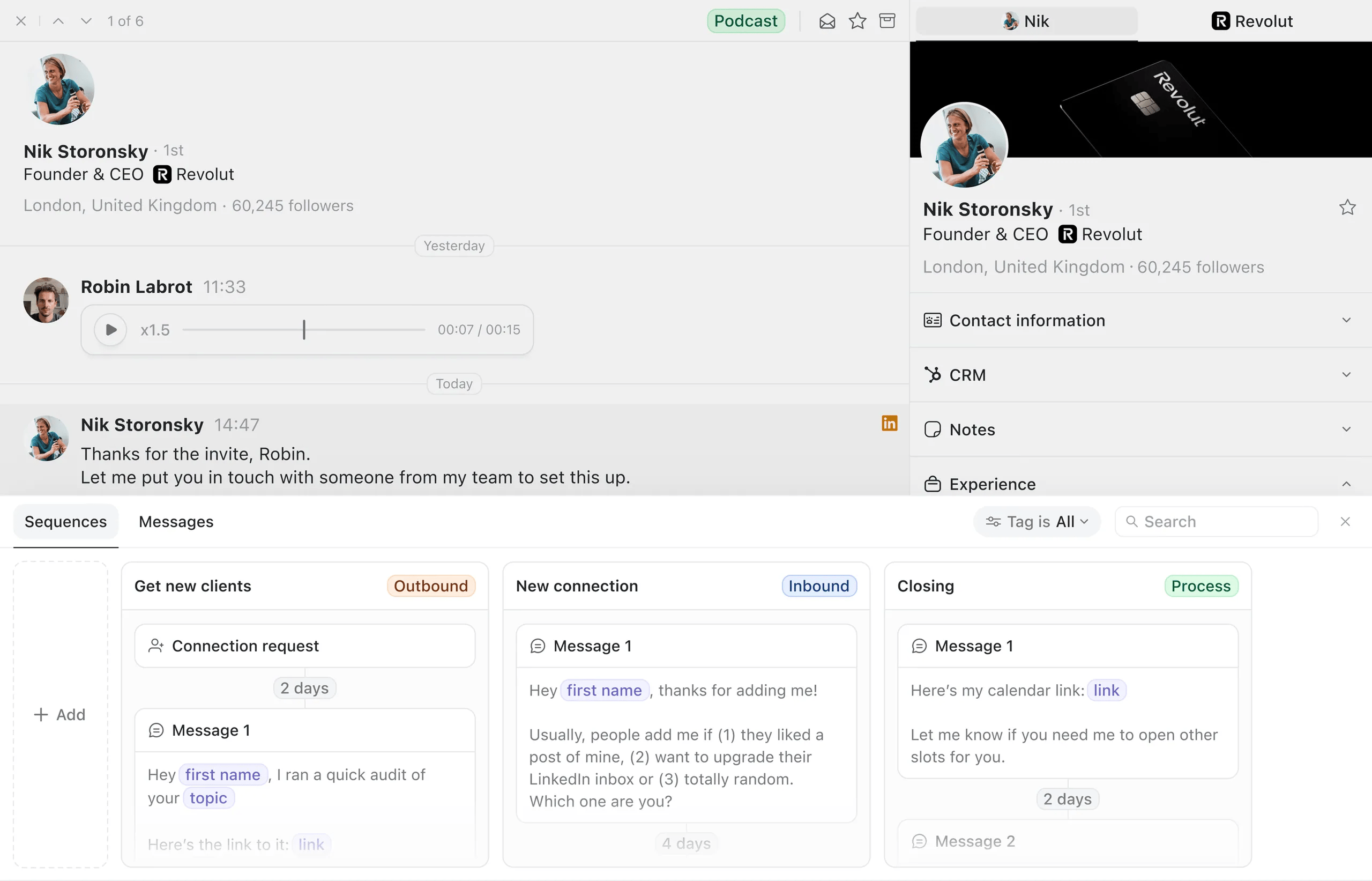
- Choose Sequences or Messages (you can switch by pressing
1or2) - Click the template you want to use
- Review the message or every step in the sequence
- Personalize it for the person you are contacting
- Send the message or launch the sequence when it is ready
Personalize templates with variables
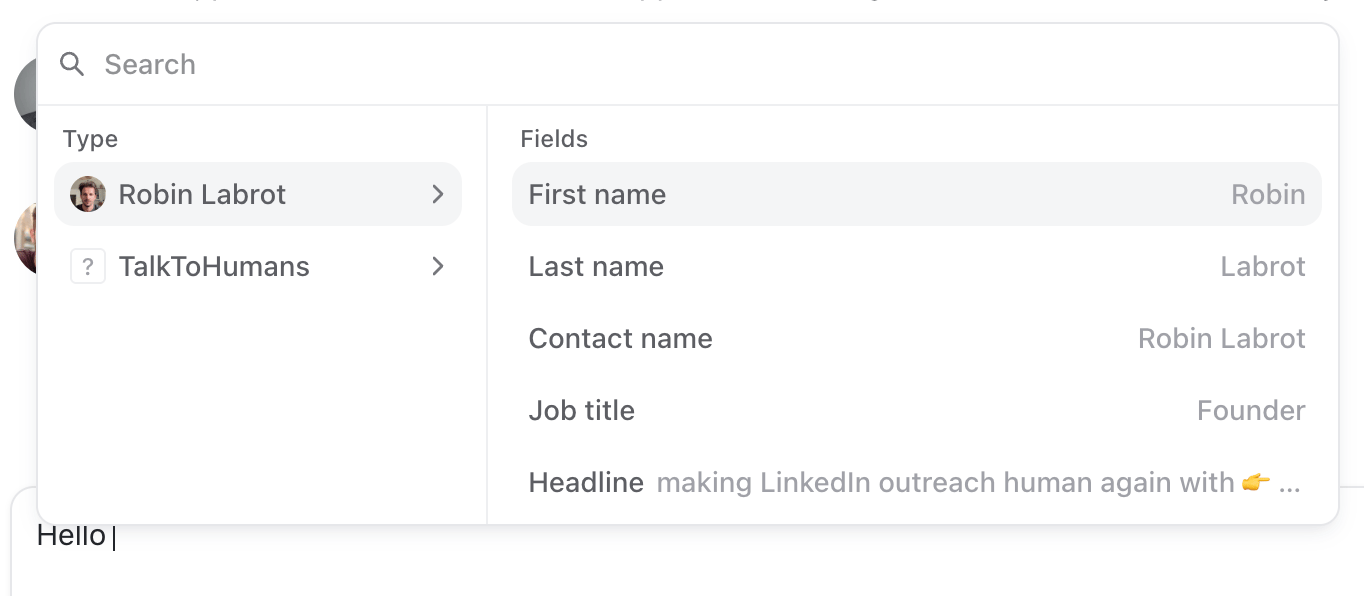
Templates can include variables for information such as a contact’s first name, job title, company, or one of your custom fields. While writing a template, click the small + beside your cursor or type/ to add a variable:
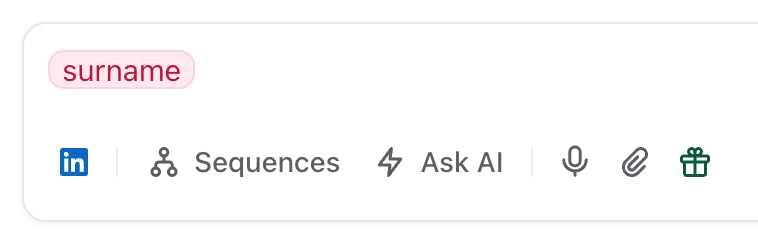
Variables help with the predictable parts of a message, but they do not make the message relevant on their own.
Create a message template
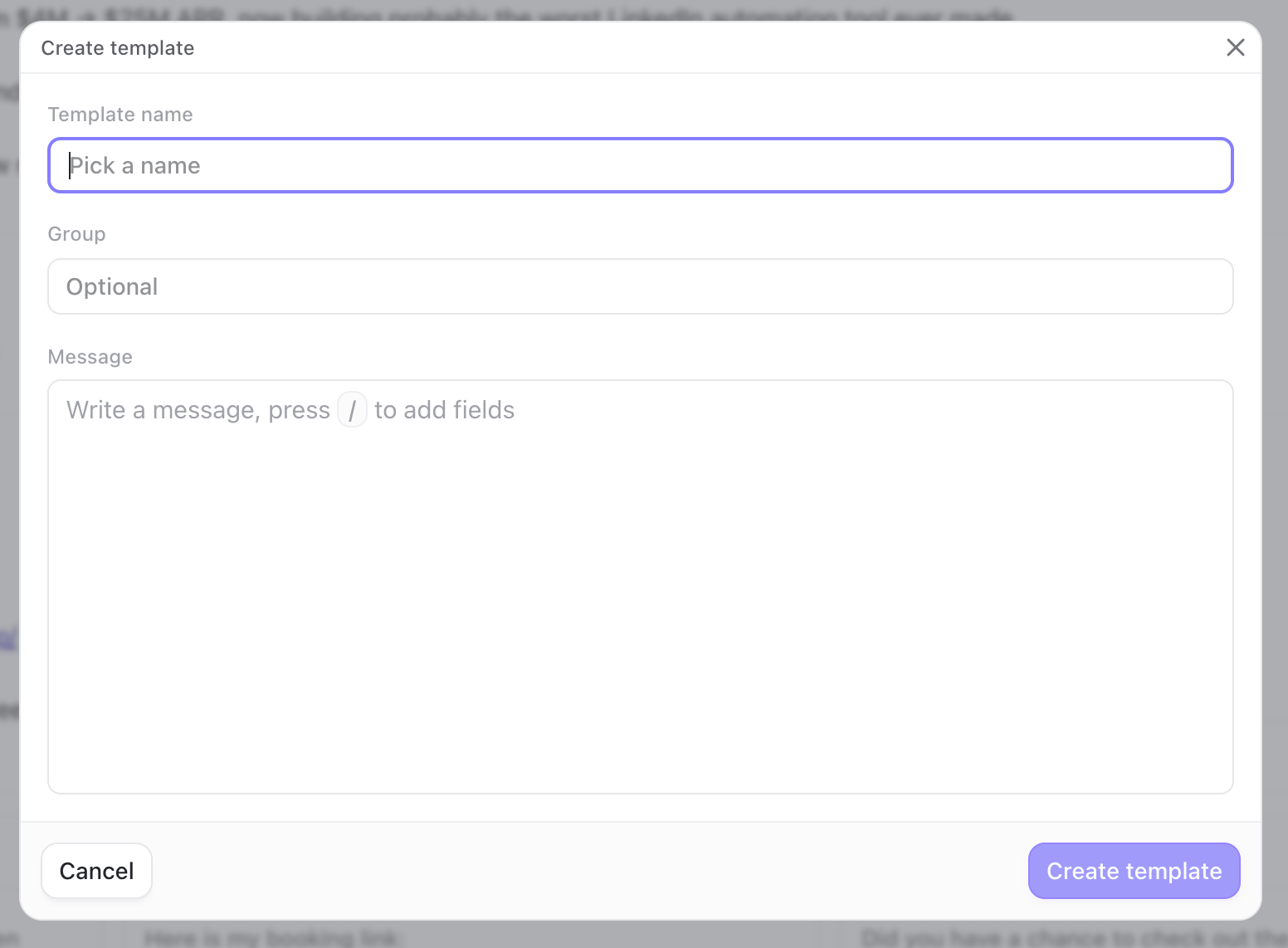
- Open the templates menu and select Messages
- Click Add
- Give the template a clear name and optionally add it to a group
- Write the message and add any variables you need
Templates are shared within your organization by default
Create a sequence template
There are two ways to create one:Create it from the templates menu
- Open the templates menu and select Sequence templates
- Click Add
- Give the template a clear name and optionally add it to a group
- Add your connection request, messages, and delays
Save a sequence you are already writing
If you’ve already written a sequence worth templatizing, you can save it as a template by opening its settings menu and clicking Save as template: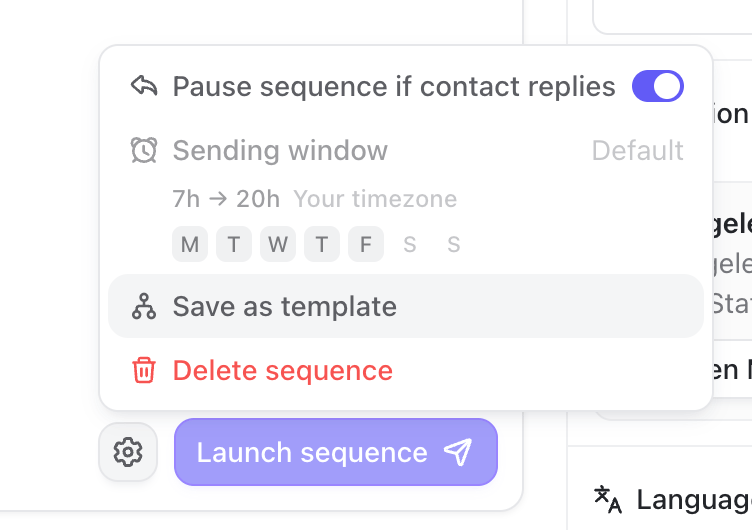
Organize your templates
As your library grows, you can search, group, and reorder your templates.Create groups
Open the menu on any template, select Add to group, then choose New group. Click the colored group labels at the top of the templates menu to filter the list: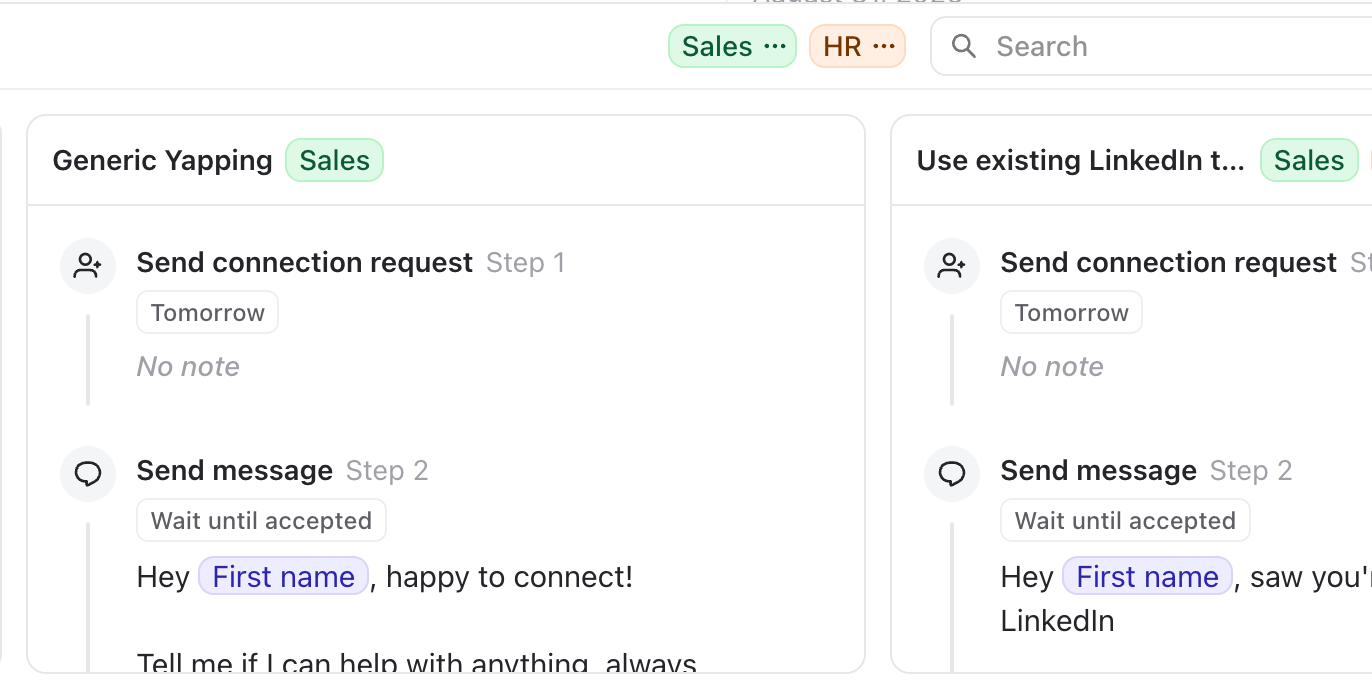
See what gets replies
Once a template has been used, it will show its reply rate: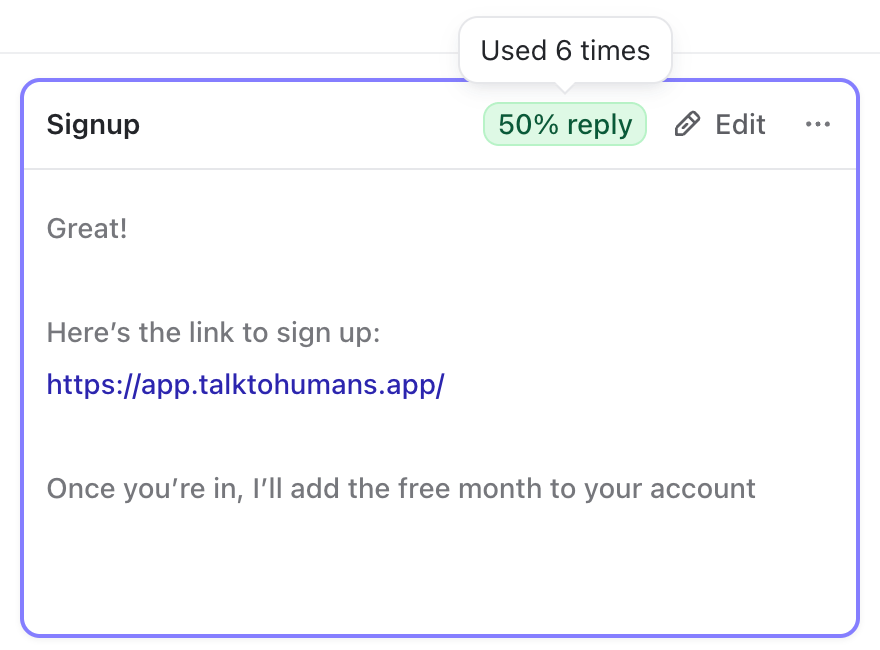
Hover over the rate to see how many times the template has been used
Template shortcuts
See Use sequences to learn how to personalize and launch a sequence after applying a template.