

Send messages directly from LinkedIn or your CRM
You can start or continue conversations in various contexts:From LinkedIn inbox
When you’re on LinkedIn, clicking the “messages” button in the navbar will open the TalkToHumans app:
From a LinkedIn profile
When you’re on a LinkedIn profile, clicking the “Start conversation” button will open a chat sidebar directly on the page: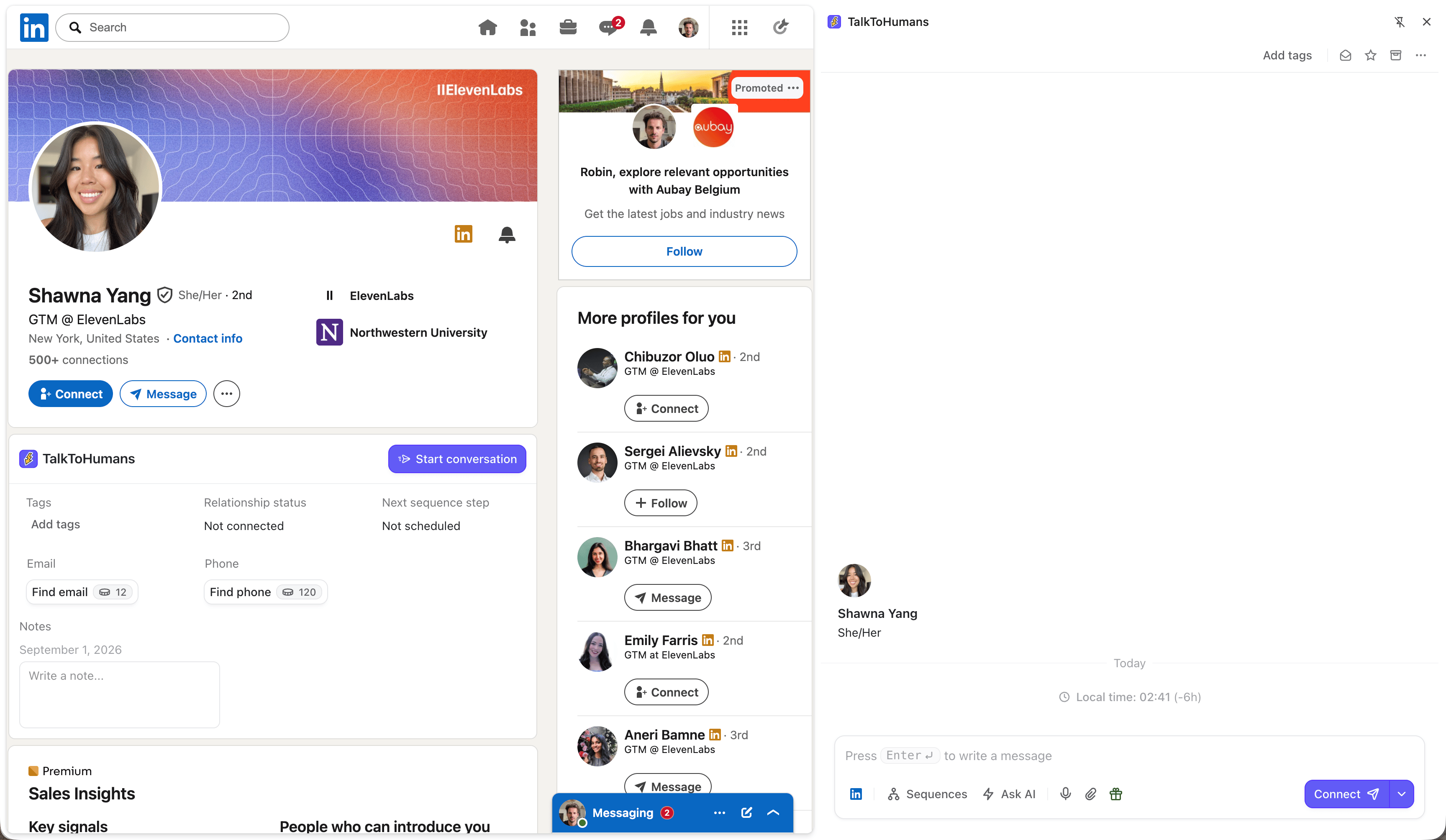
From your CRM
When you’re on a contact page in your CRM, clicking the “DM” button will open a chat sidebar directly on the page: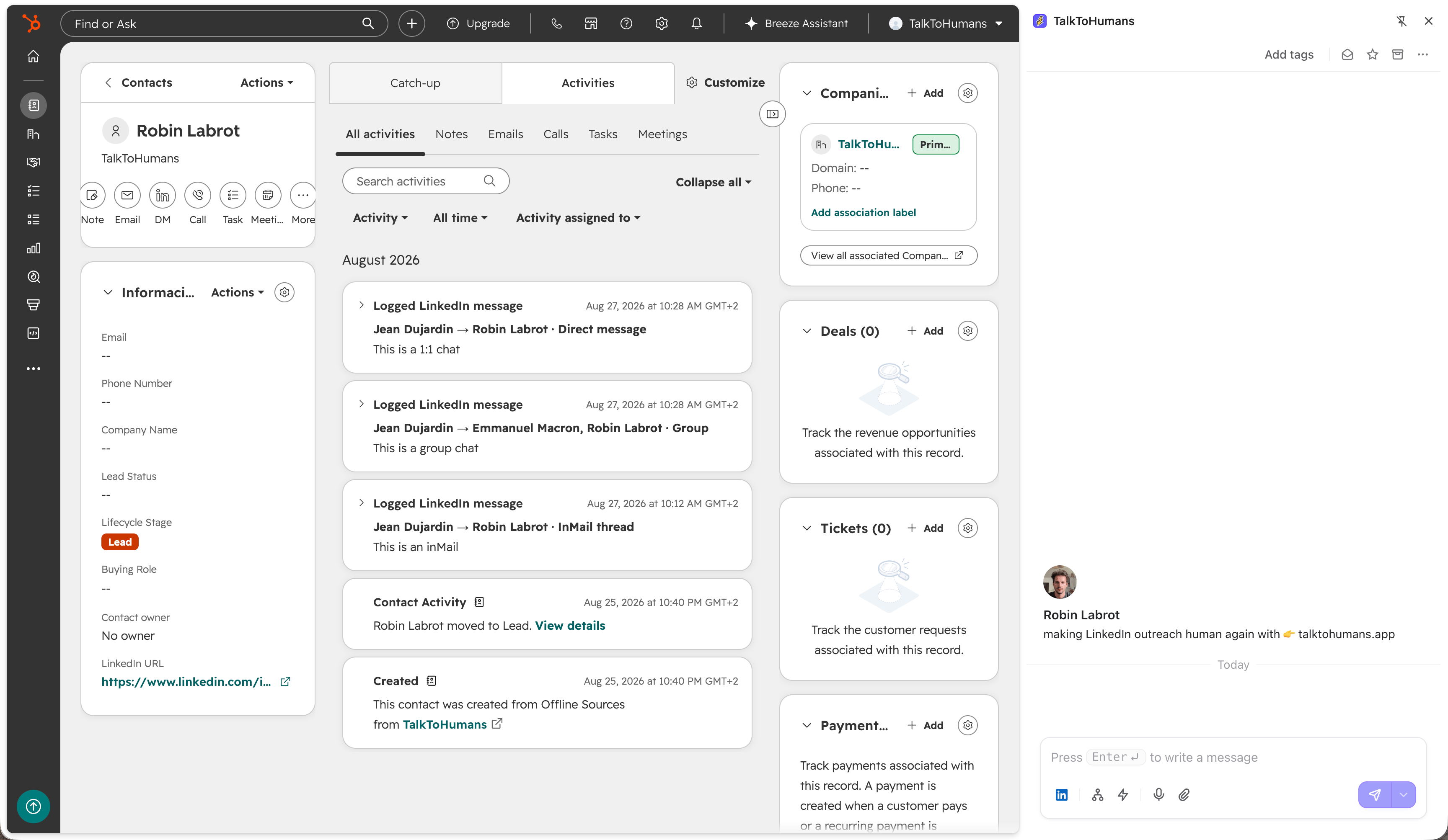
Start a personalized sequence
TalkToHumans lets you create a personalized sequence for the person you’re currently messaging. PressEnter three times inside the composer to start a personalized sequence:
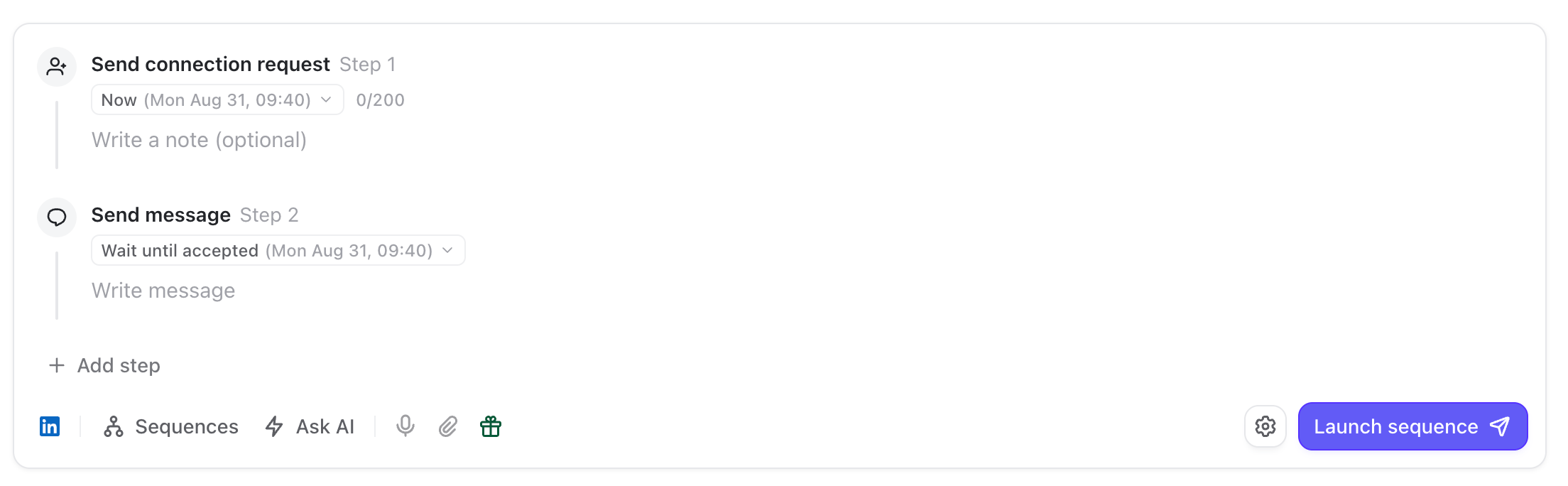
CMD + Enter.
See Use sequences for building, editing, and managing sequences.
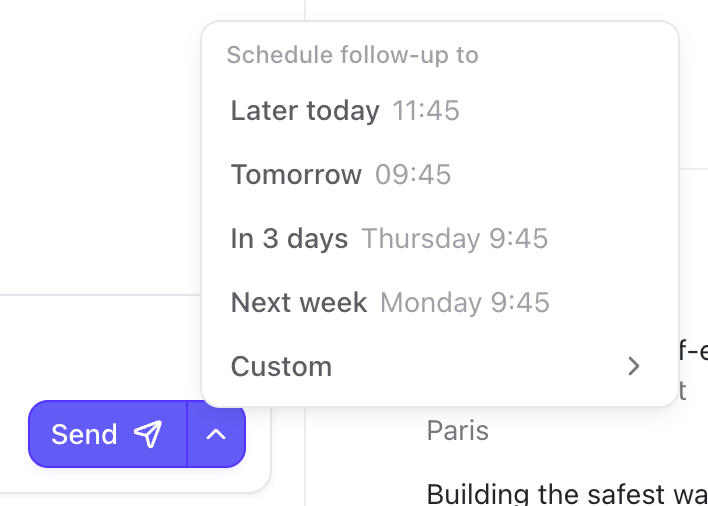
Schedule a follow-up
Write your message, then open the arrow menu beside Send. Choose one of the suggested times or select a custom date and time. You can also pressCMD + Shift + Enter to open the scheduling menu without using your mouse.
See Schedule follow-ups for the complete workflow.
Send a voice note
You might know that, strangely, LinkedIn only supports sending voice notes from its mobile app, not from the desktop app. But with TalkToHumans, you can send them from your desktop. Here’s how: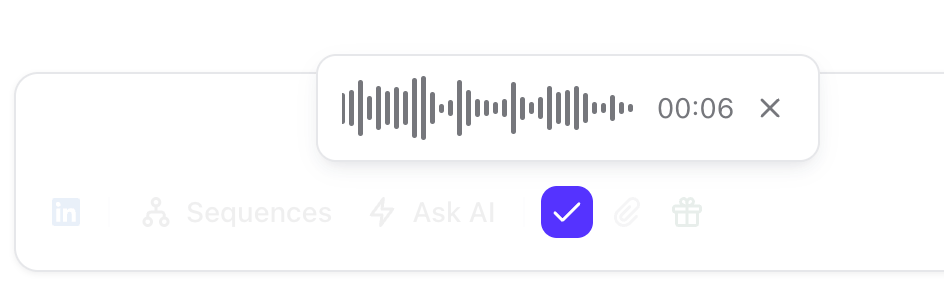
V twice to start recording a voice note.
While recording:
- Press
Enteror click the checkmark to attach the voice note. - Press
Escor click the cross to discard it.
InMail threads do not support voice messages
Attach files
Click the paperclip, pressCMD + U, or paste files directly into the composer to attach them to a message.
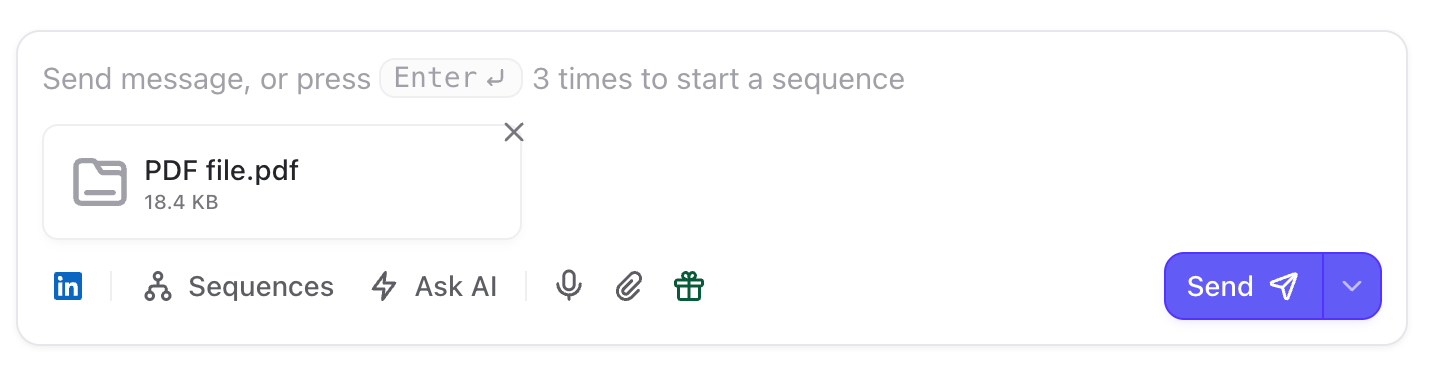
- Images
- Videos
- PDFs
- M4A audio files
InMail threads do not support attachments
Personalize your message
Use a template
If you reuse the same message patterns, open Sequences and select a template to apply it.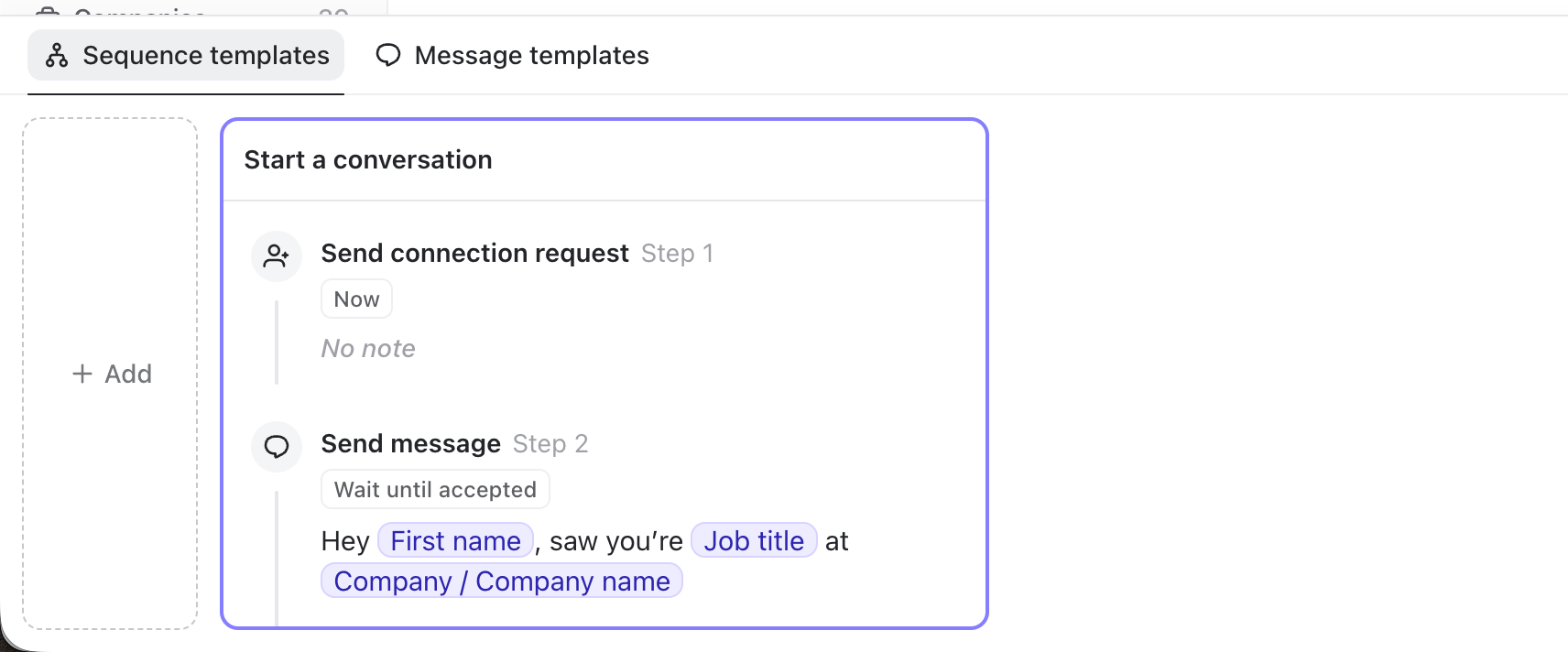
Use AI actions
Click Ask AI to proofread, shorten, translate, personalize, or draft a reply.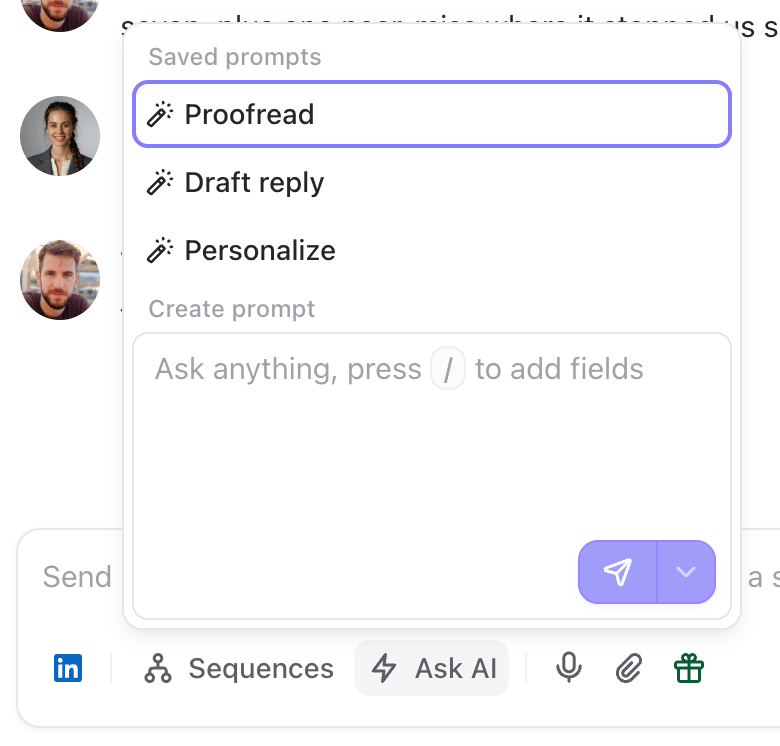
Add custom variables
Once you start writing, a small + appears beside your cursor. Click it to insert information about the current contact or company, such as their first name, job title, company name, or other available fields. Custom variables can be used in sequences, templates, and AI actions.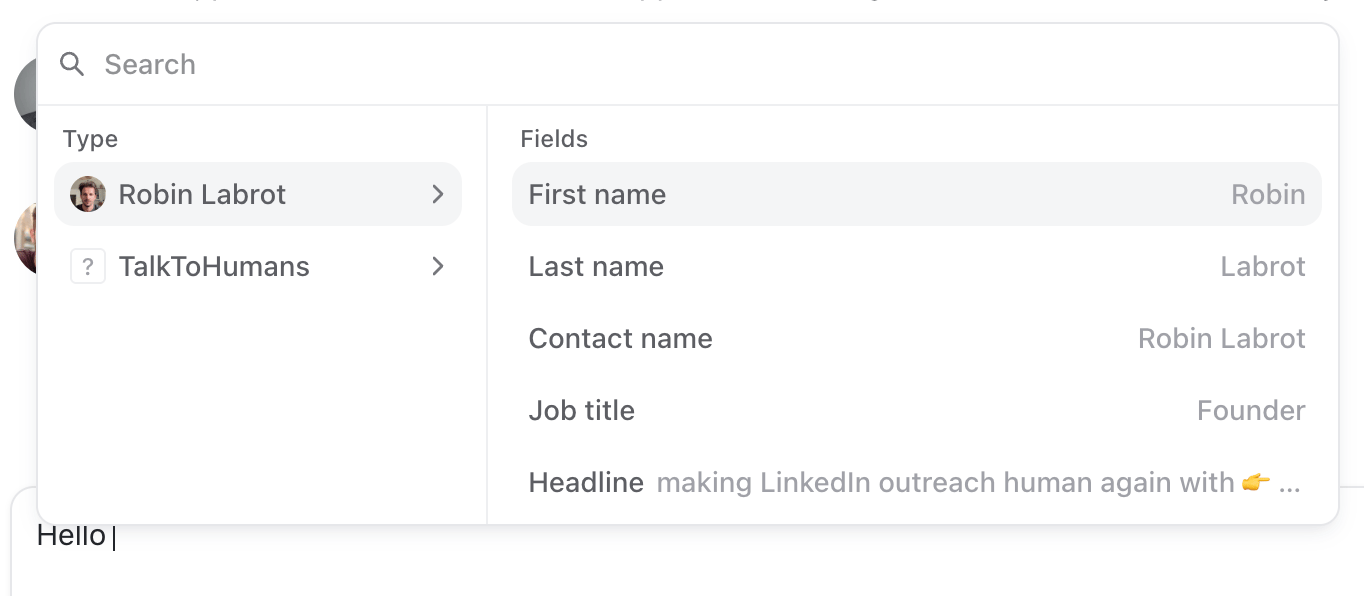
/ to open the same menu from the keyboard.
Variables are resolved for the person you are messaging. If TalkToHumans cannot find a value, the variable is highlighted so you can replace or remove it before sending.
Drafts
Unlike LinkedIn’s default inbox, TalkToHumans automatically saves your message drafts and unlaunched sequences. An indicator appears on conversations with a draft, and you can use the default Drafts view to find them: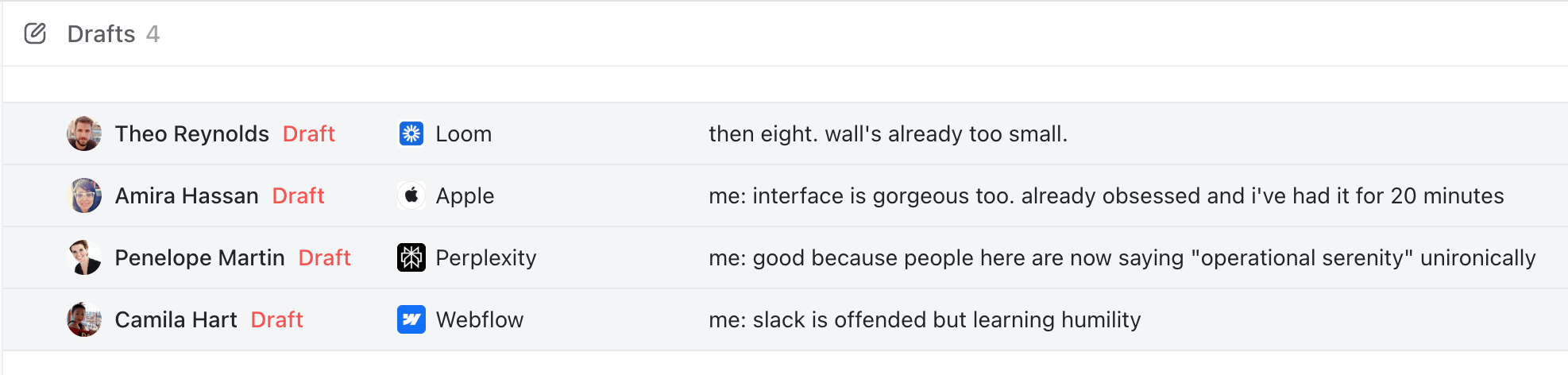
Reply to a specific message
Hover over the message and click the reply icon.
React to a message
Hover over a message and click the smiley icon. Choose an emoji to react to the message. You can also remove a reaction you previously added.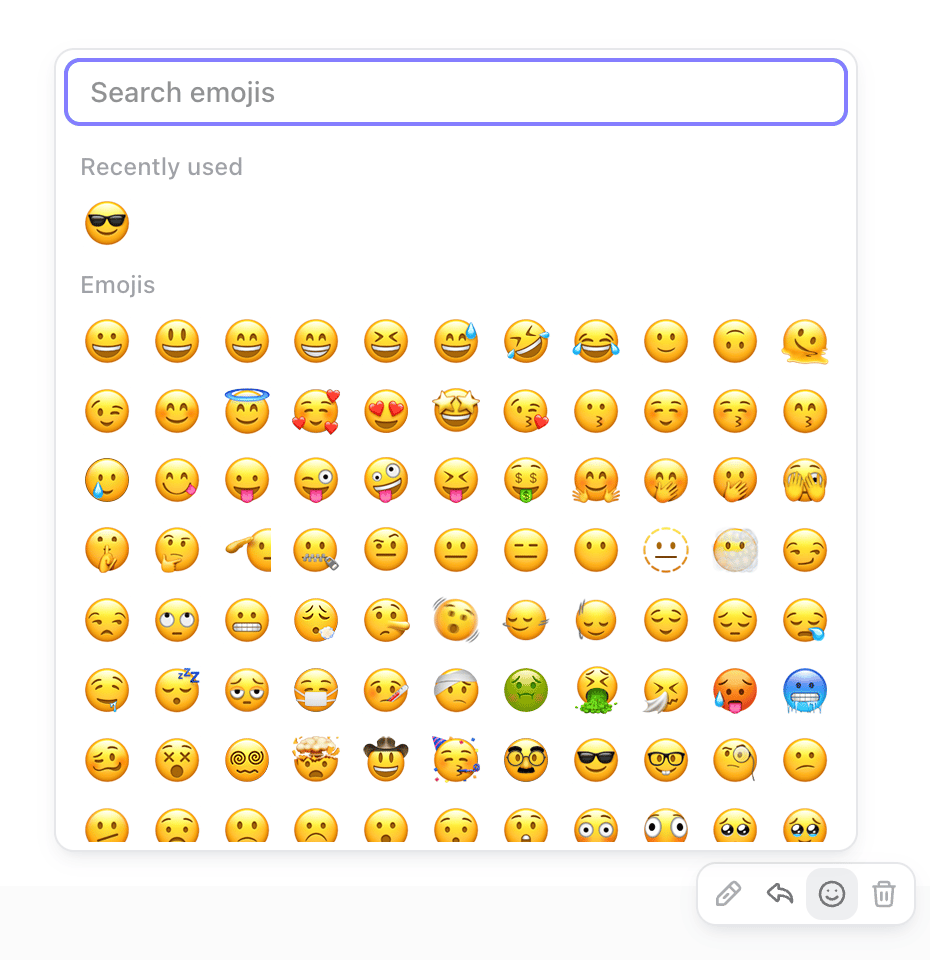
Edit a sent message
Hover over one of your sent messages and click the edit icon.
CMD + Enter.
LinkedIn only allows you to edit a message within the first hour after sending it
Delete a sent message
Hover over one of your sent messages, click the delete icon, and confirm the deletion.LinkedIn only allows you to delete a message within the first hour after sending it
Switch between LinkedIn messages and InMail
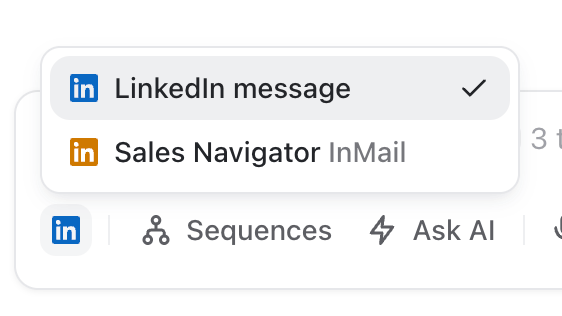
A contact can have a regular LinkedIn message thread and a separate Sales Navigator InMail thread. Use the LinkedIn icon on the left side of the composer to switch between them:- LinkedIn message opens the regular DM thread.
- Sales Navigator InMail opens the InMail thread.
Composer shortcuts
See the complete list of keyboard shortcuts.