

The two roles
TalkToHumans has two roles: Admin and Member. Long story short: Members can do the day-to-day work. Admins can do the same work, plus manage the organization and anything that affects the whole team.Default roles
When you create a new account
If you sign up without an invitation, TalkToHumans creates a new organization for you. You become its Admin by default.When you join through an invitation
Users who accept an invitation join the organization as Members by default. An Admin can promote them after they join.Invite teammates
Only Admins can invite users. Go to Settings → Organization, then click Invite users: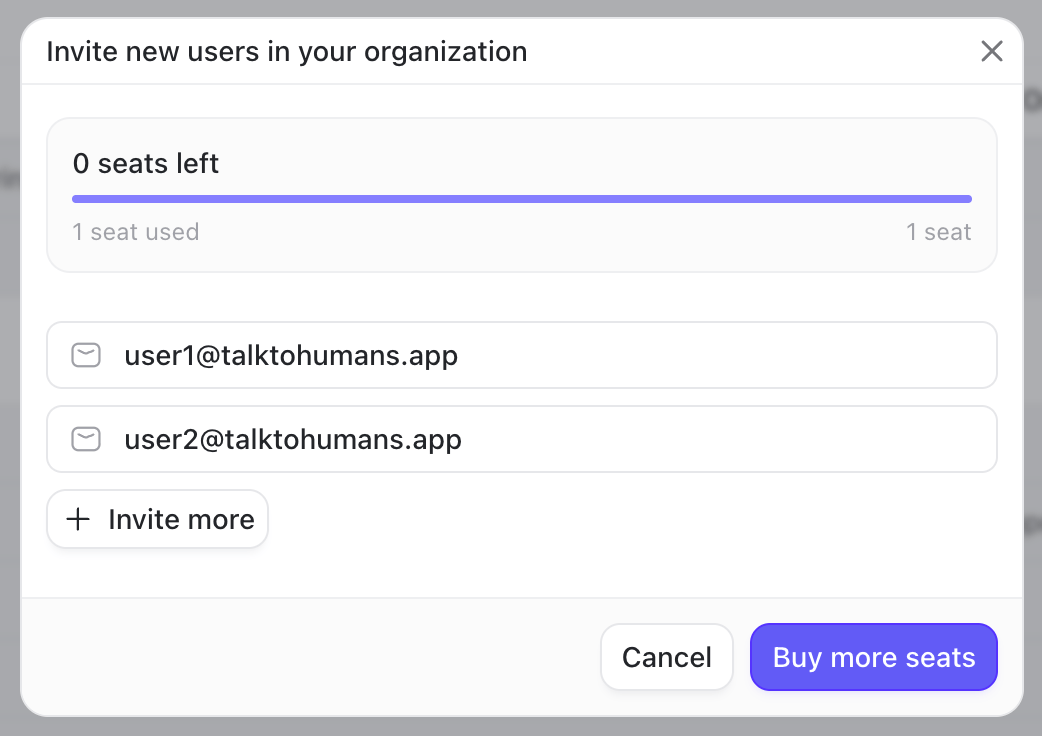
Check pending invitations
Open the Invites tab under Settings → Organization to see all invitations and their statuses: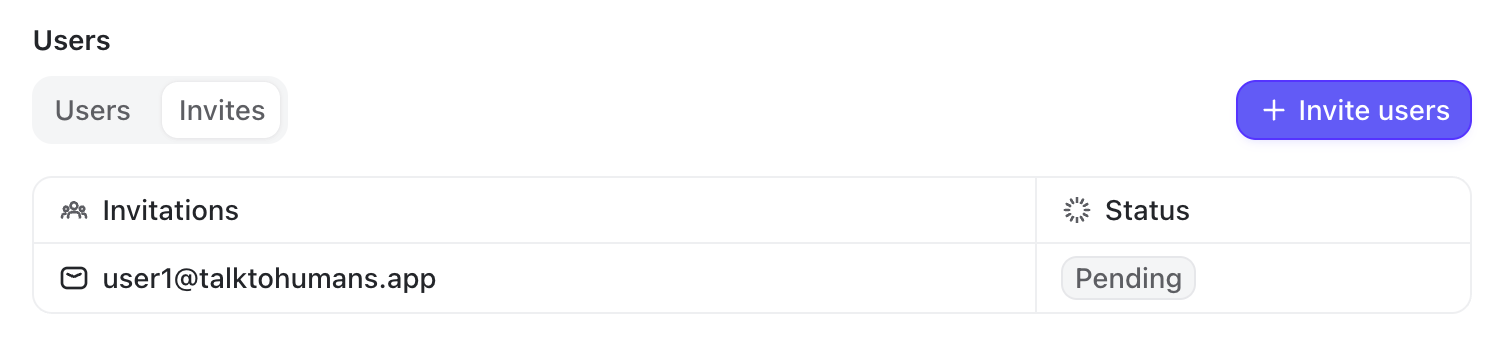
Pending invitations reduce the number of available seats.
Change a role or remove a user
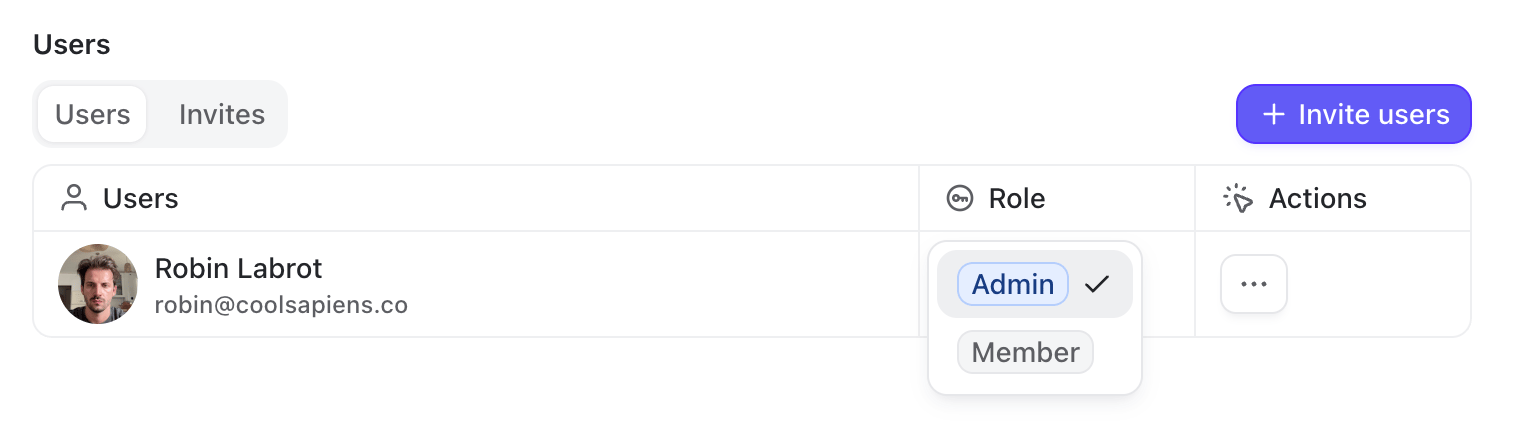
Go to Settings → Organization → Users. From there, an Admin can:- Promote a Member to Admin
- Change an Admin back to Member (as long as another Admin remains)
- Remove a user from the organization
What your organization shares
TalkToHumans is collaborative by default.Contacts and companies
Contacts, companies, profile details, relationship data, notes, custom-field values, and tag assignments are shared with the organization. If one teammate adds a note, updates a field, or tags a contact, the rest of the team sees the change.Contacts & companies are shared only when two users with different LinkedIn accounts have access to the same contacts. For example, because they imported, connected with, or invited them.