LinkedIn’s inbox is notoriously broken: it’s disorganized, poorly prioritized, difficult to track, painfully slow, cramped, and fragmented across DMs, Sales Navigator, and Recruiter. If you manage more than 10 conversations a day and LinkedIn is where you work, things get messy fast. Important conversations get buried, follow-ups are forgotten, and valuable opportunities slip through the cracks. The good news: we fixed it. Here’s how to get the most out of your inbox:

The default setup

TalkToHumans comes with four main inboxes out of the box: Default Inboxes Tth
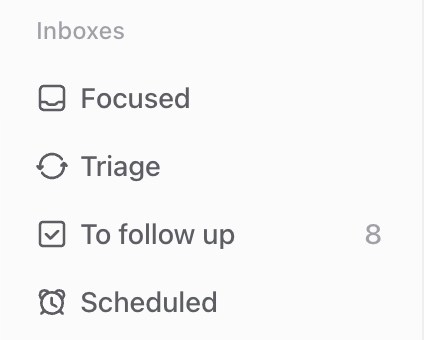
  1. Focused
Your home base, every active conversation that needs you. Conversations with scheduled follow-ups are removed until they become active again. Archived conversations are removed too.
  1. Triage
Conversations that are not yet tagged, archived or muted. Useful as a way to sort conversations you haven’t organized yet. Add a tag to keep track of relevant ones, archive those you’re done with, or mute those you don’t need to hear from.
  1. To follow up
Conversations where you sent the last message and haven’t heard back. Schedule follow-ups here so warm conversations don’t go cold.
  1. Scheduled
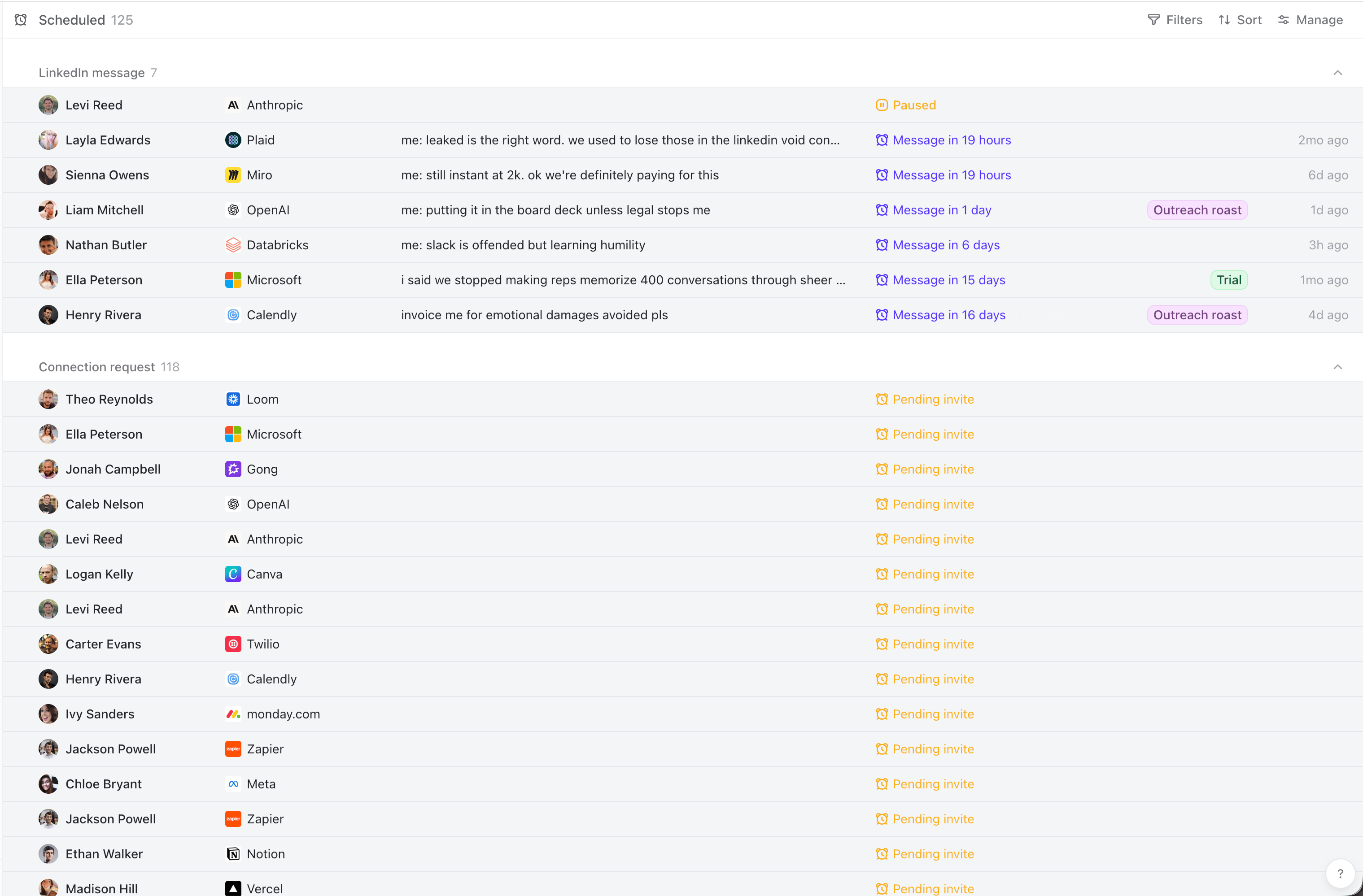
Review, edit, or cancel scheduled follow-ups and connection requests before they’re sent.
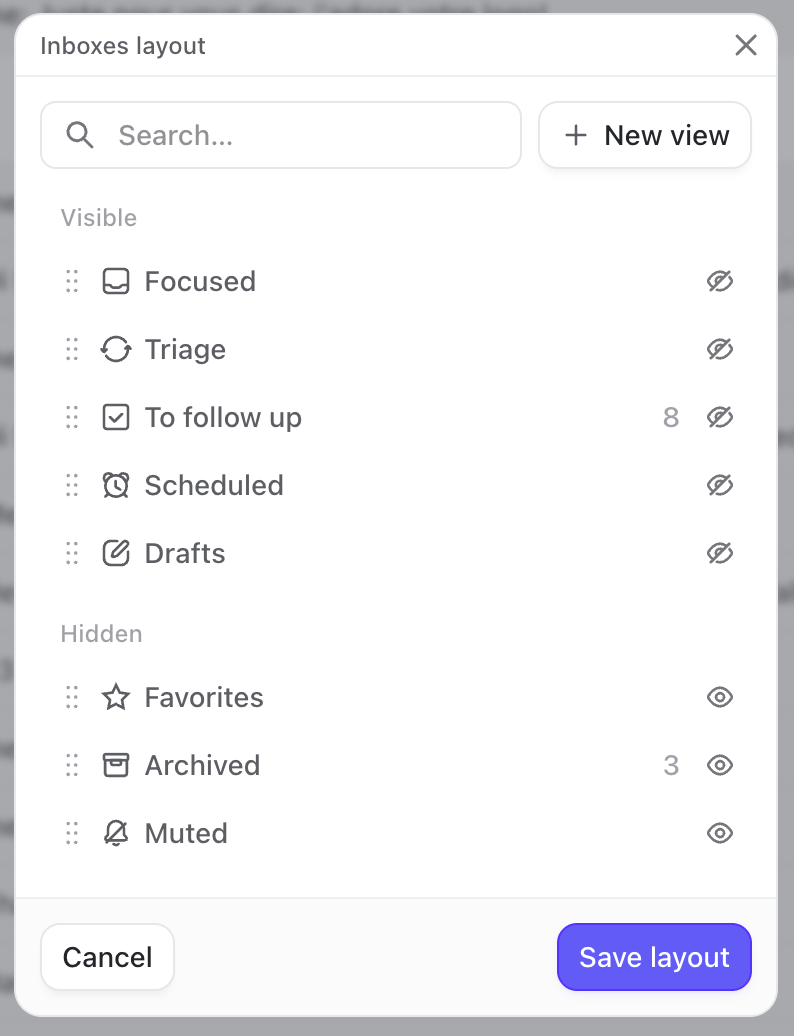
By default, a few default inboxes are hidden to keep things simple (like favorites, archived and muted).You can enable them anytime if you need them by opening the inbox settings, and make them visibleOther Default Inboxes TthOpen the inbox settings, and make them visible if you need them.
A simple daily workflow

1. Work through Focused

Open Focused and work through your most recent conversations. Focused Inbox For each conversation, decide what to do next:
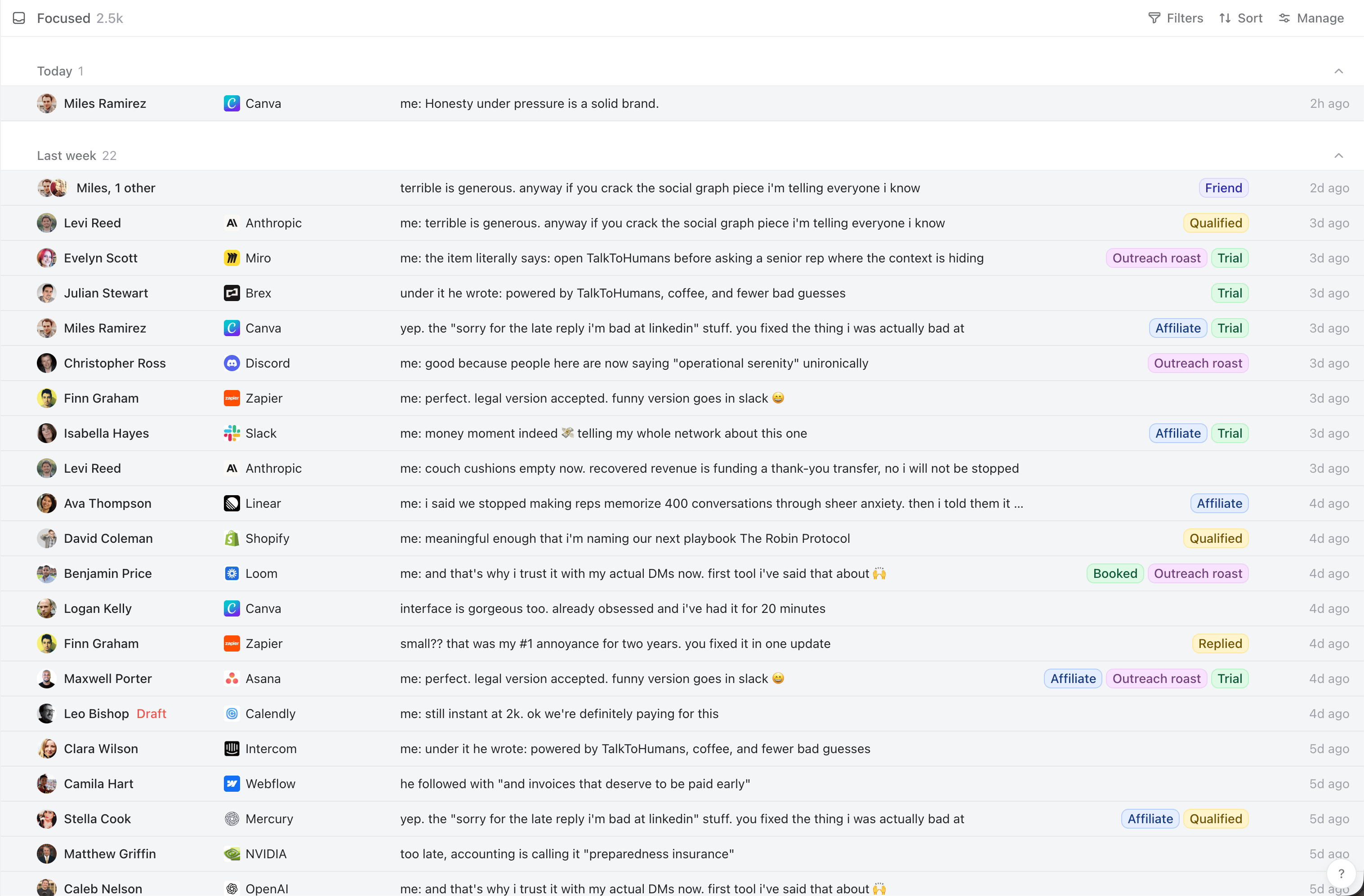
  • Reply
  • Schedule a follow-up
  • Add or update a tag to move the conversation to a specific inbox
  • Keep the conversation unread if you intentionally want to return to it
  • Archive it if irrelevant

2. Sort conversations in Triage
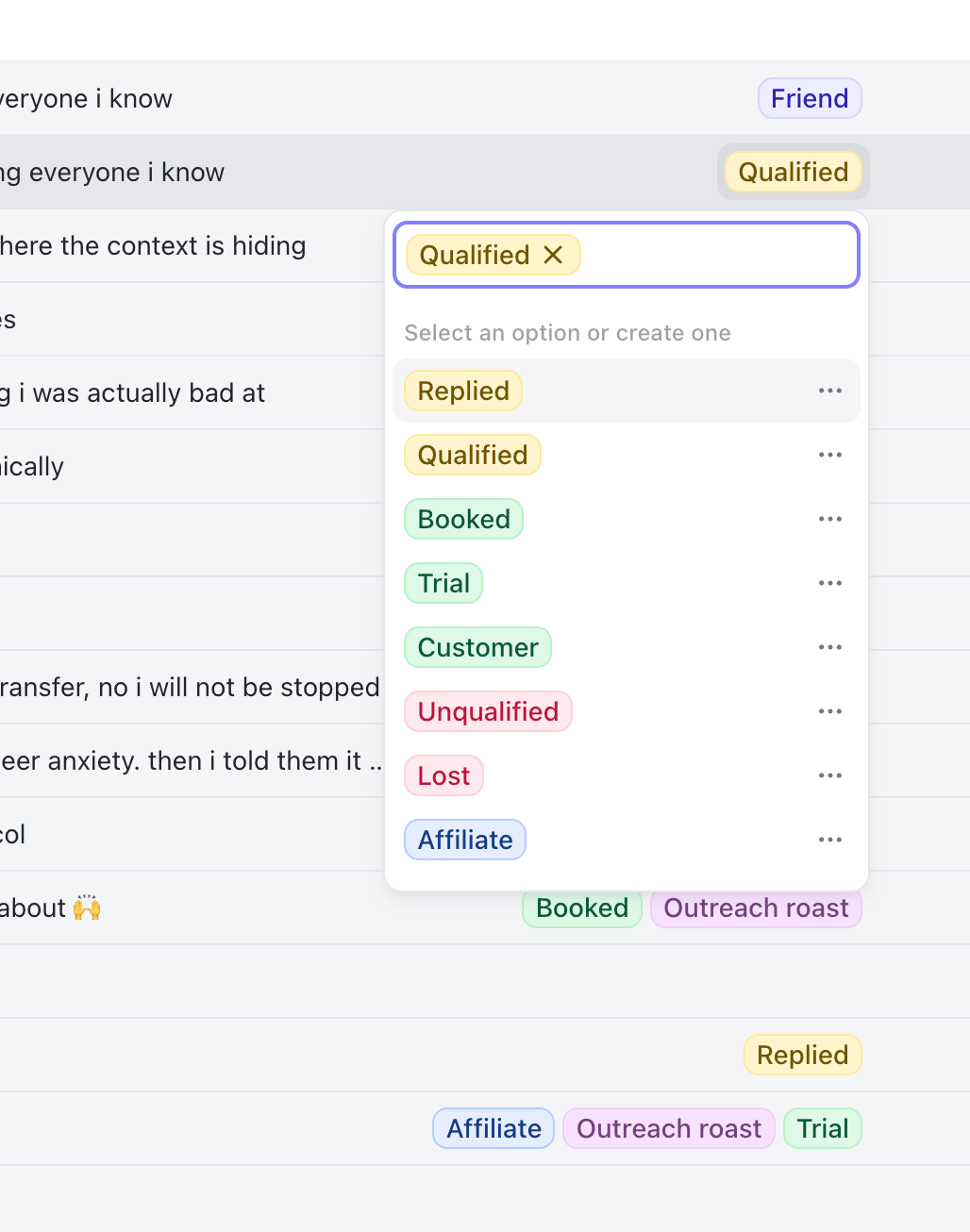
Inbox Tag From Open Triage to organize conversations that aren’t yet tagged, archived, or muted. Add a tag to keep track of relevant ones, archive those you’re done with, or mute those you don’t need to hear from.

3. Protect warm conversations from going cold

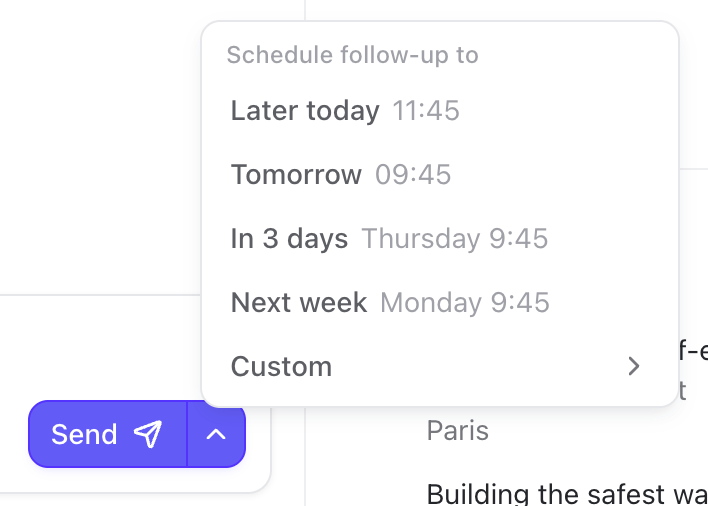
Open To follow up. For each conversation, decide whether to follow up now, schedule a follow-up for later, add a sequence, or stop pursuing it. Composer Schedule Follow Ups 1 If you schedule a follow-up, the conversation stays out of your active inbox until it becomes relevant again. If the person replies before then, the follow-up is automatically canceled.
4. Review upcoming actions

Open Scheduled when you want to see what will happen next. You can review, edit, reschedule, or cancel upcoming follow-ups and connection requests before they are sent. Inbox Scheduled Review 1
Make it yours

If you want to quickly categorize conversations by pipeline stage, topic, customer, or any other workflow, check out how to use the inbox feature.