1. Connect your Hubspot account
Go to Settings → Integrations and connect your Hubspot account: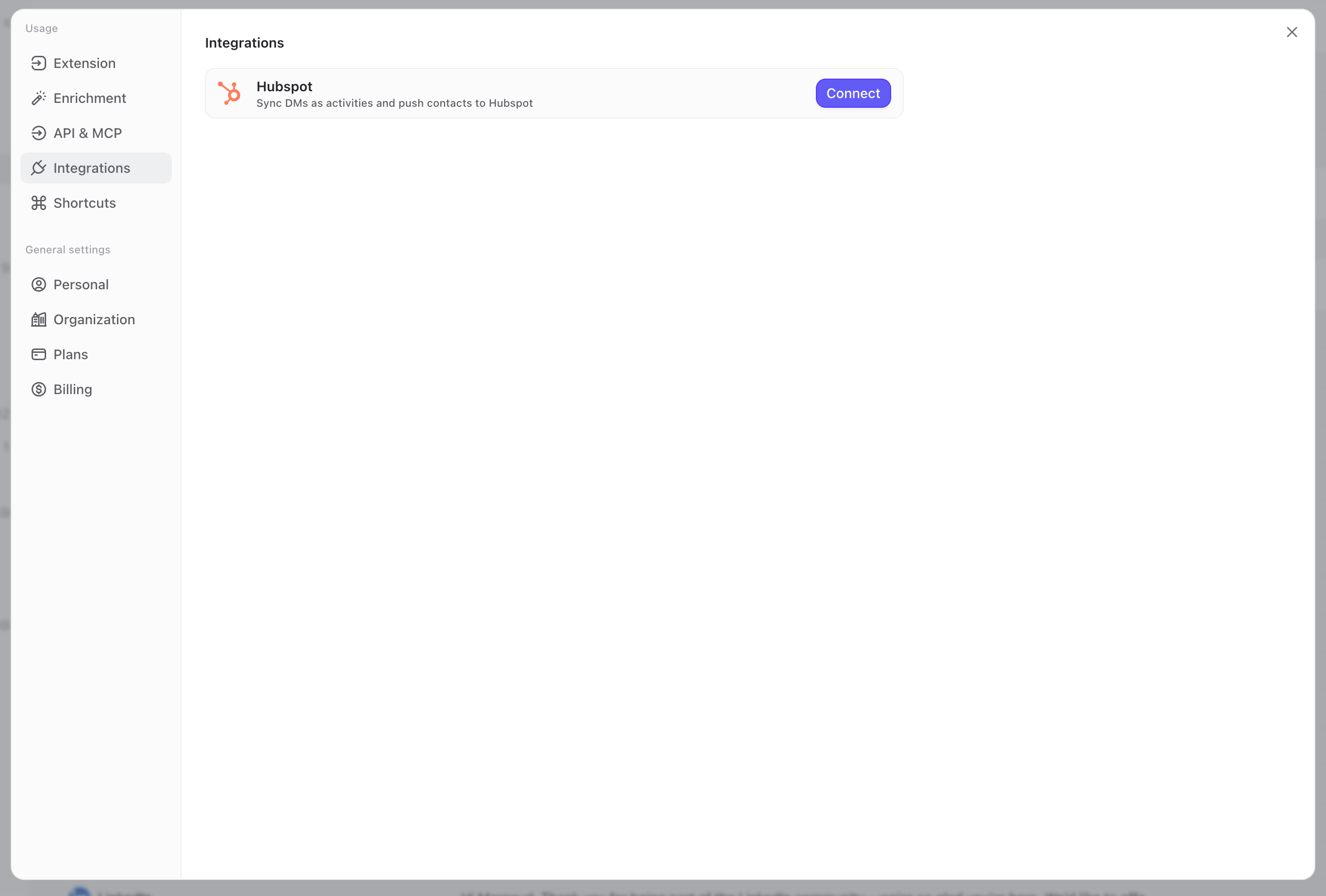
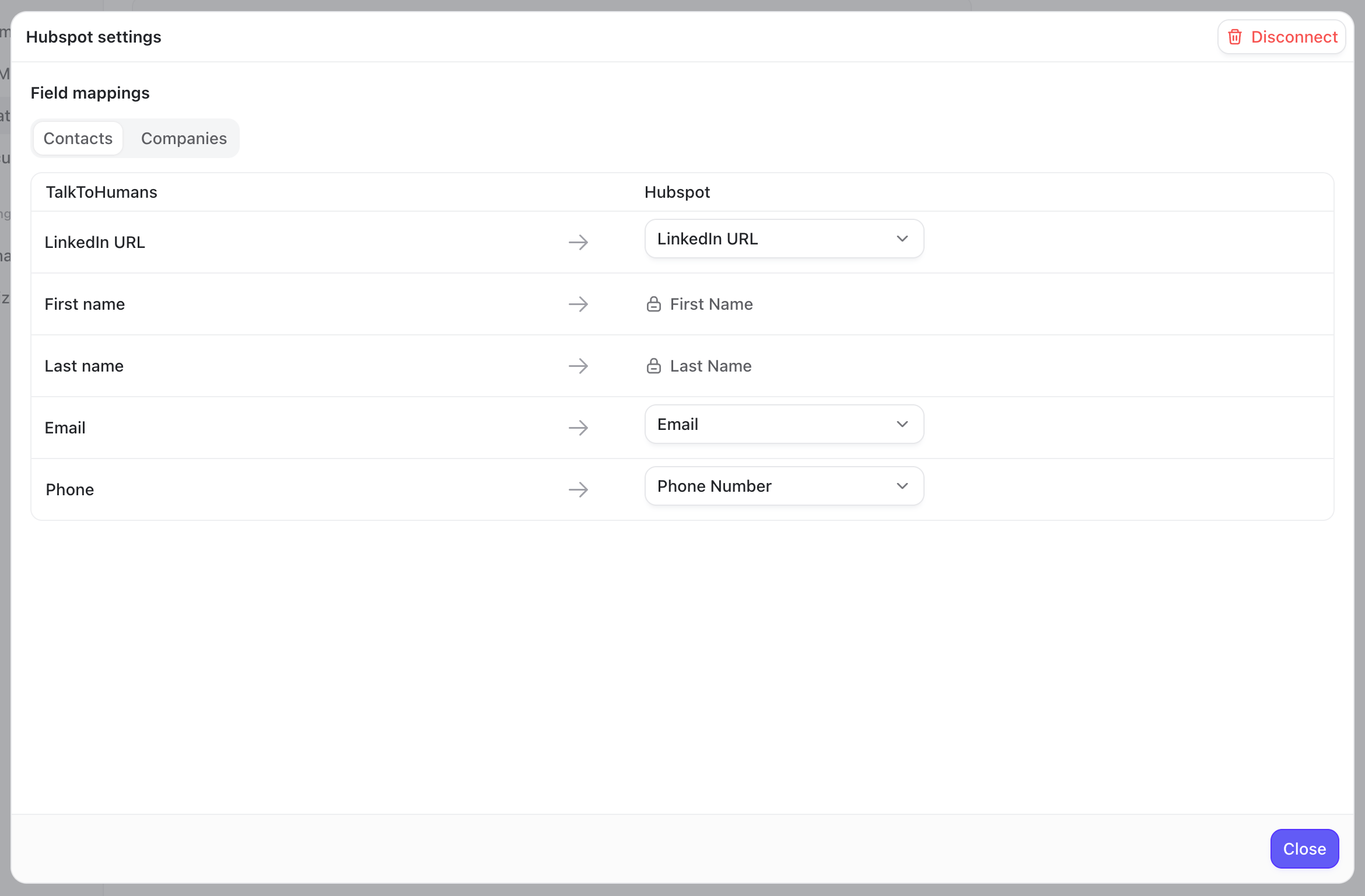
2. Create or link contacts in Hubspot
TalkToHumans might contain thousands of contacts, including personal and professional connections. That does not mean all of them belong in your CRM, so here’s how it works:- Existing contacts that match Hubspot contacts are automatically linked
- Contacts that aren’t yet in Hubspot are not created automatically. Instead, you can push specific contacts from the sidebar:
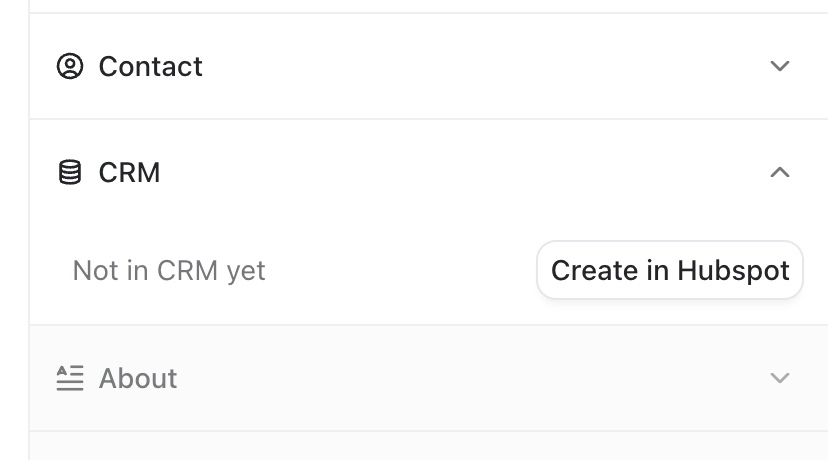
Creating a contact also creates their primary company in Hubspot
3. Keep new LinkedIn DMs in Hubspot automatically
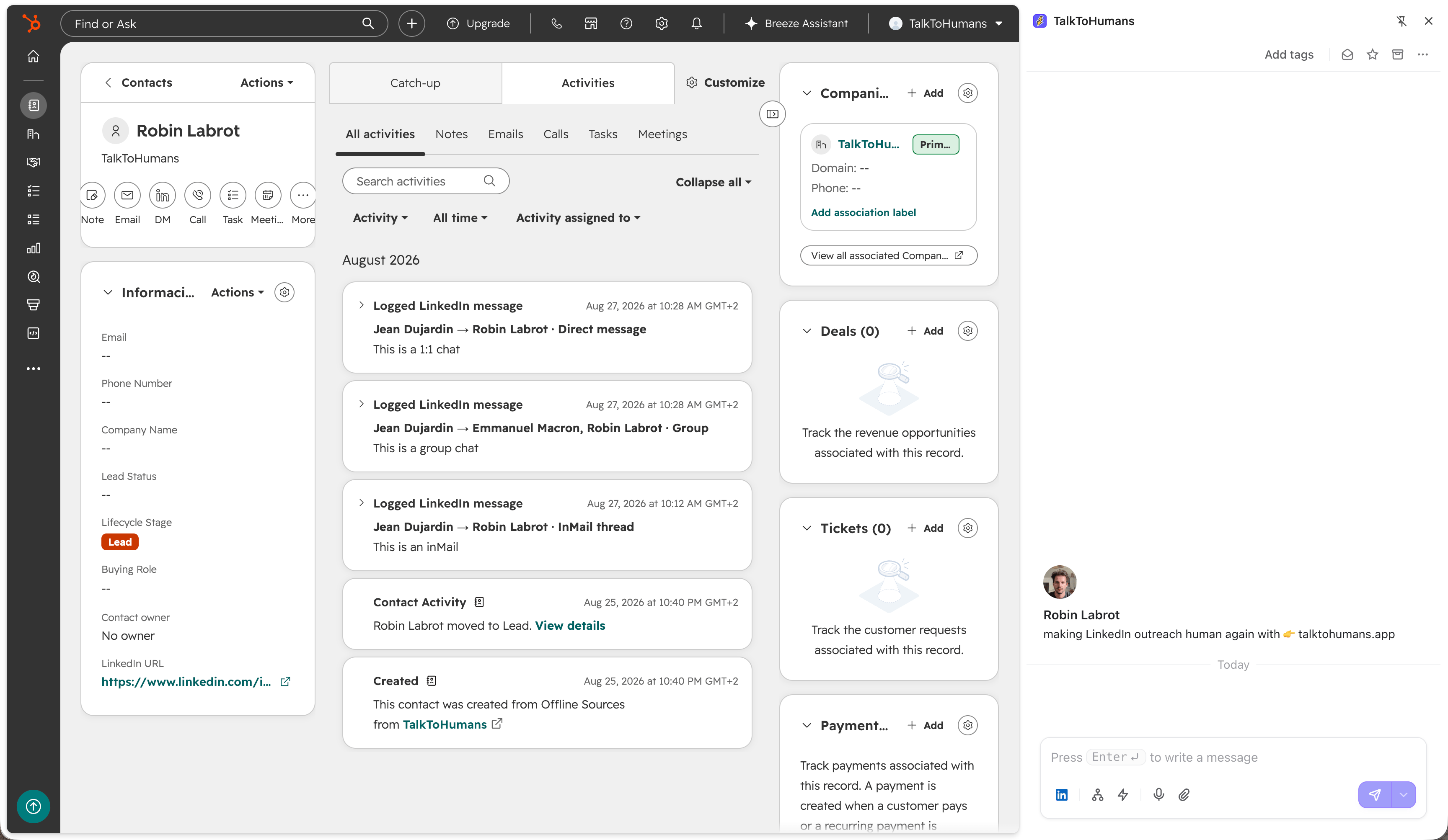
Once a contact is linked, new LinkedIn DMs are automatically logged in Hubspot as LinkedIn activities: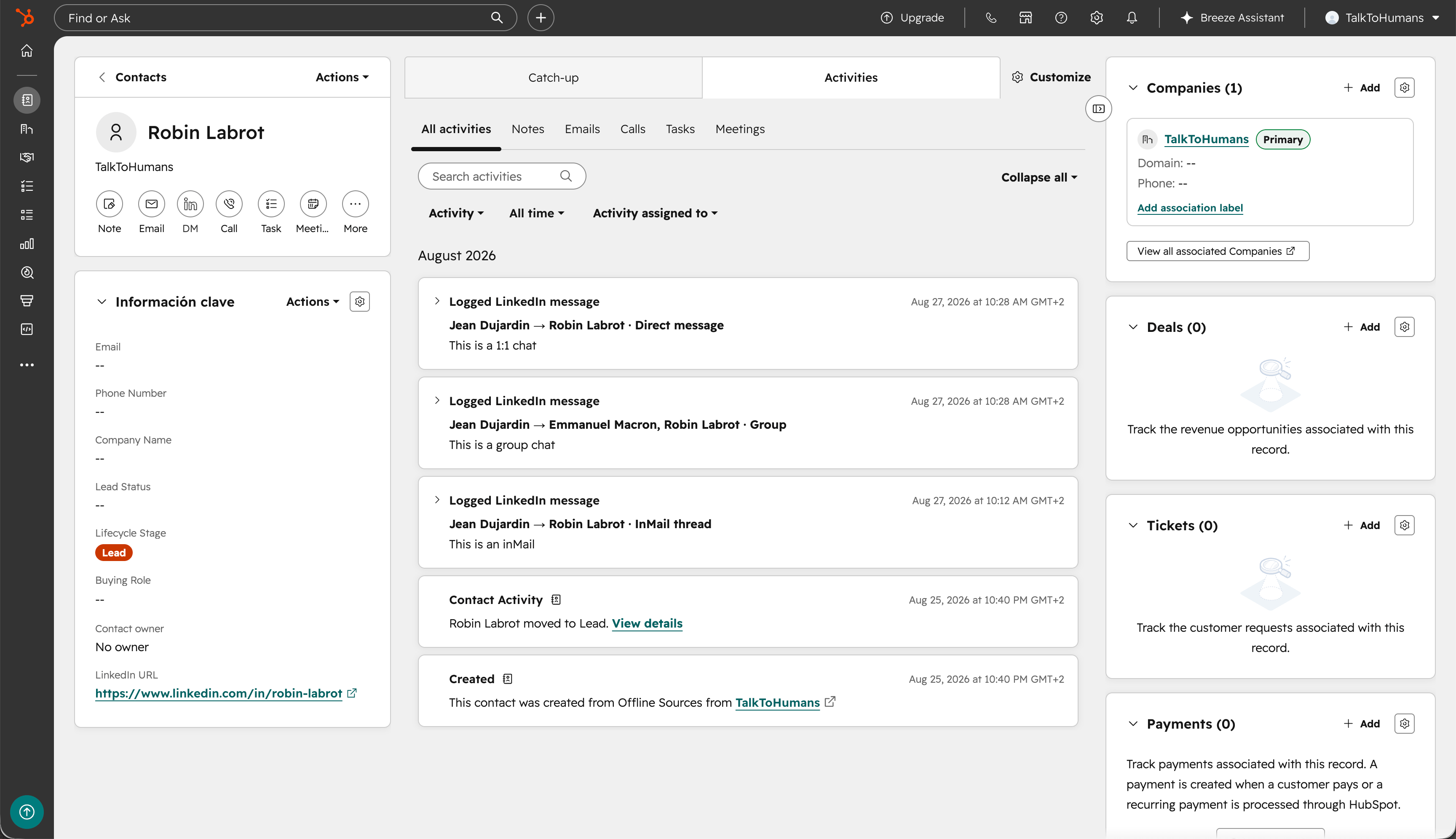
4. Send messages or schedule sequences directly from Hubspot
When you’re on a contact page in Hubspot, clicking the “DM” button will open a chat sidebar directly on the page: