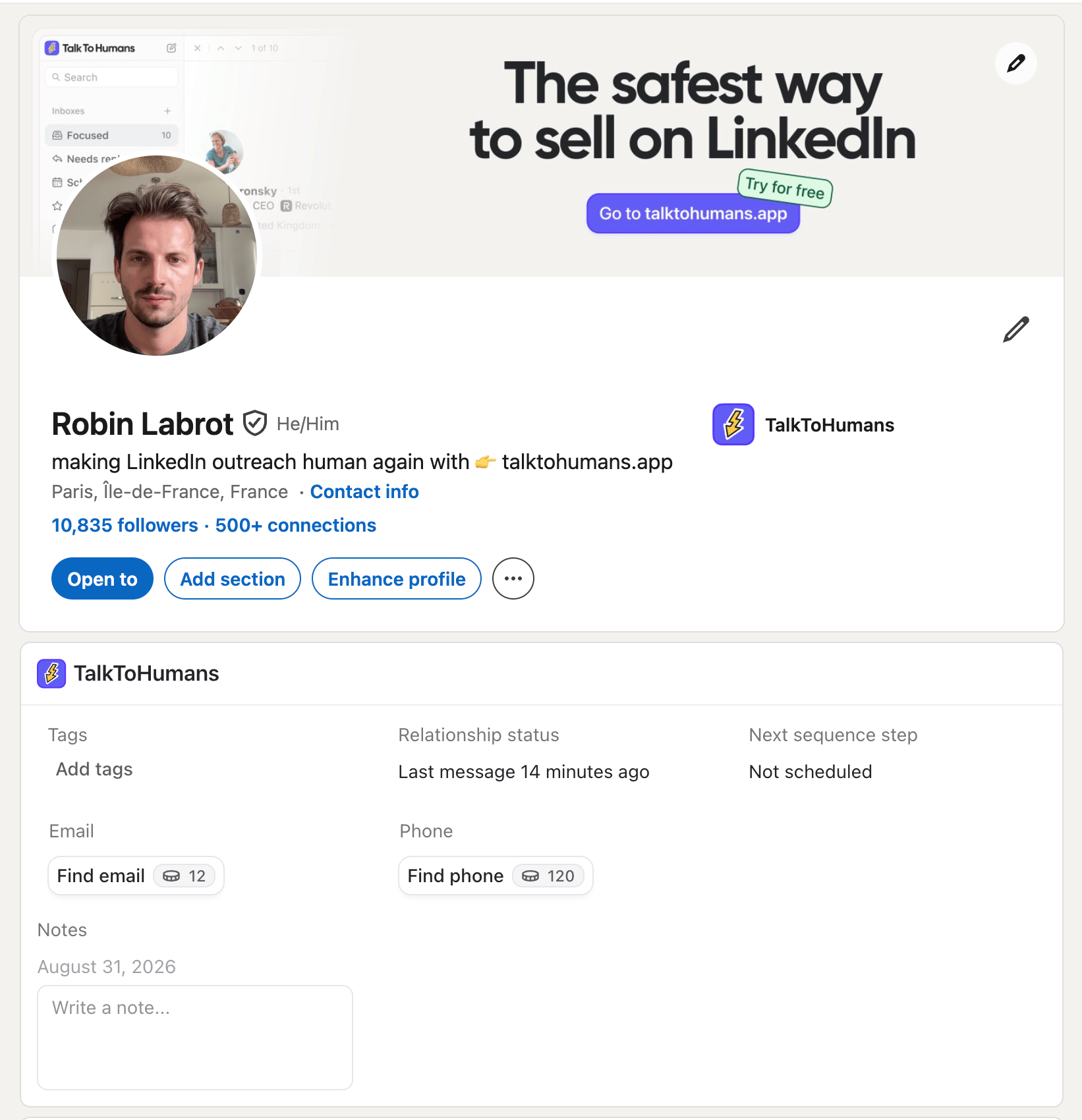
Tags and notes are internal to TalkToHumans. They are never added to LinkedIn or shown to the person.
Use tags for context at a glance
Tags are useful for anything you need to recognize quickly:- A pipeline stage, such as Hot lead or Customer
- A relationship type, such as Friend, Partner, or Candidate
- A topic, market, or customer segment
- An owner, if several teammates share an inbox
Add tags to a contact
Open a conversation or contact, then click Add tags in the header or contact sidebar: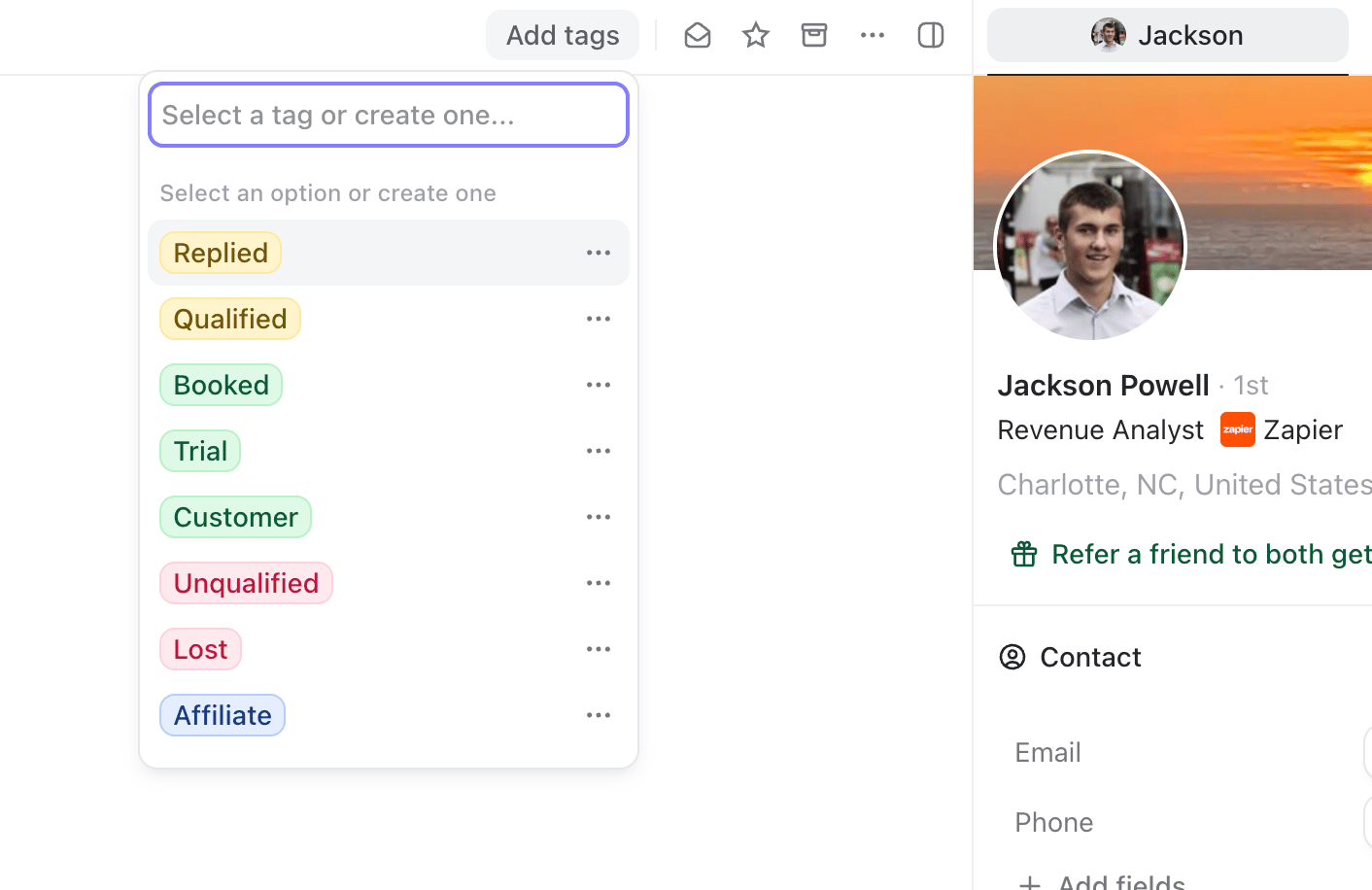
L to open the tag selector without leaving the keyboard.
From there:
- Select an existing tag to add or remove it.
- Type a new name and press
Enterto create a tag. - Add as many tags as you need.
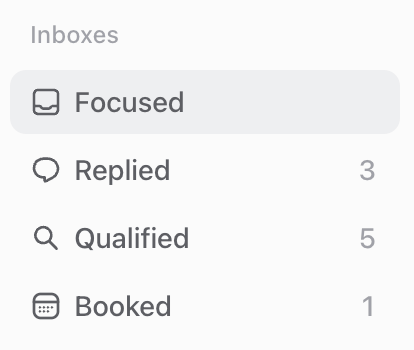
Tags are shared within your organization by default
Tag a company
Open the Company tab in the right sidebar, then click Add tags. You can also pressShift + L to open the company tag selector.
Contact and company tags are kept separate. A Customer tag for contacts and a Customer tag for companies are two different tags, so you can organize each list without mixing them together.
Edit or delete a tag
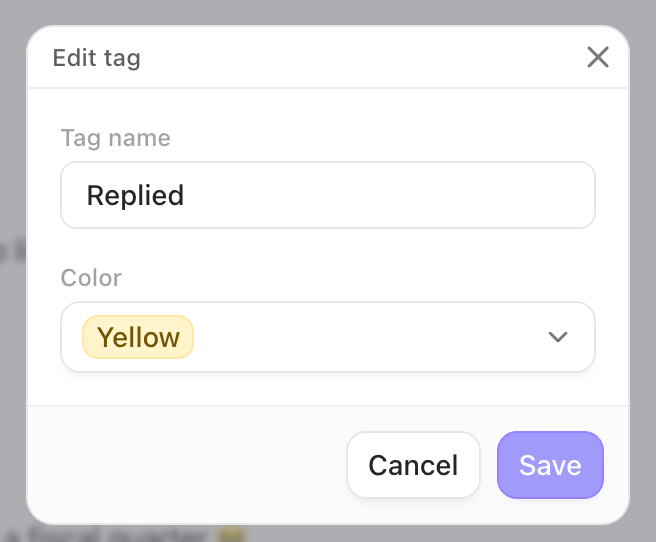
Open the tag selector and click the menu beside a tag. You can:- Change its name or color
- Delete it
- Drag tags into the order you prefer
Add tags to several contacts at once
From an inbox or contact view, select several rows and click Add tags in the bulk-action bar.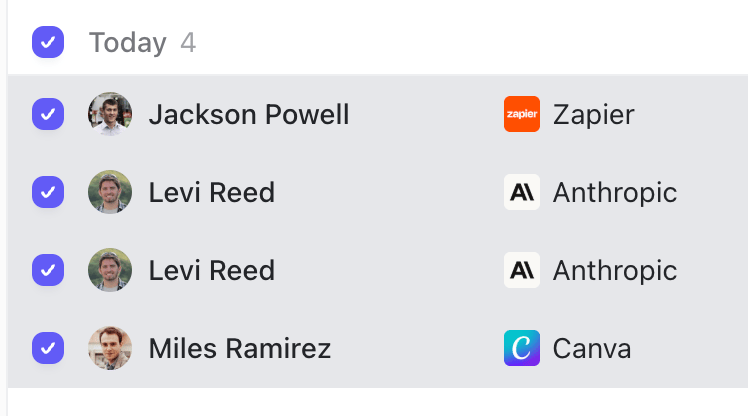
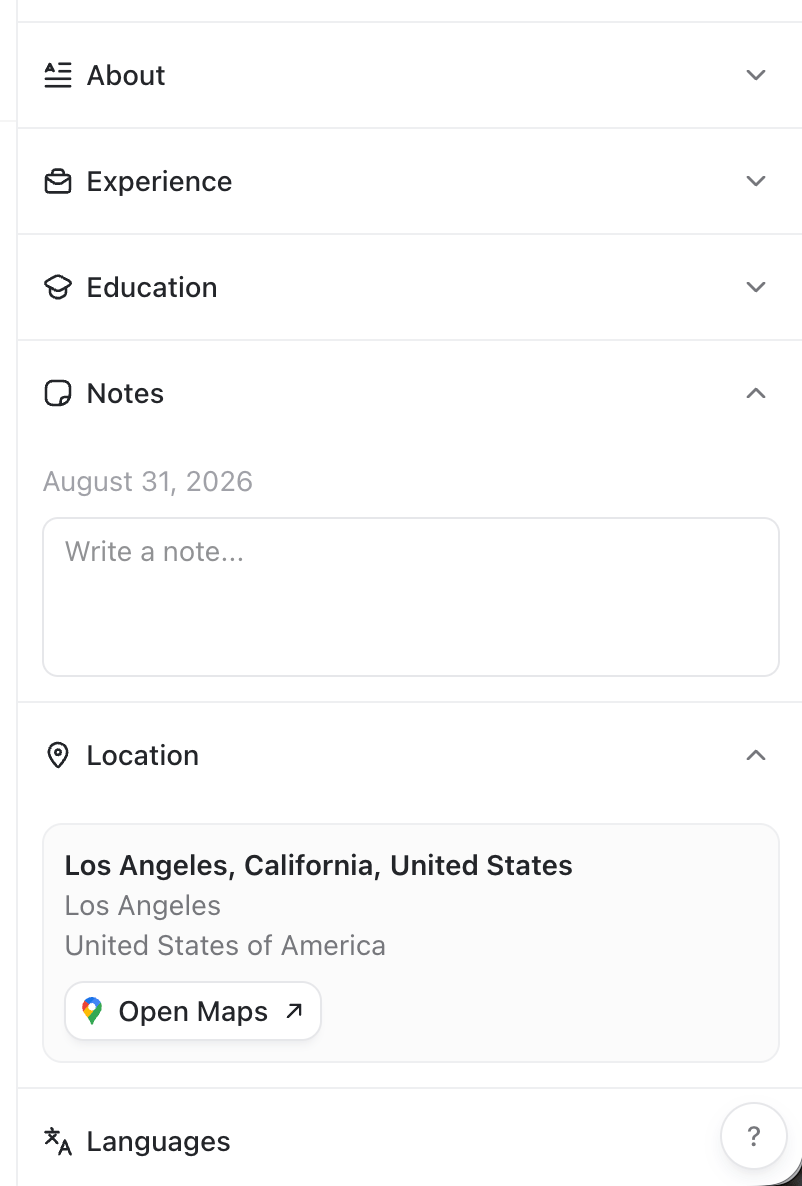
Create notes
Useful notes might include:- How you met
- Why they fit your ICP
- Who introduced you
- What they care about
- A constraint mentioned during a call
- The next step you agreed on
Add context directly from LinkedIn
When you visit someone’s LinkedIn profile, the TalkToHumans panel shows their tags and notes beside the profile. From there, you can:- Import the person into TalkToHumans if they are not there yet
- Edit tags
- Edit notes
- Find email or phone