> ## Documentation Index
> Fetch the complete documentation index at: https://talktohumans.app/docs/llms.txt
> Use this file to discover all available pages before exploring further.
# 🔒 Roles & permissions
TalkToHumans is built around **organizations**, and each organization contains users.
Users have specific roles within each organization.
## The two roles
TalkToHumans has two roles: **Admin** and **Member**.
Long story short:
**Members can do the day-to-day work.** Admins can do the same work, plus manage the organization and anything that affects the whole team.
| **Action** | **Admin** | **Member** |
| :-------------------------------------------------------- | :-------: | :--------: |
| Work with contacts, companies, conversations, and inboxes | ✓ | ✓ |
| Create and edit views, tags, templates, and AI prompts | ✓ | ✓ |
| Reply, launch sequences, and schedule follow-ups | ✓ | ✓ |
| Update values in existing custom fields | ✓ | ✓ |
| Create, edit, or delete custom-field definitions | ✓ | — |
| Change organization information | ✓ | — |
| Invite or remove users | ✓ | — |
| Change another user's role | ✓ | — |
| Manage plans and billing | ✓ | — |
| Connect integrations and change CRM field mappings | ✓ | — |
| Create or revoke API keys and MCP credentials | ✓ | — |
## Default roles
### When you create a new account
If you sign up without an invitation, TalkToHumans creates a new organization for you.
**You become its Admin by default.**
### When you join through an invitation
Users who accept an invitation join the organization as **Members** by default.
An Admin can promote them after they join.
Every organization must keep at least one Admin.
## Invite teammates
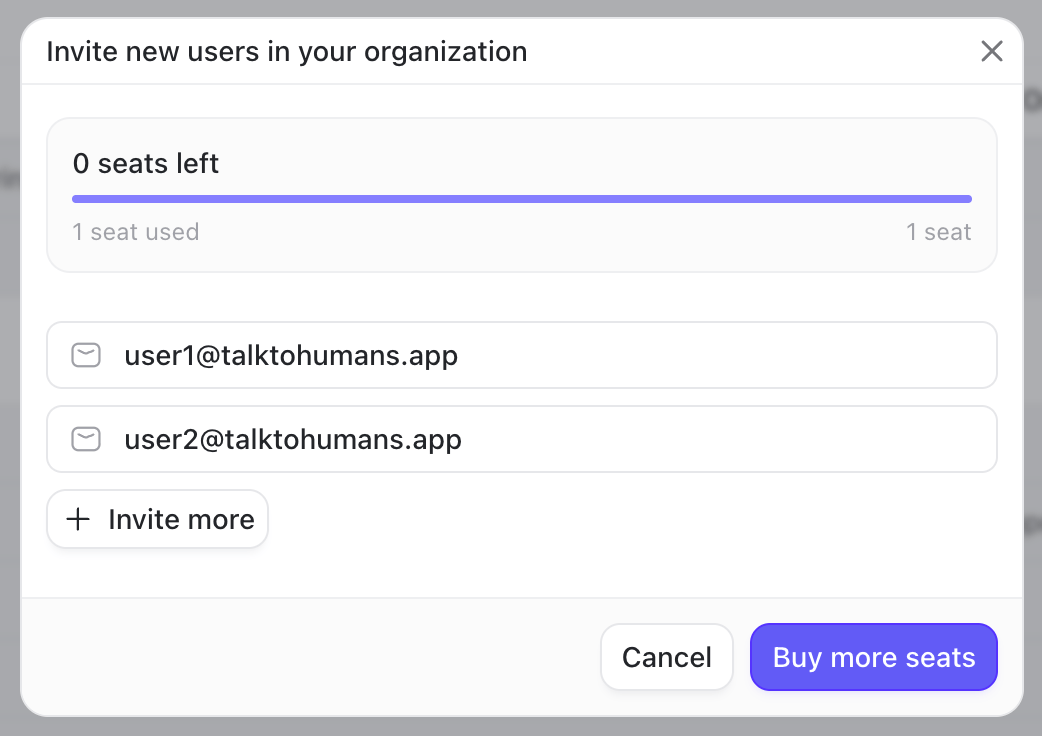
Only Admins can invite users.
Go to **Settings → Organization**, then click **Invite users**:
 ## Check pending invitations
Open the **Invites** tab under **Settings → Organization** to see all invitations and their statuses:
## Check pending invitations
Open the **Invites** tab under **Settings → Organization** to see all invitations and their statuses:
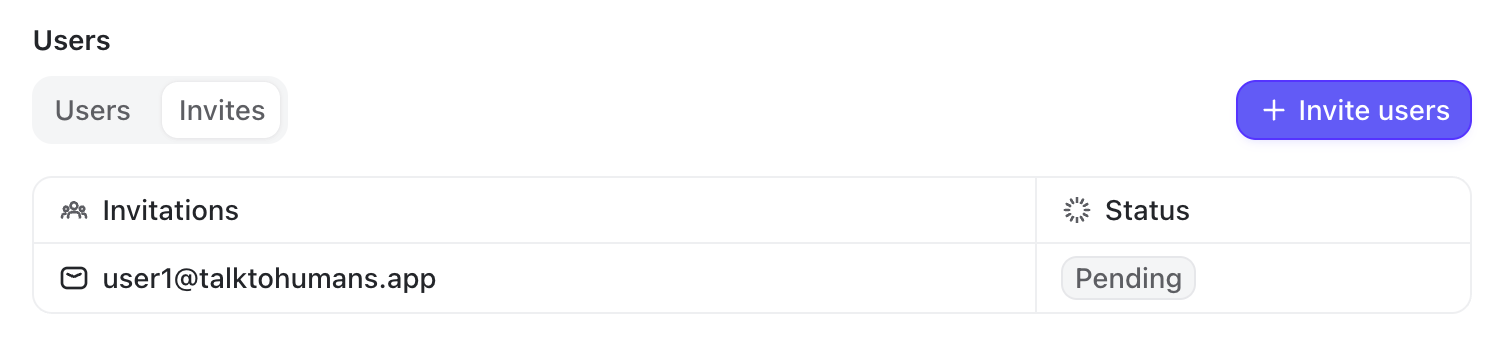 Pending invitations reduce the number of available seats.
## Change a role or remove a user
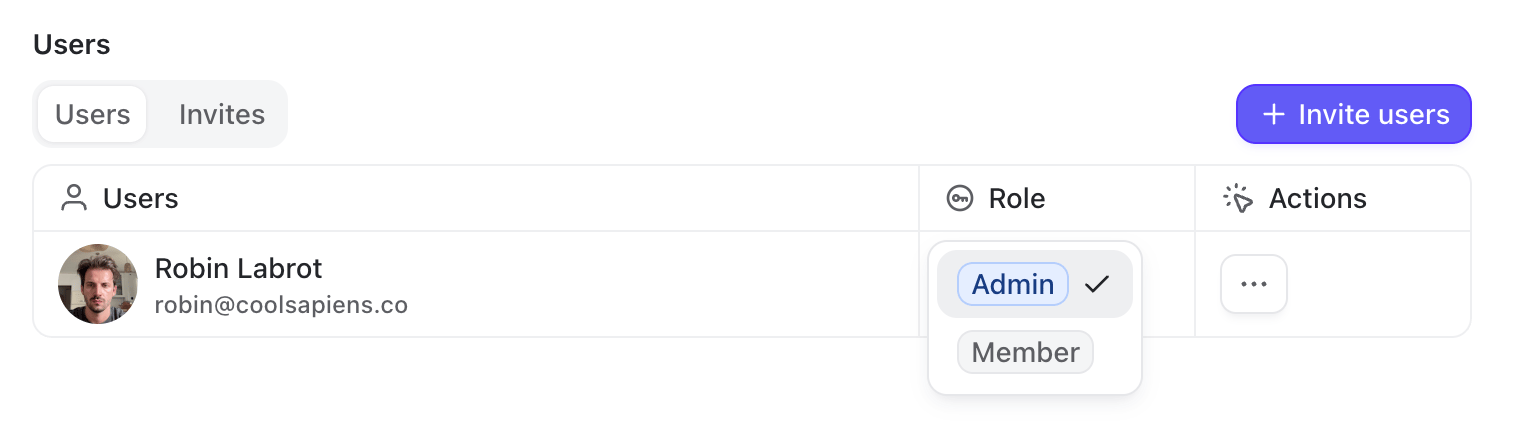
Go to **Settings → Organization → Users**.
From there, an Admin can:
* Promote a **Member** to **Admin**
* Change an **Admin** back to **Member** (as long as another Admin remains)
* Remove a user from the organization
Pending invitations reduce the number of available seats.
## Change a role or remove a user
Go to **Settings → Organization → Users**.
From there, an Admin can:
* Promote a **Member** to **Admin**
* Change an **Admin** back to **Member** (as long as another Admin remains)
* Remove a user from the organization
 ## What your organization shares
TalkToHumans is collaborative by default.
### Contacts and companies
Contacts, companies, profile details, relationship data, notes, custom-field values, and tag assignments are shared with the organization.
If one teammate adds a note, updates a field, or tags a contact, the rest of the team sees the change.
Contacts & companies are shared only when two users with different LinkedIn accounts have access to the same contacts. For example, because they imported, connected with, or invited them.
### Views and inboxes
Contact views, company views, and inboxes belong to the LinkedIn account they were created for.
When a teammate creates or changes a view, everyone working from that LinkedIn account gets the same filters, sorting, columns, and sidebar setup.
### Conversations and scheduled work
Conversations, messages, sequences, follow-ups, and conversation states are shared for that LinkedIn account. This includes read, archived, favorite, and muted states.
This lets one teammate triage a conversation and another pick it up without losing the history or the next scheduled action.
### Tags, templates, and AI prompts
Tags, message and sequence templates, and AI prompts are shared across the organization.
Create them once, and the team can reuse them across any LinkedIn account in the same organization.
## What your organization shares
TalkToHumans is collaborative by default.
### Contacts and companies
Contacts, companies, profile details, relationship data, notes, custom-field values, and tag assignments are shared with the organization.
If one teammate adds a note, updates a field, or tags a contact, the rest of the team sees the change.
Contacts & companies are shared only when two users with different LinkedIn accounts have access to the same contacts. For example, because they imported, connected with, or invited them.
### Views and inboxes
Contact views, company views, and inboxes belong to the LinkedIn account they were created for.
When a teammate creates or changes a view, everyone working from that LinkedIn account gets the same filters, sorting, columns, and sidebar setup.
### Conversations and scheduled work
Conversations, messages, sequences, follow-ups, and conversation states are shared for that LinkedIn account. This includes read, archived, favorite, and muted states.
This lets one teammate triage a conversation and another pick it up without losing the history or the next scheduled action.
### Tags, templates, and AI prompts
Tags, message and sequence templates, and AI prompts are shared across the organization.
Create them once, and the team can reuse them across any LinkedIn account in the same organization.