> ## Documentation Index
> Fetch the complete documentation index at: https://talktohumans.app/docs/llms.txt
> Use this file to discover all available pages before exploring further.
# 🪄 AI prompts
Using AI to write or correct messages usually means copying a conversation into another tab with your favorite AI tool, adding context manually, then pasting the answer back.
TalkToHumans makes it super easy to make quick edits using AI.
We strongly recommend using this feature solely for getting ideas or reviewing what you wrote, not as a way to replace yourself.
AI-written outreach is easy to recognize, rarely feels personal, and contributes to the growing volume of low-quality content on LinkedIn.
## Run a saved AI prompt
1. Open a conversation.
2. Click **Ask AI**, or press `,` twice.
3. Choose one of your saved prompts.
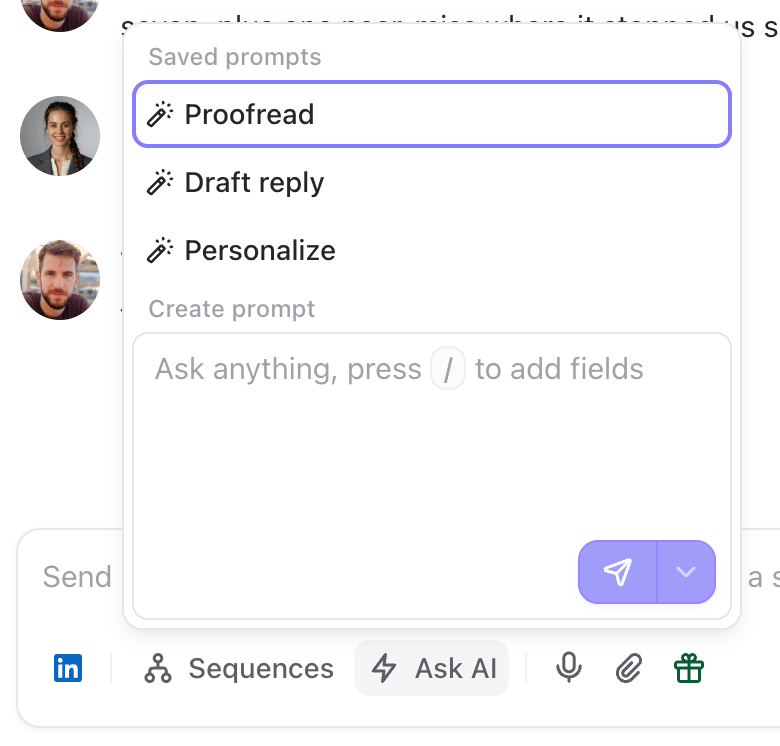 TalkToHumans comes with three prompts out of the box:
* **Proofread** fixes typos, grammar, and awkward phrasing without changing your tone.
* **Draft reply** writes a message based on the conversation, contact, and company context.
* **Personalize** makes your current draft more relevant to the person without changing its angle or turning it into a generic sales message.
## Run a one-off AI prompt
Sometimes you just want to ask AI to make a quick, specific edit.
Open **Ask AI**, write an instruction under **Create prompt**, then click the send icon:
TalkToHumans comes with three prompts out of the box:
* **Proofread** fixes typos, grammar, and awkward phrasing without changing your tone.
* **Draft reply** writes a message based on the conversation, contact, and company context.
* **Personalize** makes your current draft more relevant to the person without changing its angle or turning it into a generic sales message.
## Run a one-off AI prompt
Sometimes you just want to ask AI to make a quick, specific edit.
Open **Ask AI**, write an instruction under **Create prompt**, then click the send icon:
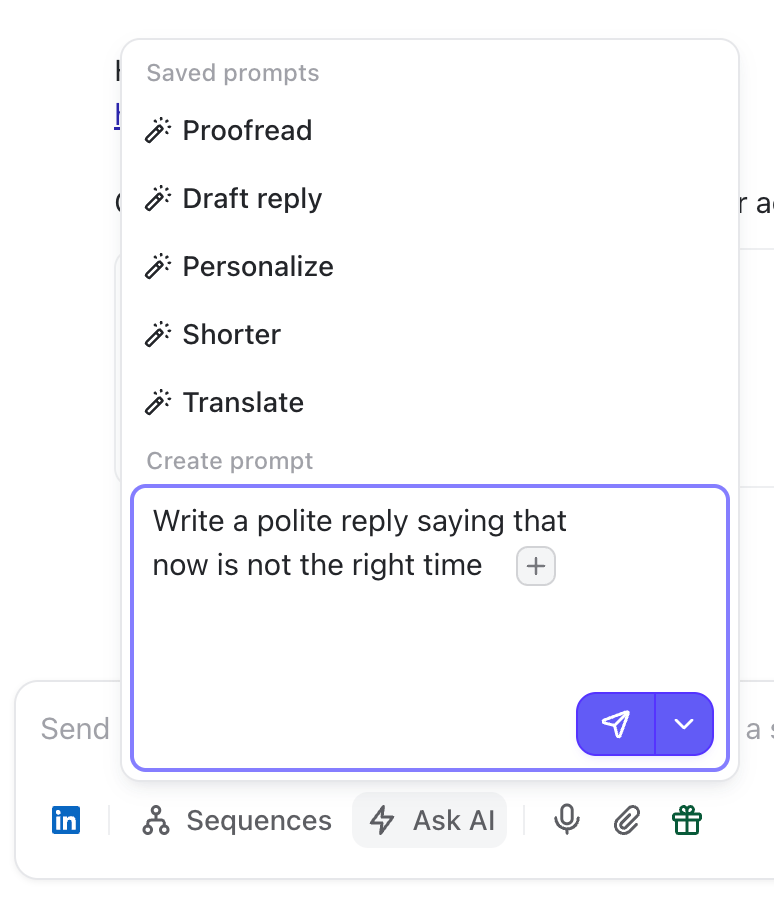 If you want to reuse this prompt later, open the arrow beside the send icon and select **Save as prompt**.
## Rewrite only part of a message
Sometimes the message is fine except for one sentence.
Select the text you want to change, then open **Ask AI** and run a saved prompt or write a one-off instruction.
Only the selected text is replaced. Everything around it stays untouched.
## Create a reusable AI prompt
You can turn any prompt into a reusable prompt for yourself and your team:
1. Open **Ask AI**.
2. Write your prompt under **Create prompt**.
3. Open the arrow beside the send icon and select **Save as prompt**.
4. Give the prompt a clear name.
5. Choose **Fast** or **Smart**.
6. Review the prompt, then click **Create prompt**.
If you want to reuse this prompt later, open the arrow beside the send icon and select **Save as prompt**.
## Rewrite only part of a message
Sometimes the message is fine except for one sentence.
Select the text you want to change, then open **Ask AI** and run a saved prompt or write a one-off instruction.
Only the selected text is replaced. Everything around it stays untouched.
## Create a reusable AI prompt
You can turn any prompt into a reusable prompt for yourself and your team:
1. Open **Ask AI**.
2. Write your prompt under **Create prompt**.
3. Open the arrow beside the send icon and select **Save as prompt**.
4. Give the prompt a clear name.
5. Choose **Fast** or **Smart**.
6. Review the prompt, then click **Create prompt**.
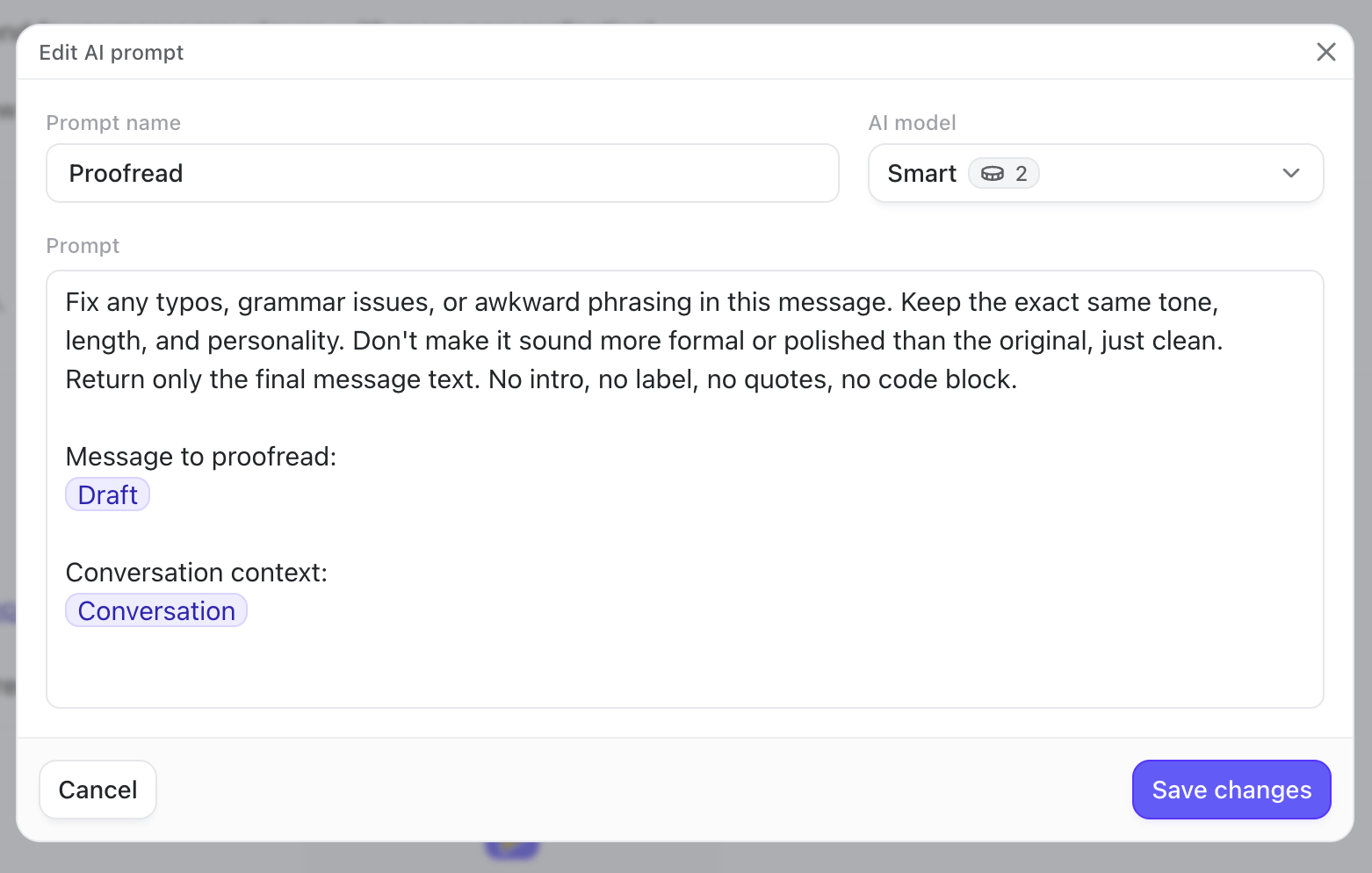 AI prompts are shared within your organization by default
### Add context to your prompt
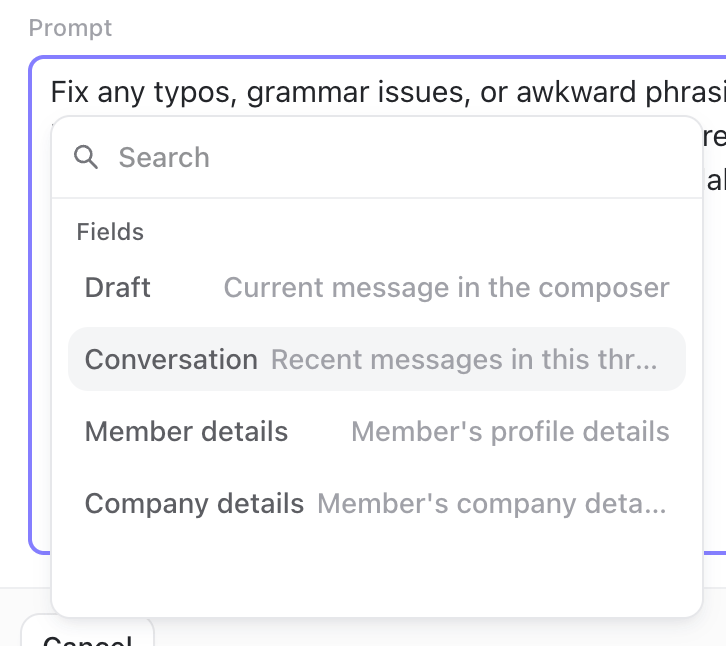
Press `/` inside the prompt editor to insert any of these fields:
* **Draft**: the text currently in the composer, or only the selected text if you’ve made a selection
* **Conversation**: the messages in the current LinkedIn thread
* **Member details**: the contact’s profile, including available work experience, education, languages, and location
* **Company details**: information about the contact’s company, including available headcount data
AI prompts are shared within your organization by default
### Add context to your prompt
Press `/` inside the prompt editor to insert any of these fields:
* **Draft**: the text currently in the composer, or only the selected text if you’ve made a selection
* **Conversation**: the messages in the current LinkedIn thread
* **Member details**: the contact’s profile, including available work experience, education, languages, and location
* **Company details**: information about the contact’s company, including available headcount data
 ## Choose between Fast and Smart
Each saved prompt uses one of two AI models:
* **Fast** costs 1 credit per run. Use it for proofreading, shortening, translating, or other direct edits.
* **Smart** costs 2 credits per run. Use it when the AI needs to understand a longer conversation, draft a reply, or personalize a message for a specific person.
One-off prompts use **Fast**.
## Choose between Fast and Smart
Each saved prompt uses one of two AI models:
* **Fast** costs 1 credit per run. Use it for proofreading, shortening, translating, or other direct edits.
* **Smart** costs 2 credits per run. Use it when the AI needs to understand a longer conversation, draft a reply, or personalize a message for a specific person.
One-off prompts use **Fast**.