> ## Documentation Index
> Fetch the complete documentation index at: https://talktohumans.app/docs/llms.txt
> Use this file to discover all available pages before exploring further.
# 🏷️ Tags & notes
Future you will probably forget **why this person mattered**. After all, a short pencil is better than a long memory.
In TalkToHumans, tags let you categorize a contact or company, while notes preserve the useful detail behind it.
Together, they give you a **lightweight CRM layer** you can use across your connections and leads.
Tags and notes are internal to TalkToHumans. They are never added to LinkedIn or shown to the person.
## Use tags for context at a glance
Tags are useful for anything you need to recognize quickly:
* A pipeline stage, such as **Hot lead** or **Customer**
* A relationship type, such as **Friend**, **Partner**, or **Candidate**
* A topic, market, or customer segment
* An owner, if several teammates share an inbox
### Add tags to a contact
Open a conversation or contact, then click **Add tags** in the header or contact sidebar:
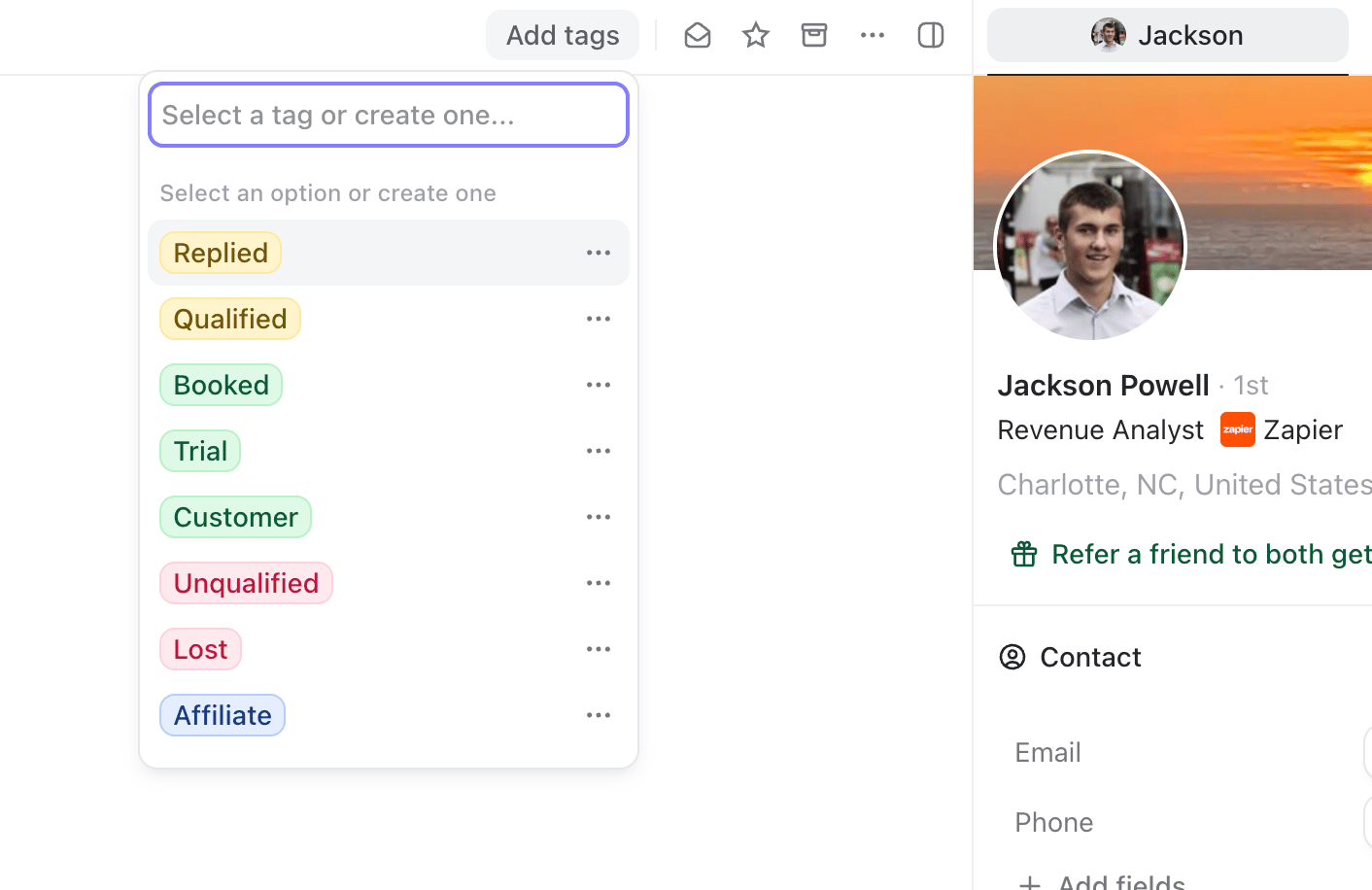 You can also press `L` to open the tag selector without leaving the keyboard.
From there:
1. Select an existing tag to add or remove it.
2. Type a new name and press `Enter` to create a tag.
3. Add as many tags as you need.
Tags are attached to the contact, not to one particular conversation.
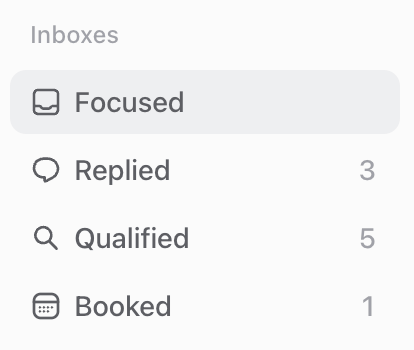
When you create a new contact tag, TalkToHumans also creates a dedicated inbox for it. Every conversation with a contact carrying that tag appears there:
You can also press `L` to open the tag selector without leaving the keyboard.
From there:
1. Select an existing tag to add or remove it.
2. Type a new name and press `Enter` to create a tag.
3. Add as many tags as you need.
Tags are attached to the contact, not to one particular conversation.
When you create a new contact tag, TalkToHumans also creates a dedicated inbox for it. Every conversation with a contact carrying that tag appears there:
 See [Inboxes](https://www.talktohumans.app/docs/product/inbox/customize) for more ways to turn tags into focused workflows.
Tags are shared within your organization by default
### Tag a company
Open the **Company** tab in the right sidebar, then click **Add tags**.
You can also press `Shift + L` to open the company tag selector.
Contact and company tags are kept separate. A **Customer** tag for contacts and a **Customer** tag for companies are two different tags, so you can organize each list without mixing them together.
### Edit or delete a tag
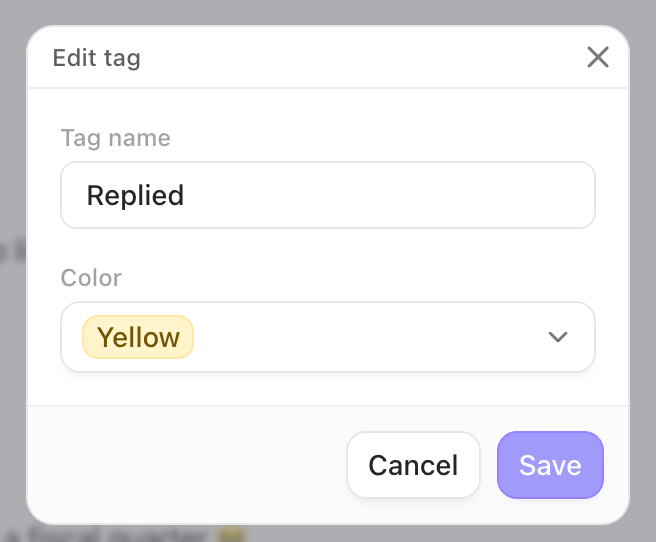
Open the tag selector and click the menu beside a tag.
You can:
* Change its name or color
* Delete it
* Drag tags into the order you prefer
See [Inboxes](https://www.talktohumans.app/docs/product/inbox/customize) for more ways to turn tags into focused workflows.
Tags are shared within your organization by default
### Tag a company
Open the **Company** tab in the right sidebar, then click **Add tags**.
You can also press `Shift + L` to open the company tag selector.
Contact and company tags are kept separate. A **Customer** tag for contacts and a **Customer** tag for companies are two different tags, so you can organize each list without mixing them together.
### Edit or delete a tag
Open the tag selector and click the menu beside a tag.
You can:
* Change its name or color
* Delete it
* Drag tags into the order you prefer
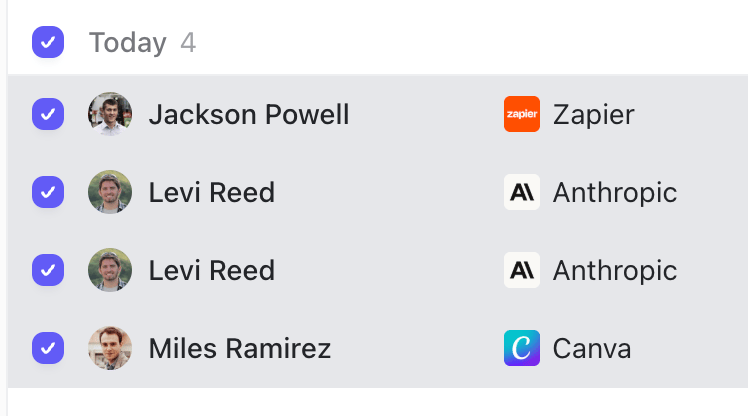
 ### Add tags to several contacts at once
From an inbox or contact view, select several rows and click **Add tags** in the bulk-action bar.
### Add tags to several contacts at once
From an inbox or contact view, select several rows and click **Add tags** in the bulk-action bar.
 ## Create notes
Useful notes might include:
* How you met
* Why they fit your ICP
* Who introduced you
* What they care about
* A constraint mentioned during a call
* The next step you agreed on
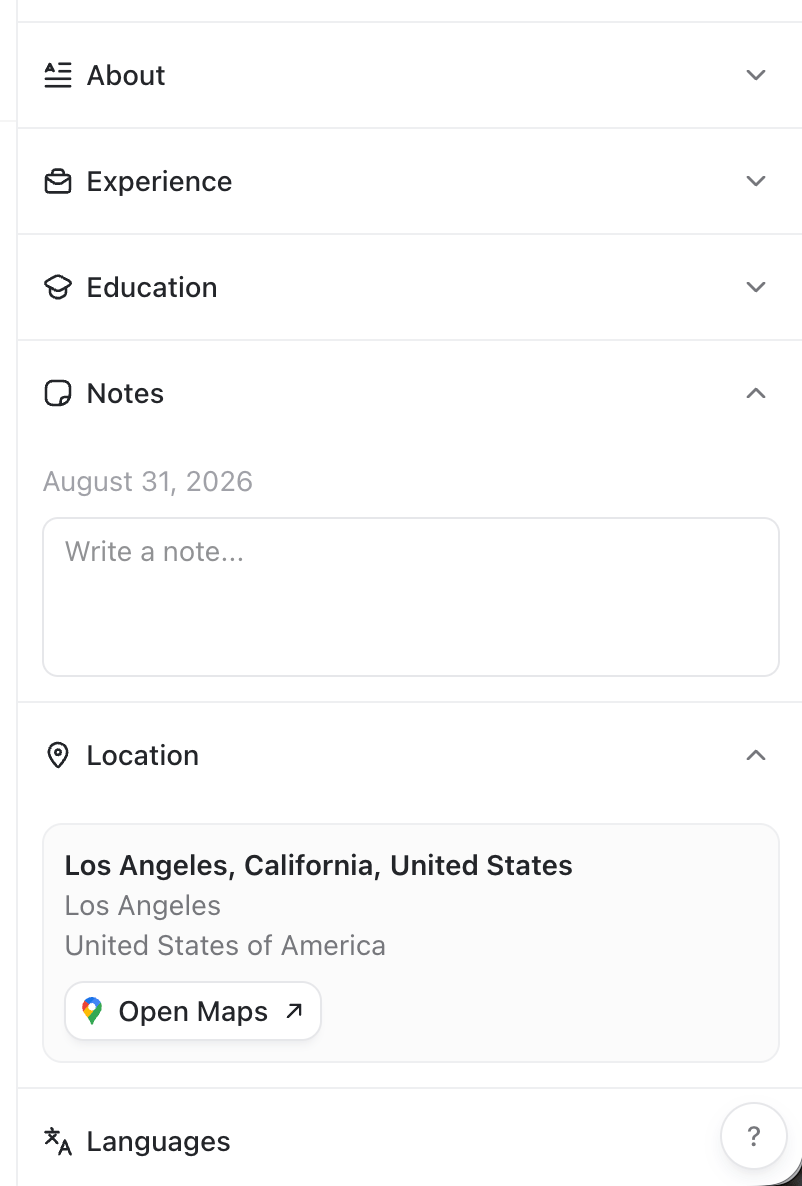
Open the contact or company in the right sidebar and find the **Notes** section:
## Create notes
Useful notes might include:
* How you met
* Why they fit your ICP
* Who introduced you
* What they care about
* A constraint mentioned during a call
* The next step you agreed on
Open the contact or company in the right sidebar and find the **Notes** section:
 ## Add context directly from LinkedIn
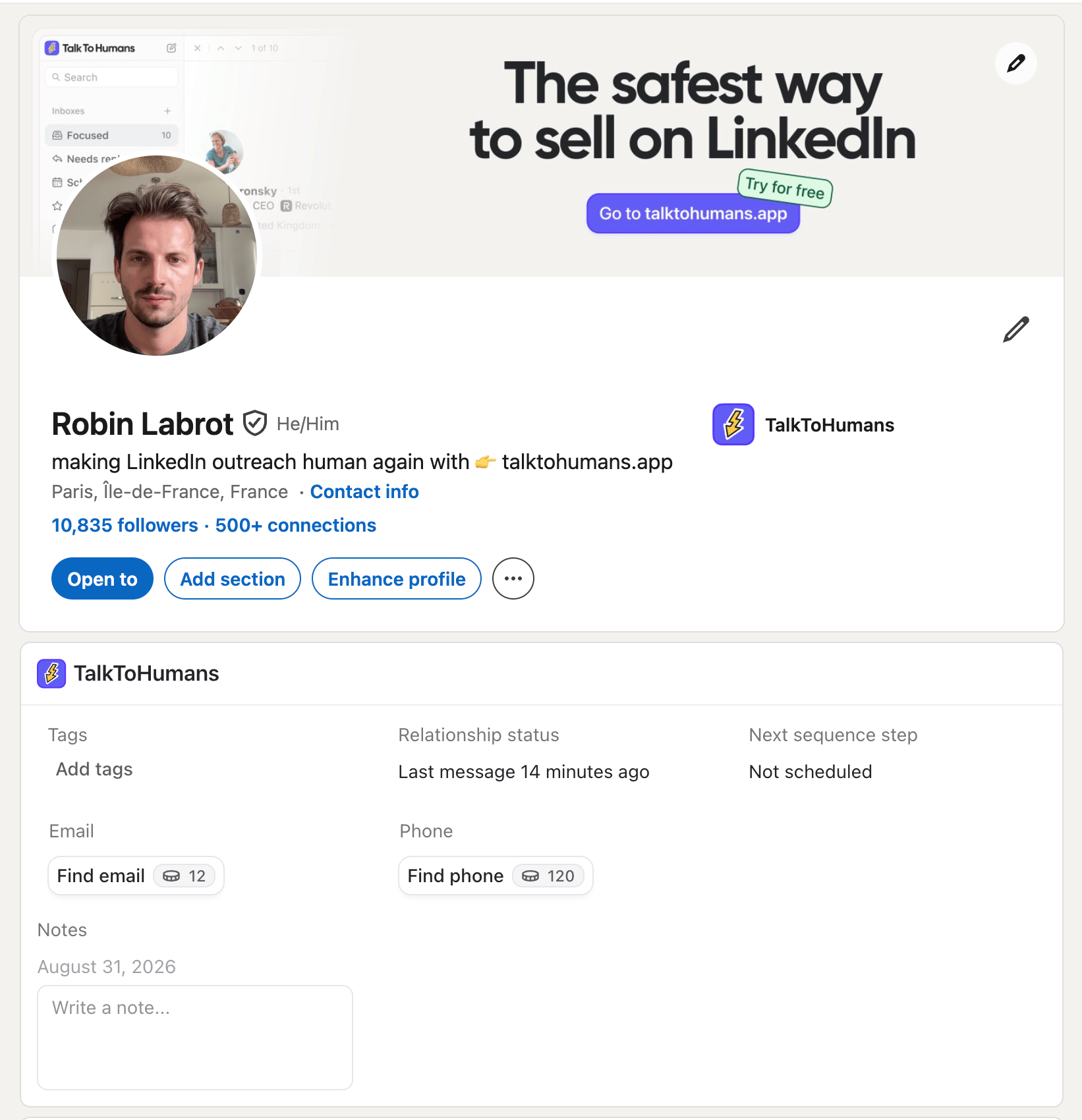
When you visit someone’s LinkedIn profile, the TalkToHumans panel shows their tags and notes beside the profile.
From there, you can:
* Import the person into TalkToHumans if they are not there yet
* Edit tags
* Edit notes
* Find email or phone
## Add context directly from LinkedIn
When you visit someone’s LinkedIn profile, the TalkToHumans panel shows their tags and notes beside the profile.
From there, you can:
* Import the person into TalkToHumans if they are not there yet
* Edit tags
* Edit notes
* Find email or phone