> ## Documentation Index
> Fetch the complete documentation index at: https://talktohumans.app/docs/llms.txt
> Use this file to discover all available pages before exploring further.
# 🗂️ Inboxes
As you might have read in [Manage your inbox](https://www.talktohumans.app/docs/product/inbox), TalkToHumans comes with default inboxes.
They’re fully customizable, so let’s explore how to make them work for your workflow:
## **Create inboxes using tags**
Need to organize conversations by pipeline stage, topic, customer, or any other workflow?
**Simply assign a new tag to a conversation.**
TalkToHumans automatically creates a dedicated inbox for it. From then on, every conversation with that tag appears in this inbox.
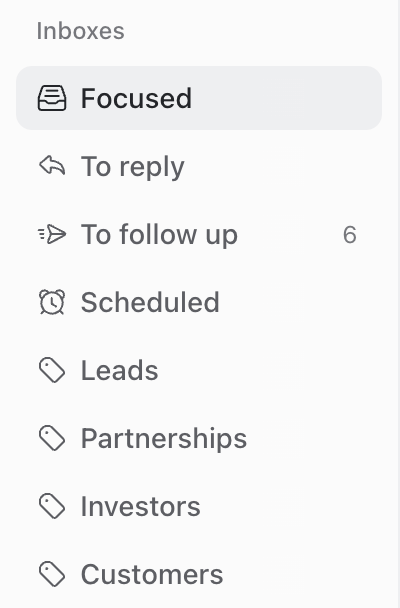 Over time you get a **clean**, **organized** workspace that **adapts to how you work.**
## Move through your inbox
When you open a conversation from an inbox, use the arrows in the header, or press `J` and `K`, to move between conversations without returning to the inbox.
Over time you get a **clean**, **organized** workspace that **adapts to how you work.**
## Move through your inbox
When you open a conversation from an inbox, use the arrows in the header, or press `J` and `K`, to move between conversations without returning to the inbox.
 If an action removes the conversation from the current inbox, we keep it open so you can review or edit your changes. For example, you may want to edit a scheduled follow-up before moving on.
Archiving is the exception. It signals that you’re done, so we automatically open the next conversation (but you can still press `Z` to undo the action and get back to the previous conversation)
## **Core inbox shortcuts**
| **Action** | **Shortcut** | **Use it when…** |
| :------------------------------- | :------------------ | :-------------------------------------------------------------------------------------------------------- |
| **Mark as read / unread** | **U** | Opening a message doesn’t mean you’ve handled it. Keep it unread until you’ve made a deliberate decision. |
| **Edit tags** | **L** | You want to record a stage, owner, priority, or relationship type. |
| **Archive / unarchive** | **E** | No action remains and you want to remove the conversation from your active inboxes. |
| **Favorite / unfavorite** | **S** | A conversation deserves extra attention but doesn’t fit a specific workflow yet. |
| **Next / previous conversation** | **J / K** | You’re processing an inbox as a queue. |
| **Focus the composer** | **Enter** | You’re ready to reply. |
| **Unfocus the composer** | **Esc** | You’ve finished replying and want to return to the conversation. Press **Esc** again to close the chat. |
| **Send message** | **⌘ Enter** | Send your message without leaving the keyboard. |
| **Start a sequence** | **Enter (x3)** | You want to orchestrate the start of a conversation |
| **Schedule a follow-up** | **⌘ Shift + Enter** | You want to keep a conversation warm after getting a first reply |
See the complete list of [keyboard shortcuts](https://www.talktohumans.app/docs/product/shortcuts).
## Advanced options
Inboxes are **fully customizable**, like views in Notion.
There are two ways to customize an inbox:
* Use the inbox settings to change its **name**, **icon**, **description**, **grouping**, **counter**, and **sidebar visibility**.
* Use the controls in the inbox header to change its **filters** and **sorting**.
### Create a new inbox
Click the settings icon next to **Inboxes** in the sidebar, and then click the button "New view"
If an action removes the conversation from the current inbox, we keep it open so you can review or edit your changes. For example, you may want to edit a scheduled follow-up before moving on.
Archiving is the exception. It signals that you’re done, so we automatically open the next conversation (but you can still press `Z` to undo the action and get back to the previous conversation)
## **Core inbox shortcuts**
| **Action** | **Shortcut** | **Use it when…** |
| :------------------------------- | :------------------ | :-------------------------------------------------------------------------------------------------------- |
| **Mark as read / unread** | **U** | Opening a message doesn’t mean you’ve handled it. Keep it unread until you’ve made a deliberate decision. |
| **Edit tags** | **L** | You want to record a stage, owner, priority, or relationship type. |
| **Archive / unarchive** | **E** | No action remains and you want to remove the conversation from your active inboxes. |
| **Favorite / unfavorite** | **S** | A conversation deserves extra attention but doesn’t fit a specific workflow yet. |
| **Next / previous conversation** | **J / K** | You’re processing an inbox as a queue. |
| **Focus the composer** | **Enter** | You’re ready to reply. |
| **Unfocus the composer** | **Esc** | You’ve finished replying and want to return to the conversation. Press **Esc** again to close the chat. |
| **Send message** | **⌘ Enter** | Send your message without leaving the keyboard. |
| **Start a sequence** | **Enter (x3)** | You want to orchestrate the start of a conversation |
| **Schedule a follow-up** | **⌘ Shift + Enter** | You want to keep a conversation warm after getting a first reply |
See the complete list of [keyboard shortcuts](https://www.talktohumans.app/docs/product/shortcuts).
## Advanced options
Inboxes are **fully customizable**, like views in Notion.
There are two ways to customize an inbox:
* Use the inbox settings to change its **name**, **icon**, **description**, **grouping**, **counter**, and **sidebar visibility**.
* Use the controls in the inbox header to change its **filters** and **sorting**.
### Create a new inbox
Click the settings icon next to **Inboxes** in the sidebar, and then click the button "New view"
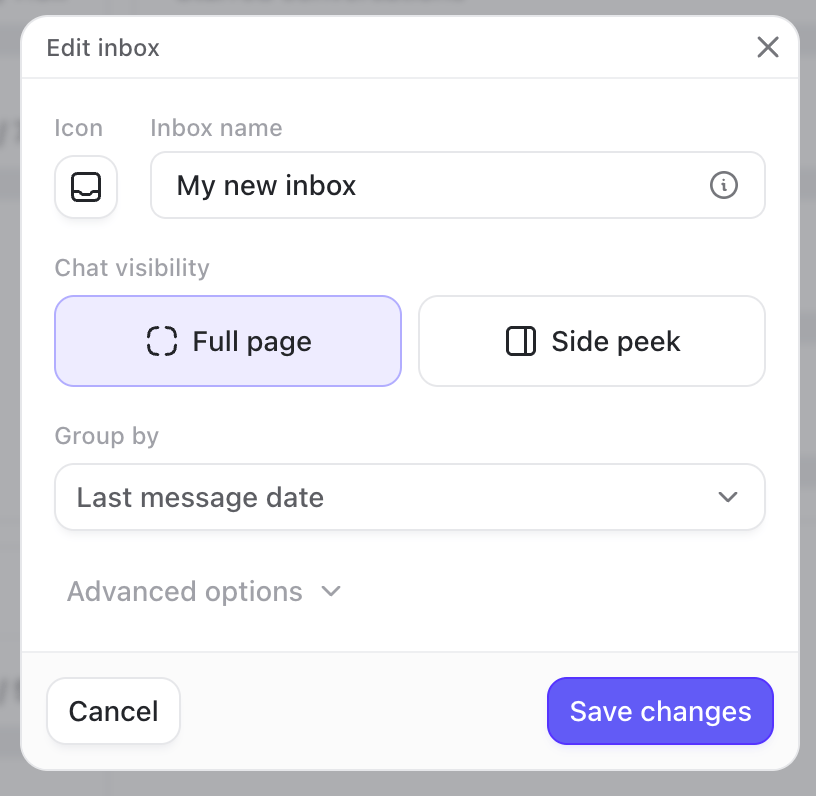 This opens a dialog where you can:
* Give the inbox a name, icon, and description.
* Select your preferred layout (full page or side peek).
* Define how conversations should be grouped.
Advanced options:
* Choose whether its counter shows unread or total conversations.
* Show it in the sidebar only when it contains unread conversations.
You can change these settings later by opening the inbox menu and selecting **Edit inbox**.
### Change filters and sorting
Open the inbox, then use the controls in the header to adjust the filters and sorting:
This opens a dialog where you can:
* Give the inbox a name, icon, and description.
* Select your preferred layout (full page or side peek).
* Define how conversations should be grouped.
Advanced options:
* Choose whether its counter shows unread or total conversations.
* Show it in the sidebar only when it contains unread conversations.
You can change these settings later by opening the inbox menu and selecting **Edit inbox**.
### Change filters and sorting
Open the inbox, then use the controls in the header to adjust the filters and sorting:
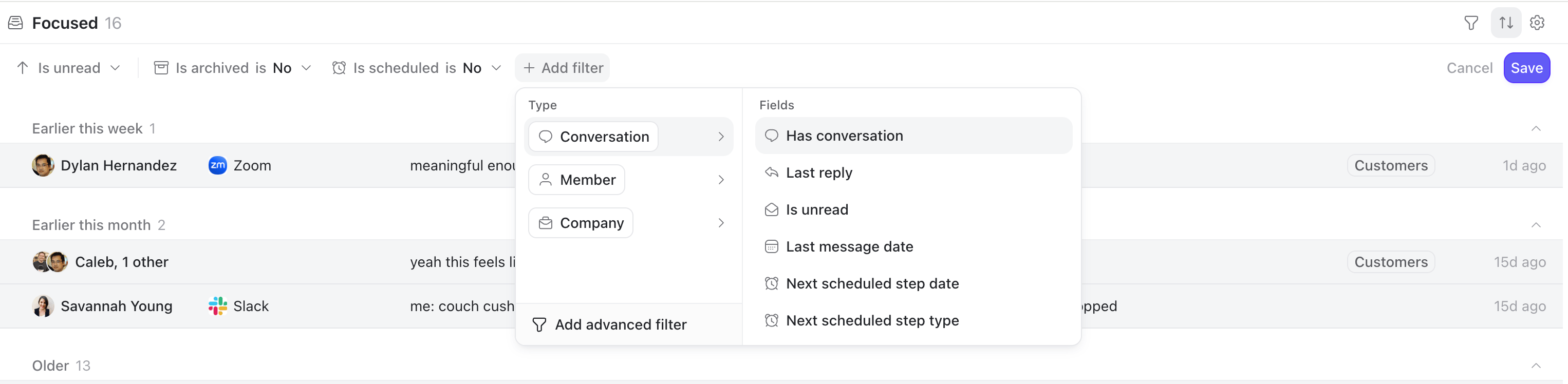 Changes made here are not saved to the view by default. Click **Save** if you want to persist them.
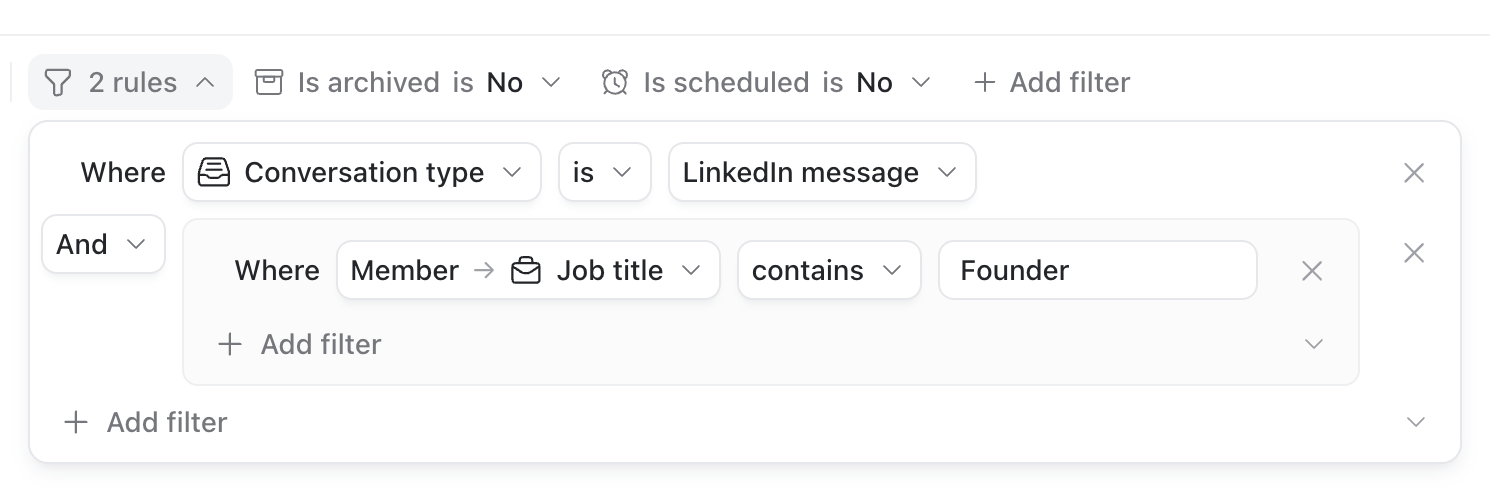
If needed, you can create more advanced filtering logic by clicking **Add advanced filter**:
Changes made here are not saved to the view by default. Click **Save** if you want to persist them.
If needed, you can create more advanced filtering logic by clicking **Add advanced filter**: