> ## Documentation Index
> Fetch the complete documentation index at: https://talktohumans.app/docs/llms.txt
> Use this file to discover all available pages before exploring further.
# 🗂️ Views
LinkedIn gives you a network, but barely any tools to work with it.
TalkToHumans views turn your contacts and companies into **focused lists you can filter, sort, and adapt to the job at hand**.
## The default views
TalkToHumans comes with four contact views out of the box:
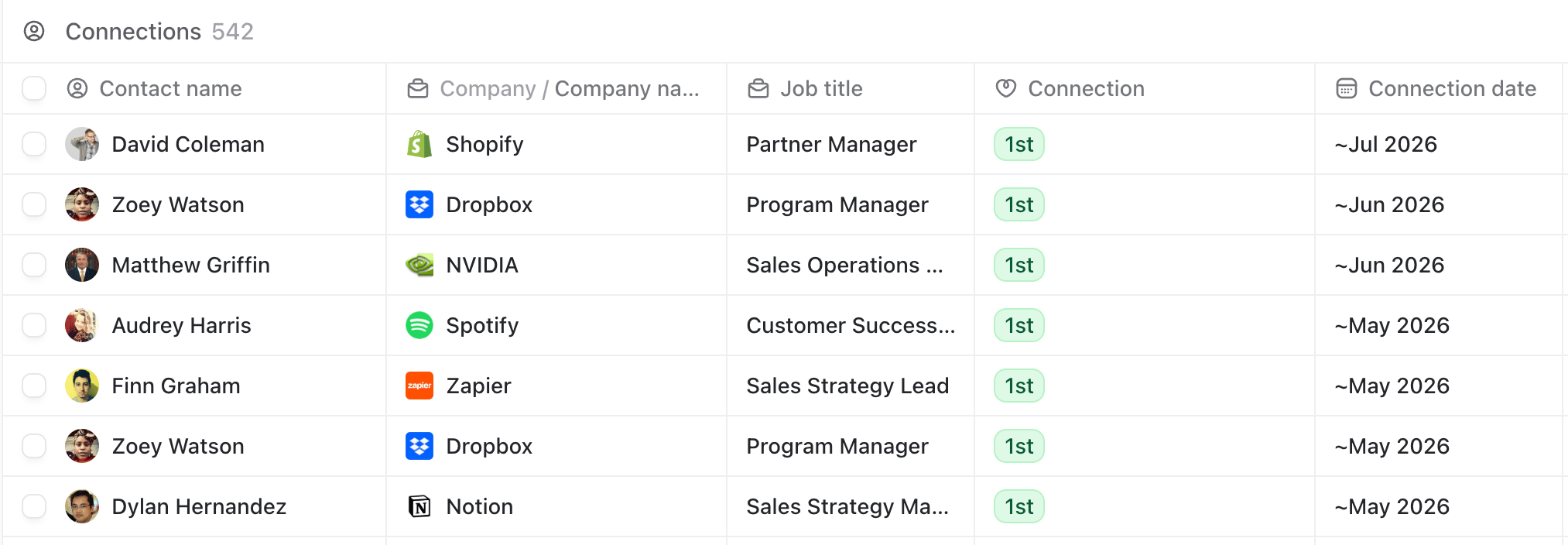
1. **Connections**
All your 1st-degree LinkedIn connections, with the newest first.
Use this as your base to browse your network, add filters, and build more focused views.
 2. **Imported**
Contacts you explicitly imported from LinkedIn, Sales Navigator, the API, or the MCP. The newest imports appear first.
The **Imported at** and **Import source** columns help you see when and how each person was added.
2. **Imported**
Contacts you explicitly imported from LinkedIn, Sales Navigator, the API, or the MCP. The newest imports appear first.
The **Imported at** and **Import source** columns help you see when and how each person was added.
 3. **Invites**
People who asked to connect and are still waiting for your response.
Use this view to review incoming invitations, accept the people worth knowing, and ignore the rest.
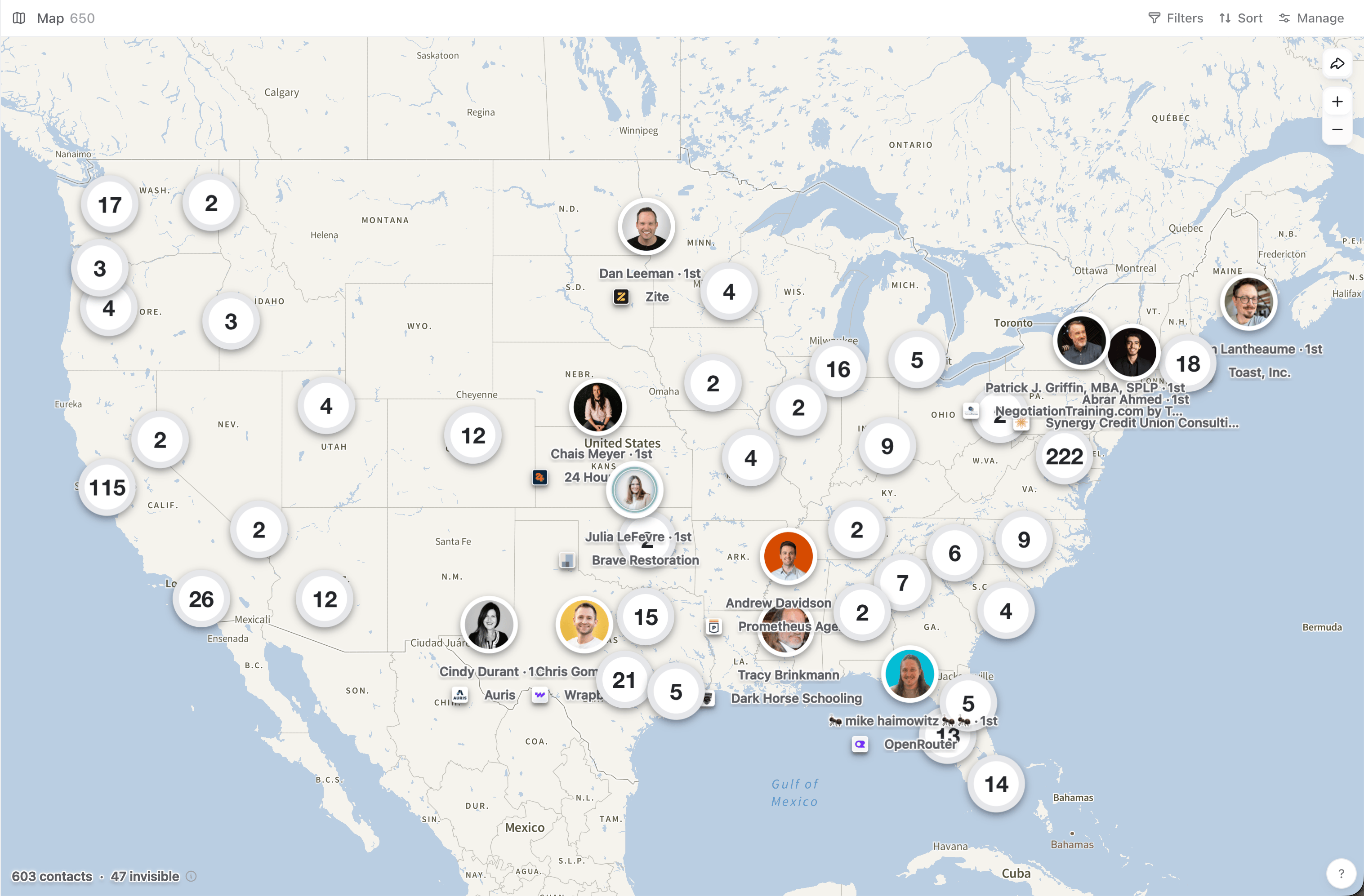
4. **Map**
Contacts with usable location data plotted on a map. Handy before a trip, when exploring a local market, or when you want to see who you could meet nearby.
3. **Invites**
People who asked to connect and are still waiting for your response.
Use this view to review incoming invitations, accept the people worth knowing, and ignore the rest.
4. **Map**
Contacts with usable location data plotted on a map. Handy before a trip, when exploring a local market, or when you want to see who you could meet nearby.
 These defaults are starting points. You can edit them, duplicate them, hide the ones you do not use, or create your own.
## Filter and sort a view
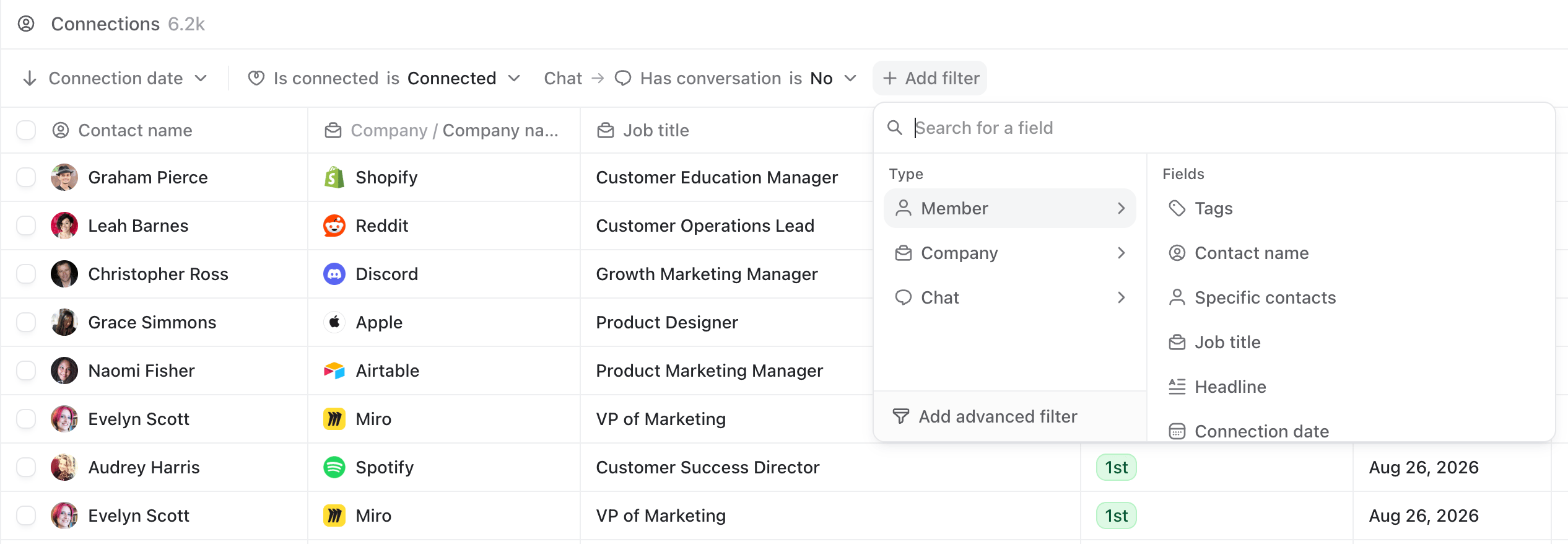
Open a view, then use **Filters** and **Sort** in the header.
You can filter using contact, company, conversation, tag, or custom-field data.
These defaults are starting points. You can edit them, duplicate them, hide the ones you do not use, or create your own.
## Filter and sort a view
Open a view, then use **Filters** and **Sort** in the header.
You can filter using contact, company, conversation, tag, or custom-field data.
 A few examples:
* Leads ordered by a custom **ICP score**
* Companies in a specific industry and employee range
* Connections in Paris tagged **Warm lead**
Use **Add advanced filter** when you need more complex filtering:
A few examples:
* Leads ordered by a custom **ICP score**
* Companies in a specific industry and employee range
* Connections in Paris tagged **Warm lead**
Use **Add advanced filter** when you need more complex filtering:
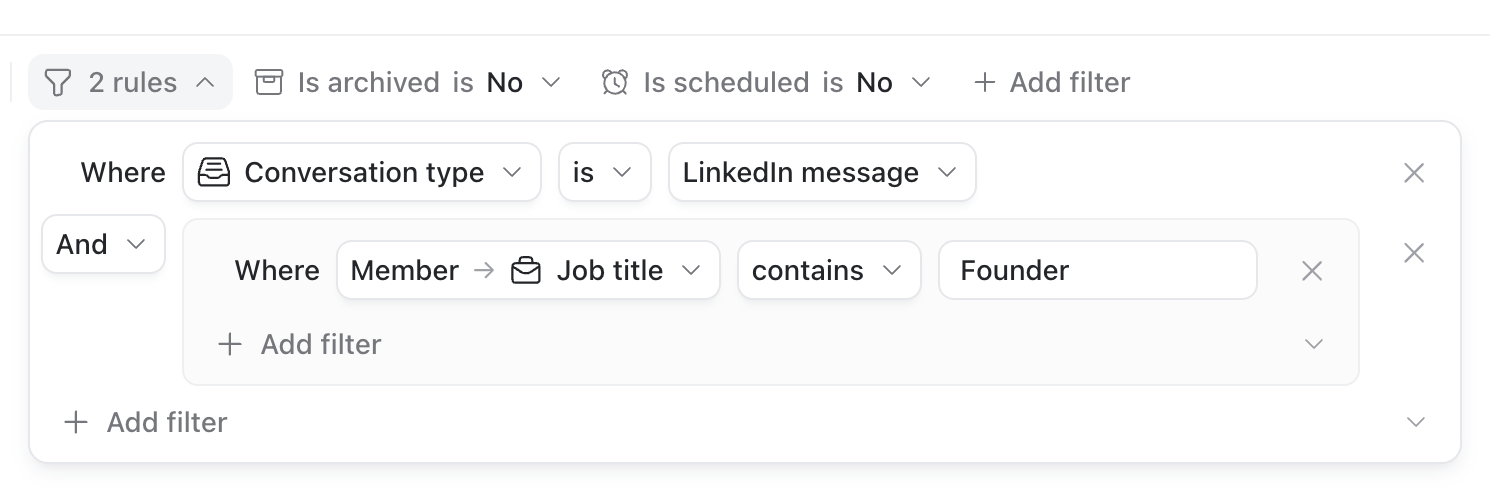 Sorting works the same way. Add one or more fields, choose ascending or descending order, then drag the rules into the order you want:
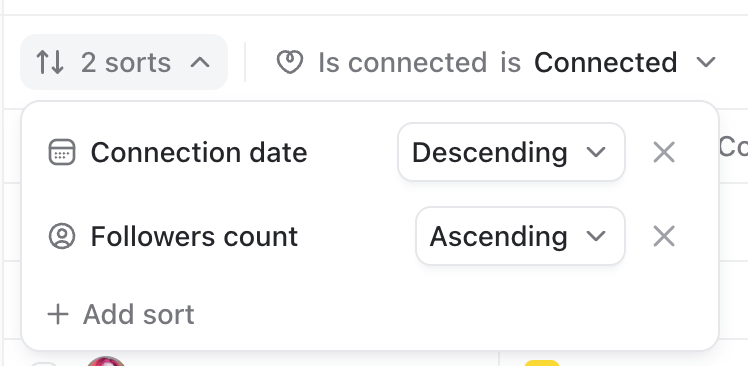 Click **Save** when you are done. Filters and sorting are saved to that view, so it is ready the next time you open it.
## Choose which columns appear
Every table view can have its own columns.
Click **Add column** at the end of the table header. From there, you can:
* Search all available contact, company, and conversation fields
* Show or hide columns
* Drag columns into a different order
* Create a custom field
Click **Save** when you are done. Filters and sorting are saved to that view, so it is ready the next time you open it.
## Choose which columns appear
Every table view can have its own columns.
Click **Add column** at the end of the table header. From there, you can:
* Search all available contact, company, and conversation fields
* Show or hide columns
* Drag columns into a different order
* Create a custom field
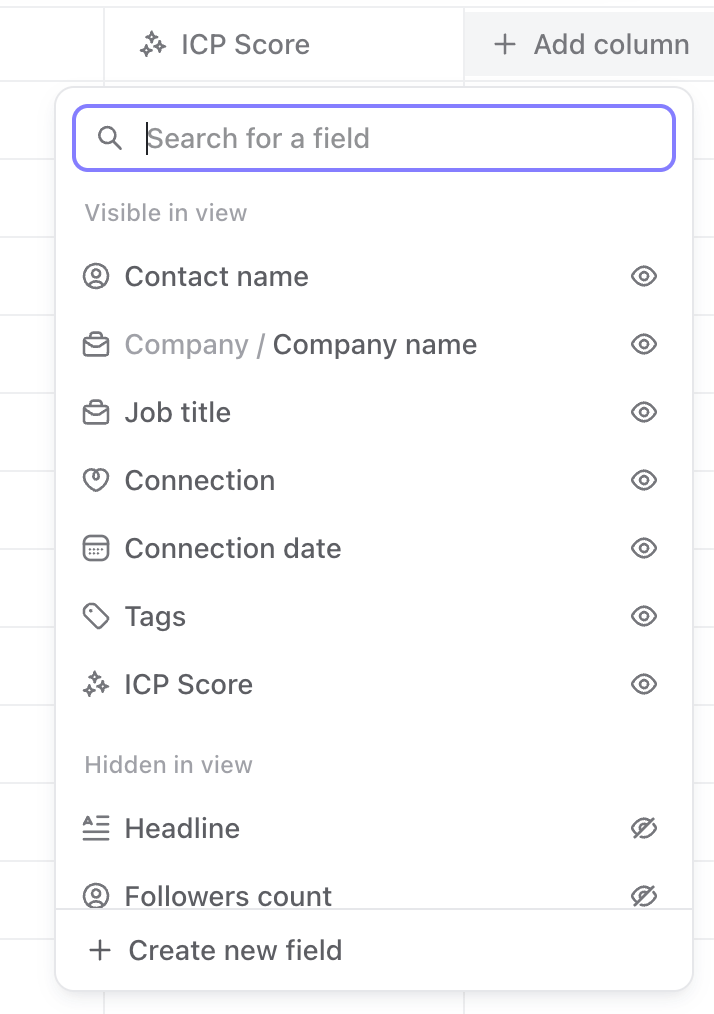 You can also drag column headers directly in the table to reorder them, or drag a column edge to resize it.
## Add your own fields
If the information you need does not exist yet, click **Add column** → **Create new field**.
You can create text, number, boolean, or date fields for contacts and companies. The new field is added to the current view immediately, and you can also use it in filters and sorting.
You can also drag column headers directly in the table to reorder them, or drag a column edge to resize it.
## Add your own fields
If the information you need does not exist yet, click **Add column** → **Create new field**.
You can create text, number, boolean, or date fields for contacts and companies. The new field is added to the current view immediately, and you can also use it in filters and sorting.
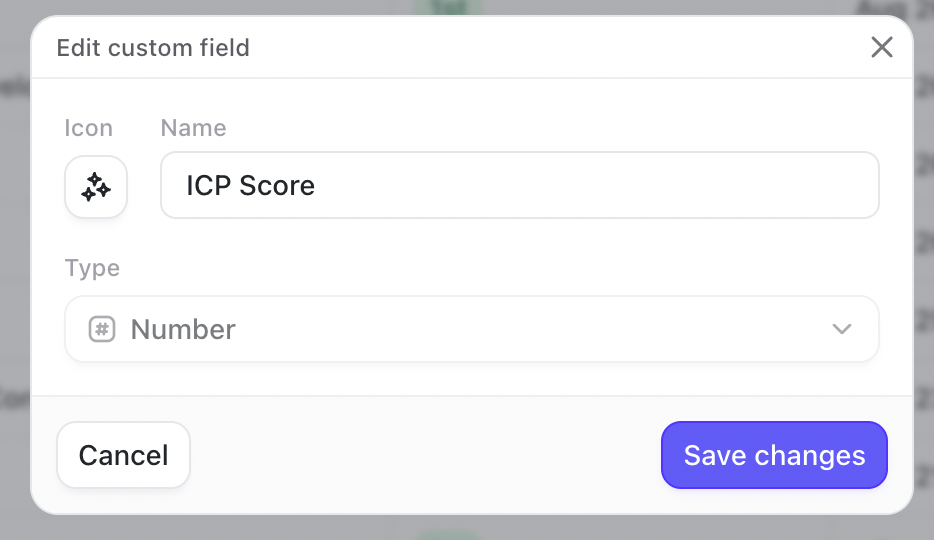 For example, you might add:
* **ICP score**
* **Deal stage**
See [Custom fields](https://www.talktohumans.app/docs/product/contacts/custom-fields) for how to create, populate, and manage them.
## Create your own view
Click **Add view** below **Contacts** or **Companies** in the sidebar, then click **New view**:
For example, you might add:
* **ICP score**
* **Deal stage**
See [Custom fields](https://www.talktohumans.app/docs/product/contacts/custom-fields) for how to create, populate, and manage them.
## Create your own view
Click **Add view** below **Contacts** or **Companies** in the sidebar, then click **New view**:
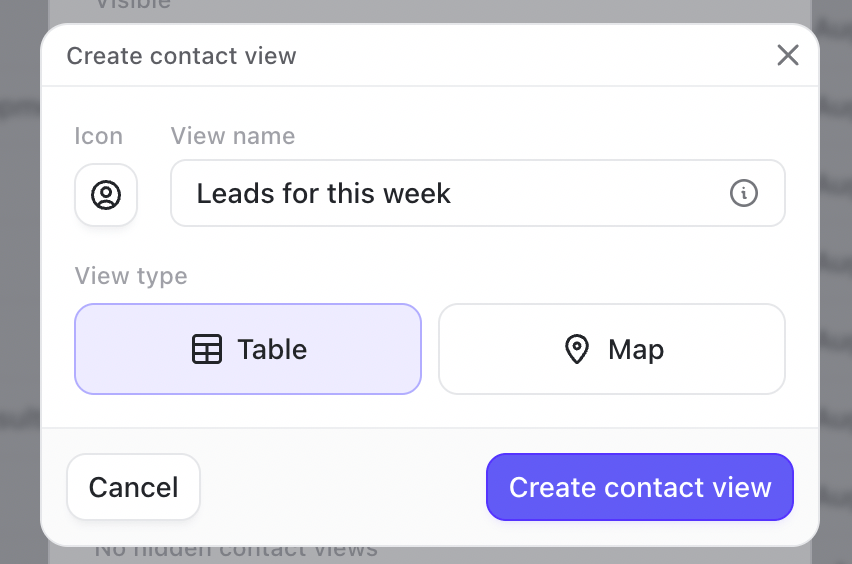 Give the view a name and icon, choose a view type like **Table** or **Map**, then create it.
Pro tip: If an existing view is already close to what you need, open its menu and select **Duplicate**. Then change the filters, sorting, columns, or name.
### Organize the sidebar
Open the settings beside **Contacts** or **Companies** to manage the views in that section.
From there, you can:
* Drag views into a different order
* Move views between **Visible** and **Hidden**
* Edit or delete a view
* Create a new one
Hiding a view only removes it from the sidebar. It does not delete the view or any contact or company records.
## Work through a view as a queue
Click any row to open its contact or company sidebar.
Give the view a name and icon, choose a view type like **Table** or **Map**, then create it.
Pro tip: If an existing view is already close to what you need, open its menu and select **Duplicate**. Then change the filters, sorting, columns, or name.
### Organize the sidebar
Open the settings beside **Contacts** or **Companies** to manage the views in that section.
From there, you can:
* Drag views into a different order
* Move views between **Visible** and **Hidden**
* Edit or delete a view
* Create a new one
Hiding a view only removes it from the sidebar. It does not delete the view or any contact or company records.
## Work through a view as a queue
Click any row to open its contact or company sidebar.
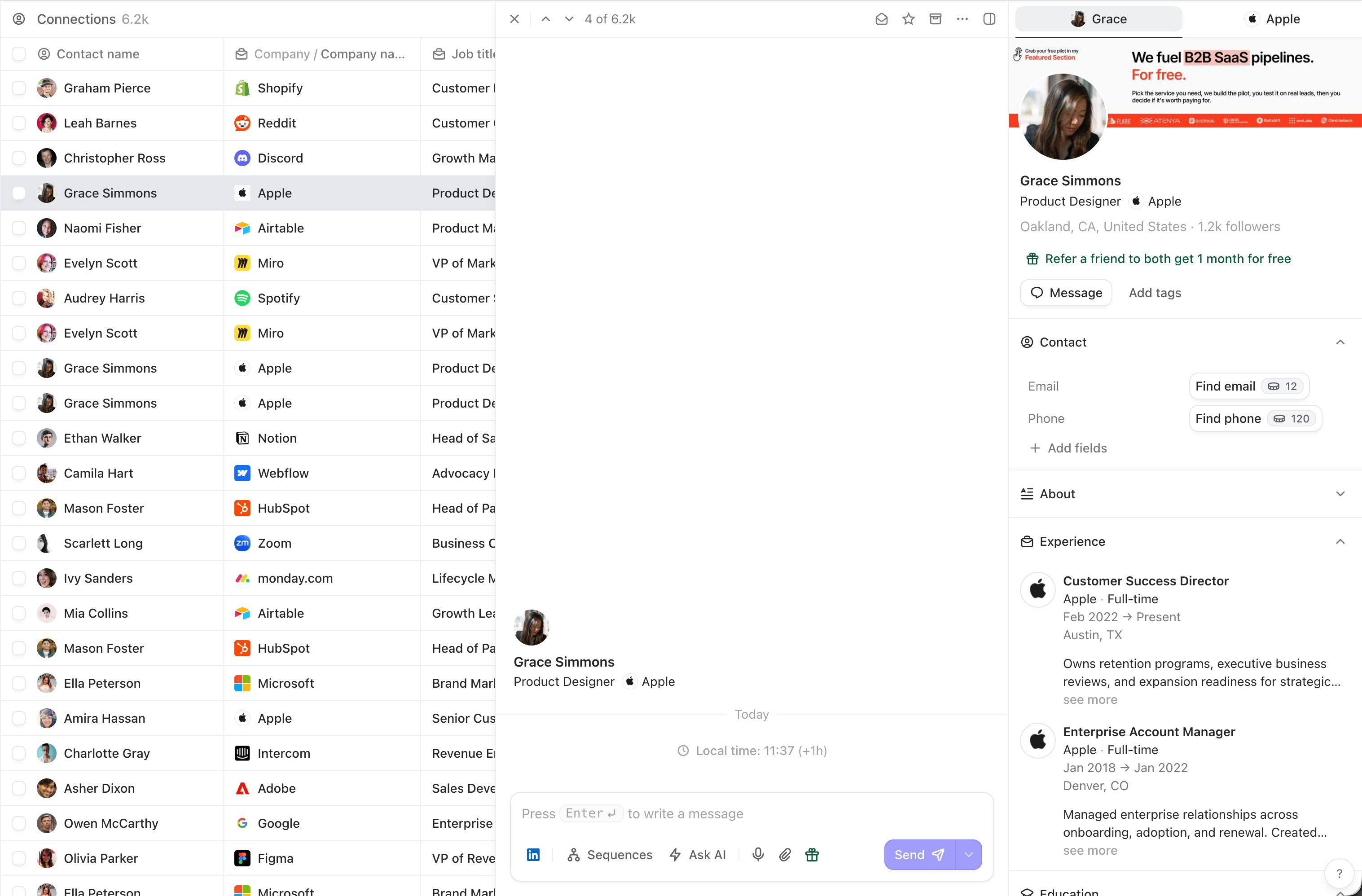 Use `J` and `K`, or the arrow keys to move through the results without closing the sidebar. This makes it easy to research a list, add notes or tags, review incoming invitations, and move from one person to the next.
Press `Enter` twice to open the selected person’s conversation when you are ready to message them.
Use `J` and `K`, or the arrow keys to move through the results without closing the sidebar. This makes it easy to research a list, add notes or tags, review incoming invitations, and move from one person to the next.
Press `Enter` twice to open the selected person’s conversation when you are ready to message them.