> ## Documentation Index
> Fetch the complete documentation index at: https://talktohumans.app/docs/llms.txt
> Use this file to discover all available pages before exploring further.
# ➕ Import contacts
TalkToHumans starts with the people already in your LinkedIn account: existing **conversations, invitations, and connections**, but you can also import new contacts in different ways. Here’s how:
## Your existing network and conversations
Once you have [set up TalkToHumans](https://www.talktohumans.app/docs/product/setup), your LinkedIn data syncs automatically.
You can find contacts from your existing **conversations, invitations, and connections**.
For large LinkedIn accounts, the initial sync can take a moment
## Import from a LinkedIn profile
When you visit a LinkedIn profile, you can use TalkToHumans’ **Smart Embed** to quickly import that person into TalkToHumans:
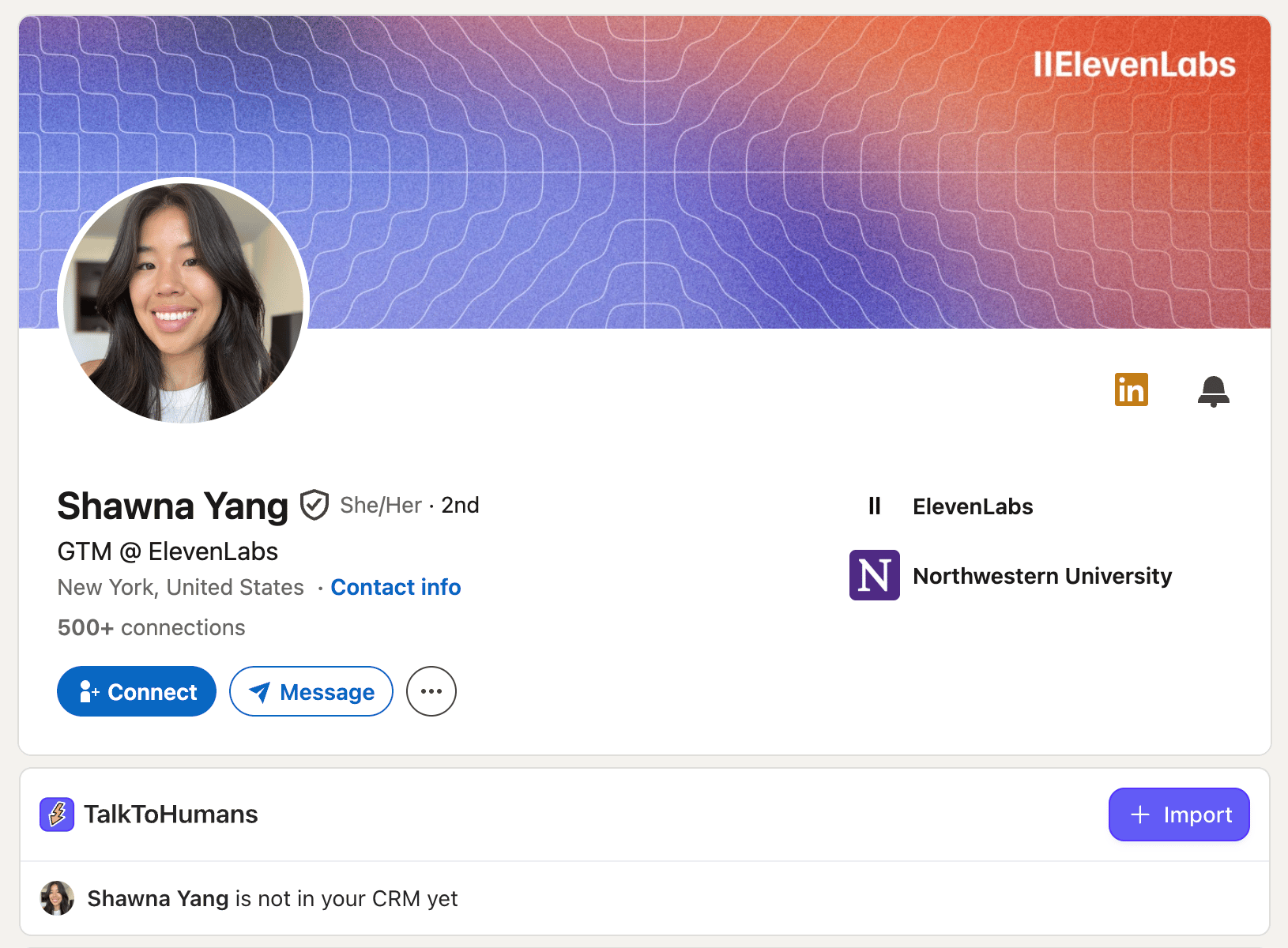 If the person is already in TalkToHumans because you connected, messaged, or imported them before, the panel shows their existing contact instead of an **Import** button:
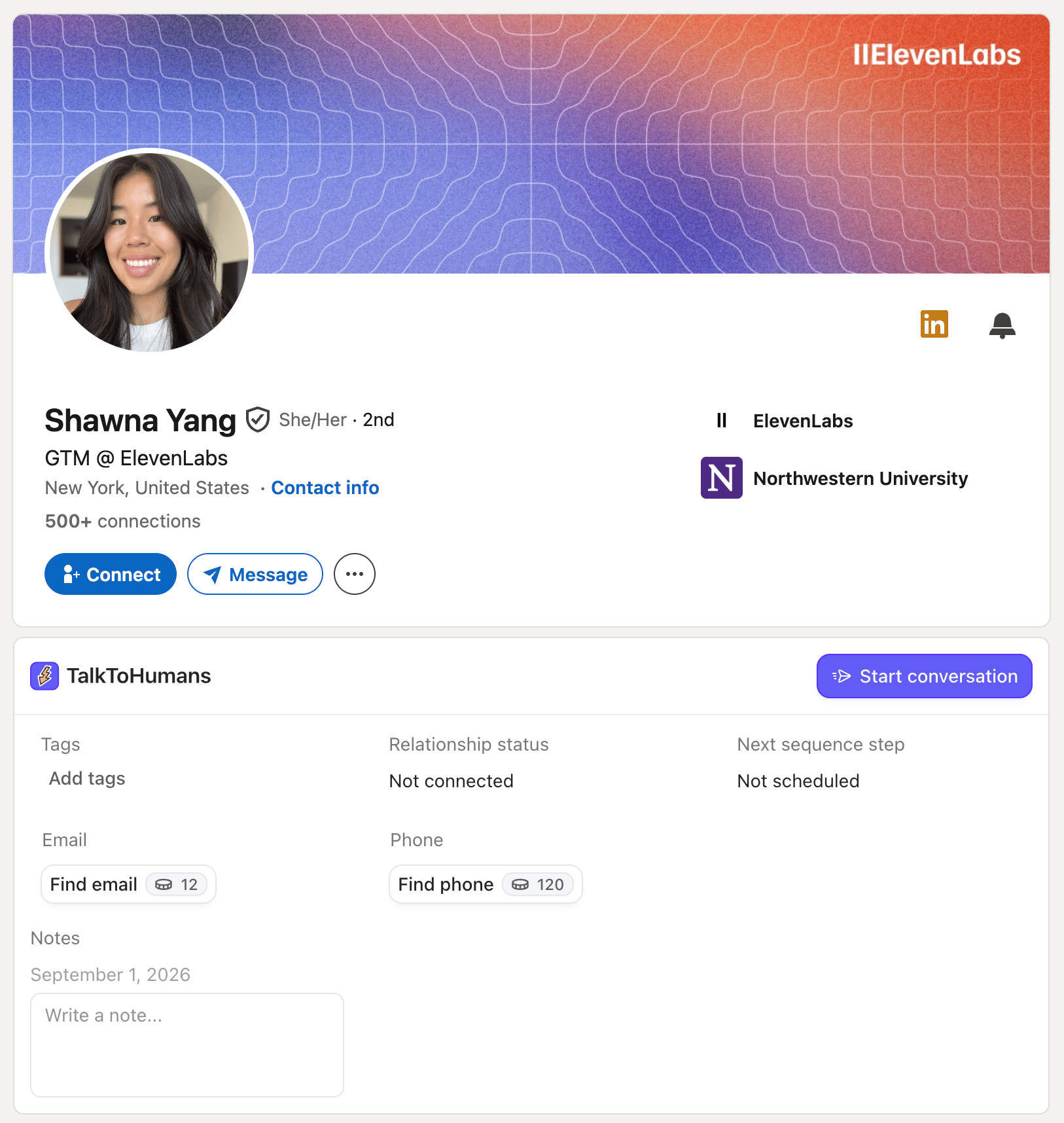 You can quickly start a conversation with that person by clicking the “Start conversation” button. This will open the TalkToHumans chat sidebar directly on LinkedIn.
## Import leads from a Sales Navigator search
If you have a Sales Navigator subscription, you can import selected leads directly from a people search:
You can quickly start a conversation with that person by clicking the “Start conversation” button. This will open the TalkToHumans chat sidebar directly on LinkedIn.
## Import leads from a Sales Navigator search
If you have a Sales Navigator subscription, you can import selected leads directly from a people search:
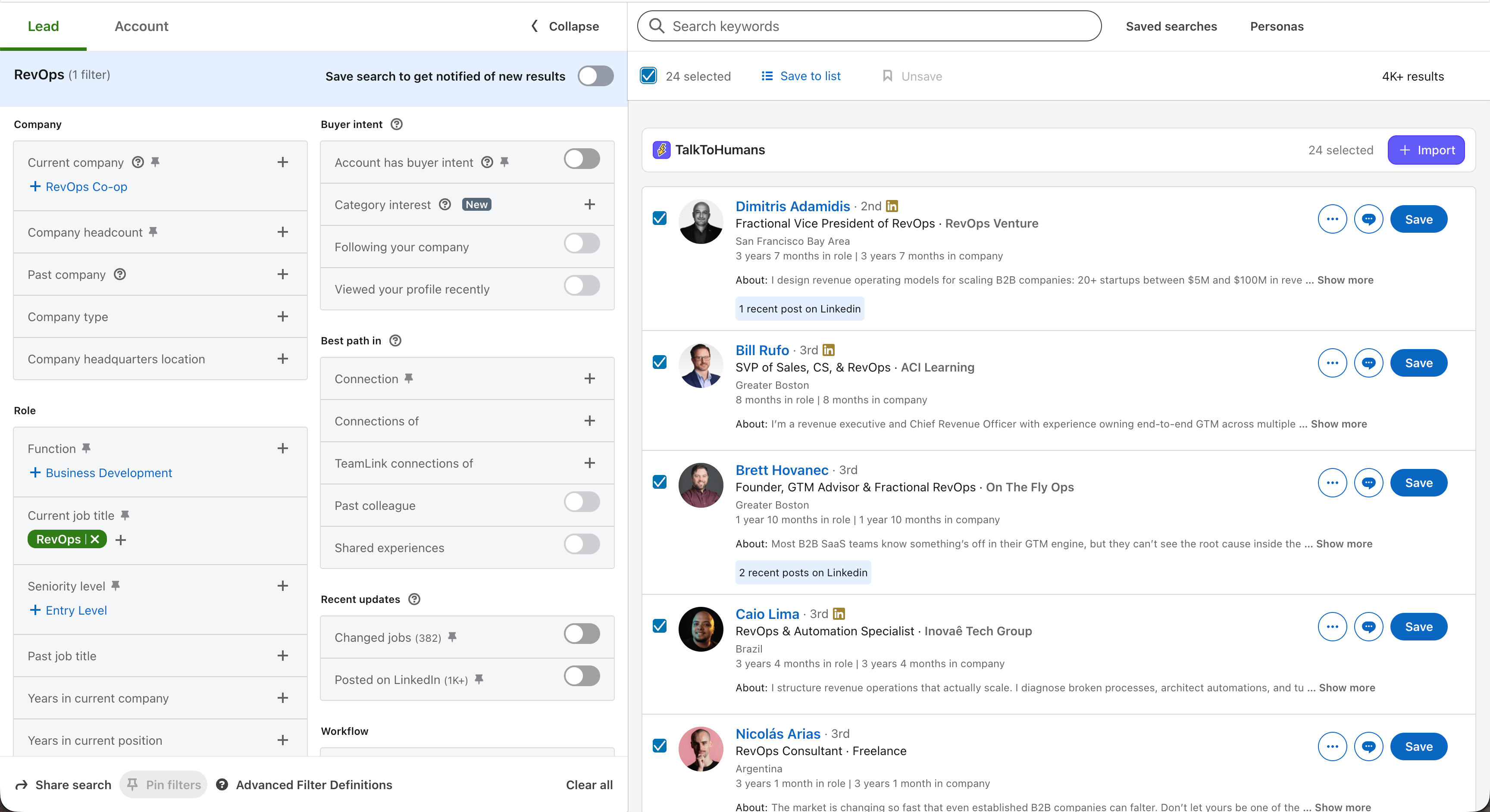 Use the checkboxes beside the search results to select the leads you want. You can keep selecting leads across several pages of the same search.
Then click **Import** to import those leads into TalkToHumans.
A dedicated contact view will be created once the import is complete.
Sales Navigator imports will run in the background, so larger selections may take a moment to appear in TalkToHumans
## Import contacts via the MCP or API
For contacts coming from your CRM, Clay, a spreadsheet, an AI search, or another part of your GTM stack, use the TalkToHumans MCP or API:
* Use the [TalkToHumans MCP](https://www.talktohumans.app/docs/developers/mcp) to let tools such as Claude or Codex import and organize contacts.
* Use the [Import contact API](https://www.talktohumans.app/docs/developers/contacts/import-contact) to push contacts from your own workflows and integrations.
## Find imported contacts
Open the default **Imported** view in TalkToHumans:
Use the checkboxes beside the search results to select the leads you want. You can keep selecting leads across several pages of the same search.
Then click **Import** to import those leads into TalkToHumans.
A dedicated contact view will be created once the import is complete.
Sales Navigator imports will run in the background, so larger selections may take a moment to appear in TalkToHumans
## Import contacts via the MCP or API
For contacts coming from your CRM, Clay, a spreadsheet, an AI search, or another part of your GTM stack, use the TalkToHumans MCP or API:
* Use the [TalkToHumans MCP](https://www.talktohumans.app/docs/developers/mcp) to let tools such as Claude or Codex import and organize contacts.
* Use the [Import contact API](https://www.talktohumans.app/docs/developers/contacts/import-contact) to push contacts from your own workflows and integrations.
## Find imported contacts
Open the default **Imported** view in TalkToHumans:
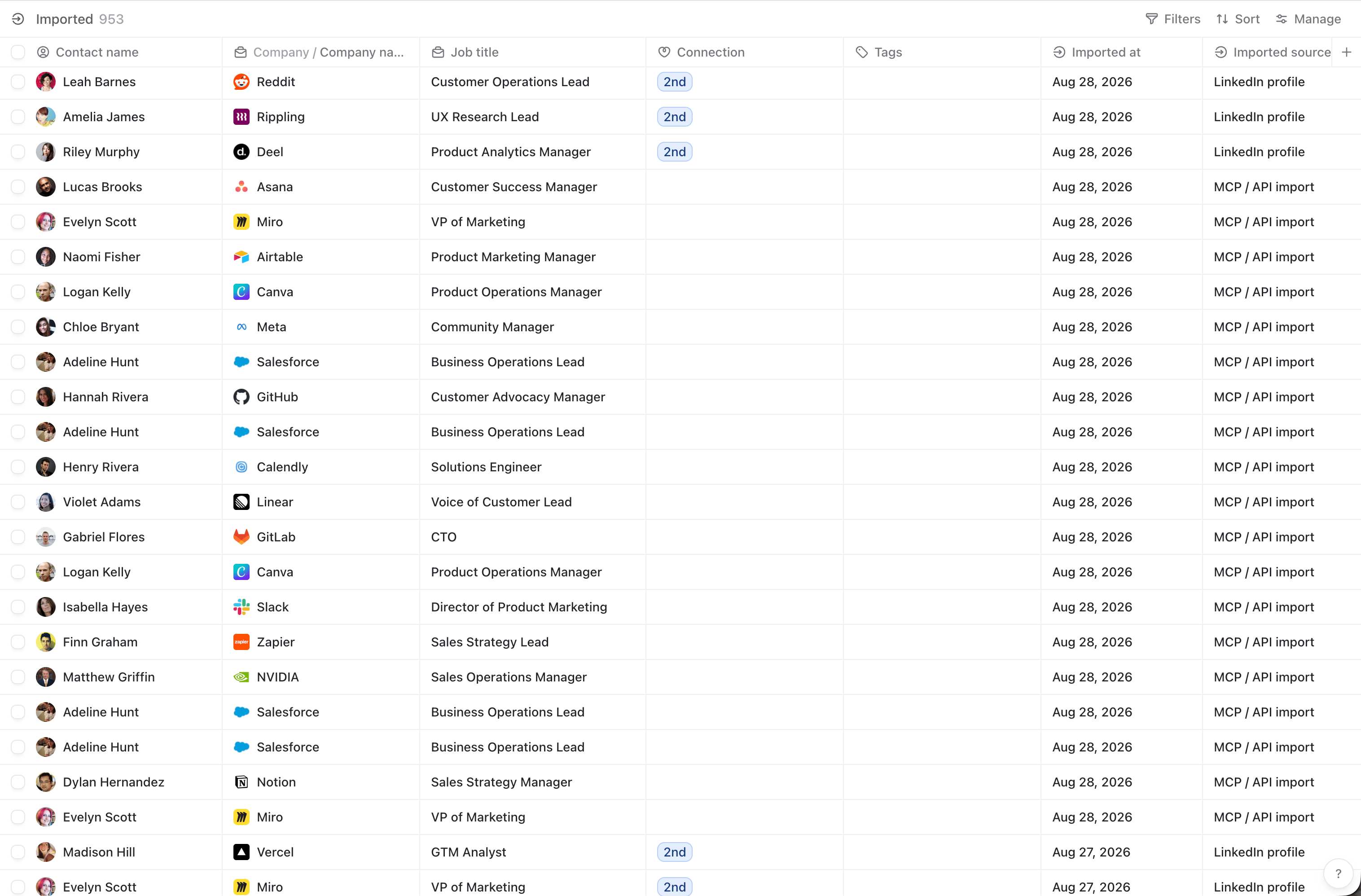 From the **Imported** view, you can filter contacts into a more focused list, add tags, or open a contact to start a personalized [sequence](https://www.talktohumans.app/docs/product/messaging/sequences).