> ## Documentation Index
> Fetch the complete documentation index at: https://talktohumans.app/docs/llms.txt
> Use this file to discover all available pages before exploring further.
# ✨ Enrichment
By default, LinkedIn provides basic information about the contacts in your inbox, connections or invitations such as their full name, headline, profile URL and avatar image:
 That is enough to identify the person, but not enough to decide whether they are relevant, personalize a message, or add them cleanly to your CRM.
**TalkToHumans can fill in the latest available LinkedIn profile and company data,** then separately find a work email or mobile phone if needed.
Profile enrichment does not use your LinkedIn account.
TalkToHumans does not visit profiles one by one through your browser or LinkedIn session to collect this data. This keeps unnecessary activity away from the account you are trying to protect.
## What enrichment can add
### Profile and company data
Profile enrichment pulls a **recent snapshot of the person's LinkedIn profile** instead of leaving you with whatever limited data was available when they were first imported.
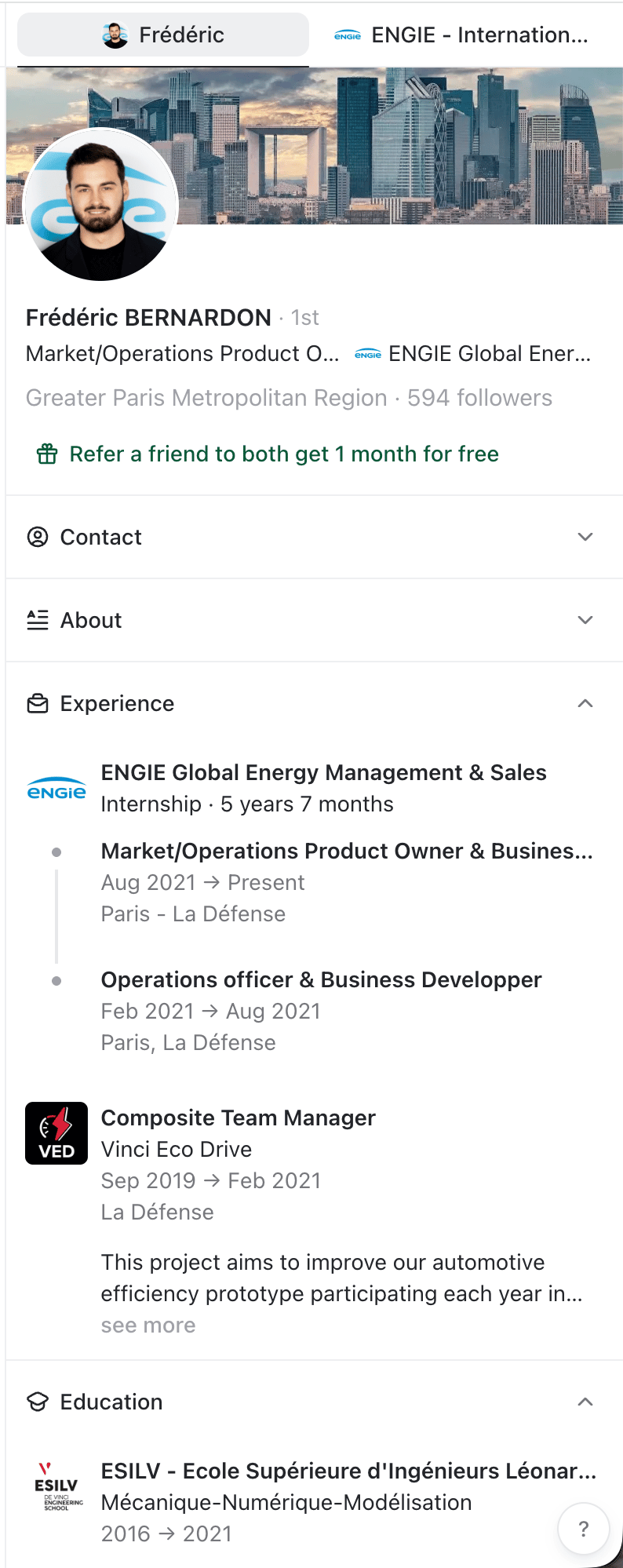
Depending on what the person has made available on LinkedIn, this can include:
* Name, headline, and bio
* Profile photo and cover image
* Current job title and primary company
* Location and time zone
* Followers and connections counts
* Work experience
* Education and languages
That is enough to identify the person, but not enough to decide whether they are relevant, personalize a message, or add them cleanly to your CRM.
**TalkToHumans can fill in the latest available LinkedIn profile and company data,** then separately find a work email or mobile phone if needed.
Profile enrichment does not use your LinkedIn account.
TalkToHumans does not visit profiles one by one through your browser or LinkedIn session to collect this data. This keeps unnecessary activity away from the account you are trying to protect.
## What enrichment can add
### Profile and company data
Profile enrichment pulls a **recent snapshot of the person's LinkedIn profile** instead of leaving you with whatever limited data was available when they were first imported.
Depending on what the person has made available on LinkedIn, this can include:
* Name, headline, and bio
* Profile photo and cover image
* Current job title and primary company
* Location and time zone
* Followers and connections counts
* Work experience
* Education and languages
 When TalkToHumans identifies a primary company, it can enrich that company too.
Company data can include:
* Company name, description, and logo
* Website
* Industry
* Headquarters and other locations
* Employee count and employee range
* Founding date
* Followers count
### Work email and mobile phone
You can find **a work email or mobile phone number for** any contact within TalkToHumans.
When TalkToHumans identifies a primary company, it can enrich that company too.
Company data can include:
* Company name, description, and logo
* Website
* Industry
* Headquarters and other locations
* Employee count and employee range
* Founding date
* Followers count
### Work email and mobile phone
You can find **a work email or mobile phone number for** any contact within TalkToHumans.
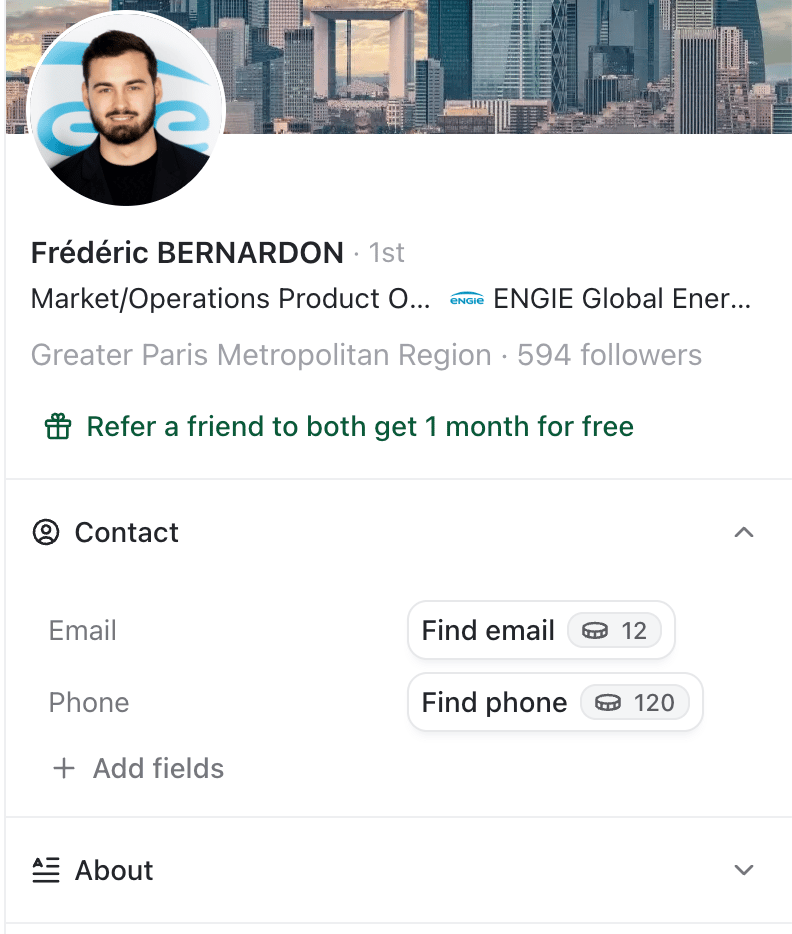 TalkToHumans runs a waterfall across multiple data providers rather than depending on a single database. This produces an **80%+ find rate on average**.
Because the waterfall checks several providers in sequence, a search can take a few minutes to finish.
## Credit costs
| **Enrichment** | **Cost** | **When you are charged** |
| :------------------- | :-------------- | :-------------------------------- |
| **LinkedIn profile** | **2 credits** | When the profile is enriched |
| **Work email** | **12 credits** | Only when an email is found |
| **Mobile phone** | **120 credits** | Only when a phone number is found |
## Automatically enrich new contacts
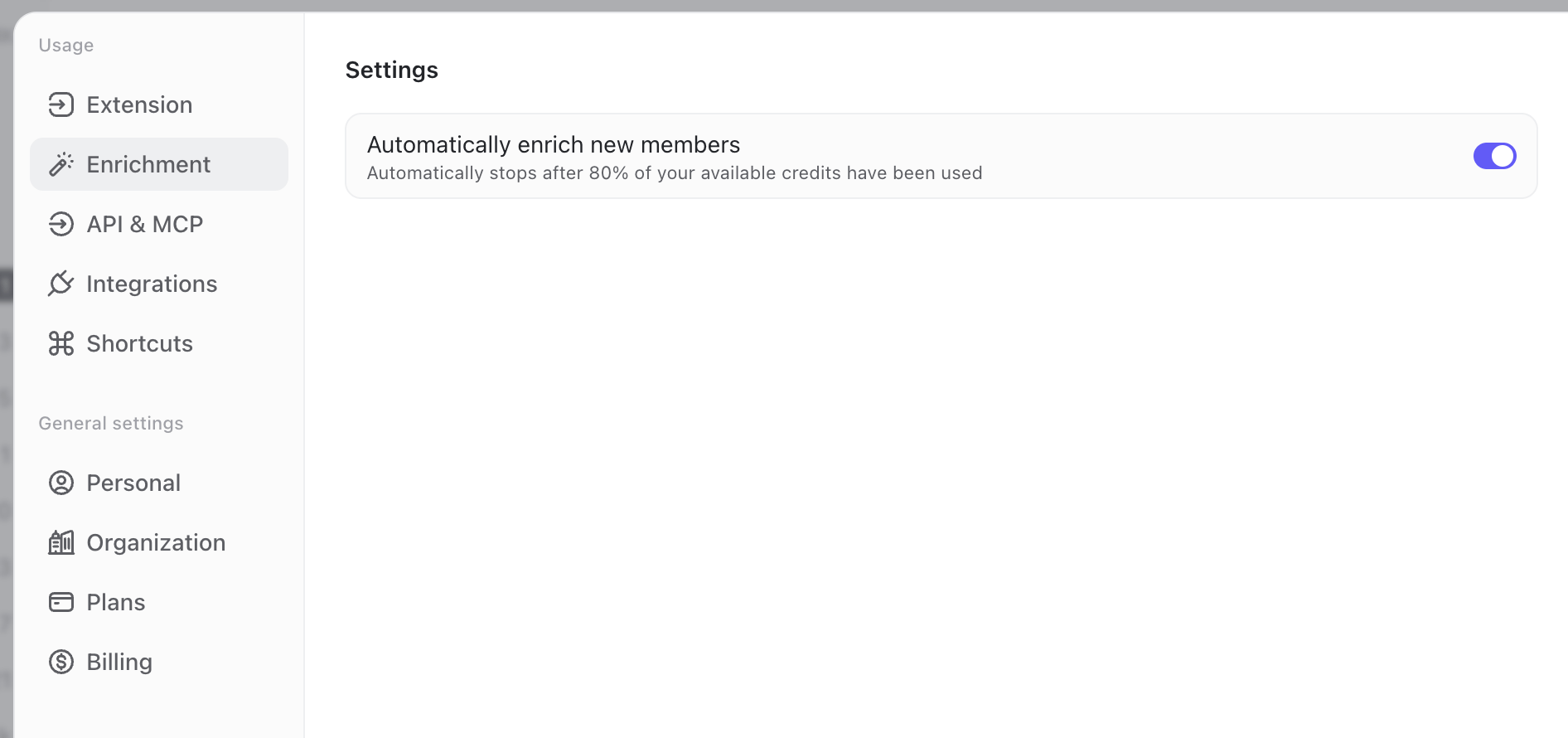
By default, TalkToHumans **automatically enriches new LinkedIn contact profiles as they are imported or discovered during a sync.**
Automatic enrichment stops once **80% of the credits available** for the billing period have been used. The remaining 20% stays available for manual enrichment, email and phone searches, and other credit-based actions.
To change this setting:
1. Open **Settings**.
2. Select **Enrichment**.
3. Turn **Automatically enrich new members** on or off.
TalkToHumans runs a waterfall across multiple data providers rather than depending on a single database. This produces an **80%+ find rate on average**.
Because the waterfall checks several providers in sequence, a search can take a few minutes to finish.
## Credit costs
| **Enrichment** | **Cost** | **When you are charged** |
| :------------------- | :-------------- | :-------------------------------- |
| **LinkedIn profile** | **2 credits** | When the profile is enriched |
| **Work email** | **12 credits** | Only when an email is found |
| **Mobile phone** | **120 credits** | Only when a phone number is found |
## Automatically enrich new contacts
By default, TalkToHumans **automatically enriches new LinkedIn contact profiles as they are imported or discovered during a sync.**
Automatic enrichment stops once **80% of the credits available** for the billing period have been used. The remaining 20% stays available for manual enrichment, email and phone searches, and other credit-based actions.
To change this setting:
1. Open **Settings**.
2. Select **Enrichment**.
3. Turn **Automatically enrich new members** on or off.
 ## Bulk-enrich contacts
When you already have a list, you do not have to enrich every contact one by one.
From a contact view:
1. Select the contacts you want to enrich, or select everyone in the current view.
2. Click **Enrich** in the bulk-action bar.
## Bulk-enrich contacts
When you already have a list, you do not have to enrich every contact one by one.
From a contact view:
1. Select the contacts you want to enrich, or select everyone in the current view.
2. Click **Enrich** in the bulk-action bar.
 You can cancel the bulk enrichment at any moment from the view header.
TalkToHumans skips profile data that is already enriched.
## Why enrichment stays separate from your LinkedIn account
TalkToHumans **only uses your LinkedIn session for activity that depends on your account:** your network, invitations, conversations, and messages.
Profile enrichment does not depend on any of those. TalkToHumans can therefore add the missing context without making your account visit hundreds of profiles in the background.
This keeps enrichment activity away from your LinkedIn session, **in line with** the minimal-account-activity principle described in [Why it's safer](https://www.talktohumans.app/docs/product/safety).
You can cancel the bulk enrichment at any moment from the view header.
TalkToHumans skips profile data that is already enriched.
## Why enrichment stays separate from your LinkedIn account
TalkToHumans **only uses your LinkedIn session for activity that depends on your account:** your network, invitations, conversations, and messages.
Profile enrichment does not depend on any of those. TalkToHumans can therefore add the missing context without making your account visit hundreds of profiles in the background.
This keeps enrichment activity away from your LinkedIn session, **in line with** the minimal-account-activity principle described in [Why it's safer](https://www.talktohumans.app/docs/product/safety).