> ## Documentation Index
> Fetch the complete documentation index at: https://talktohumans.app/docs/llms.txt
> Use this file to discover all available pages before exploring further.
# 🧱 Custom fields
Custom fields let you add additional information to TalkToHumans for both **contacts** and **companies**.
For example, you could create:
* An **ICP score** for every contact
* A **Target account** field for companies
* A **Deal stage** synced from your CRM
Once the data is in TalkToHumans, you can display it in your views, filter and sort by it, group inboxes by it, and insert it into messages.
## Create a custom field
### 1. Open a contact or company view
Open **Contacts** if the field belongs to a person, or **Companies** if it belongs to a company.
### 2. Click Add column
Click **Add column** at the end of the table, then select **Create new field**:
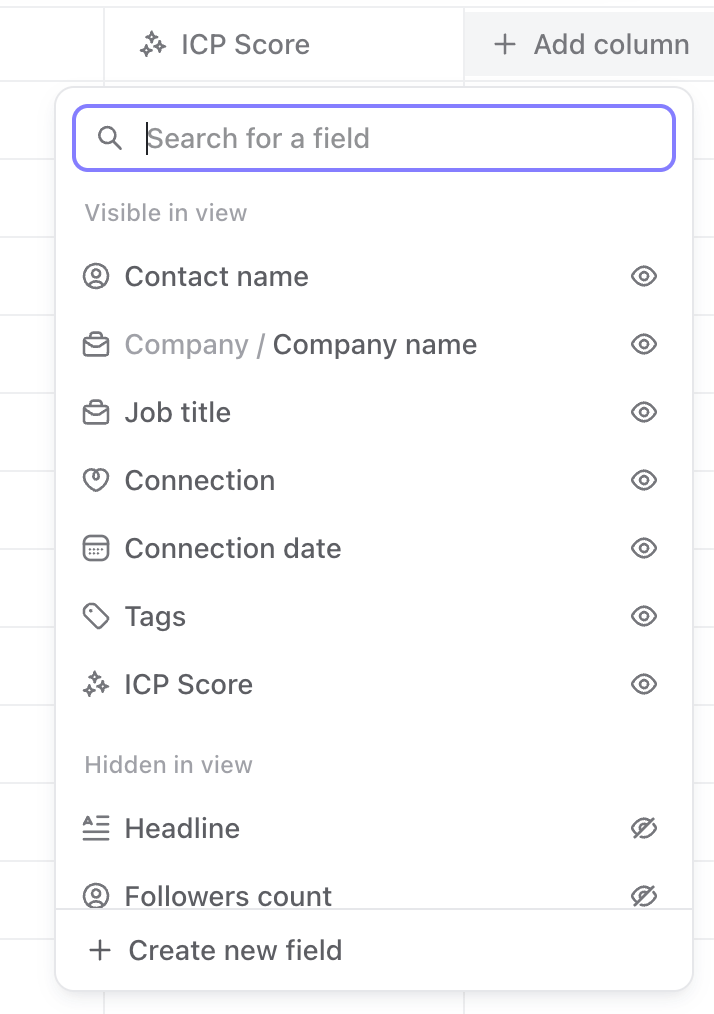 You can also create a field from the field picker in a contact or company sidebar.
### 3. Choose its name, icon, and type
TalkToHumans supports four field types:
| **Type** | **Use it for** | **Example** |
| :---------- | :-------------------------------------------------- | :---------- |
| **Text** | Names, stages, categories, or short written context | Qualified |
| **Number** | Scores, amounts, or any value you want to rank | 87 |
| **Boolean** | A yes-or-no property | Yes |
| **Date** | A date without a specific time | 2026-09-15 |
Pick the type carefully. You can rename a field or change its icon later, but you cannot change its type after creating it.
You can also create a field from the field picker in a contact or company sidebar.
### 3. Choose its name, icon, and type
TalkToHumans supports four field types:
| **Type** | **Use it for** | **Example** |
| :---------- | :-------------------------------------------------- | :---------- |
| **Text** | Names, stages, categories, or short written context | Qualified |
| **Number** | Scores, amounts, or any value you want to rank | 87 |
| **Boolean** | A yes-or-no property | Yes |
| **Date** | A date without a specific time | 2026-09-15 |
Pick the type carefully. You can rename a field or change its icon later, but you cannot change its type after creating it.
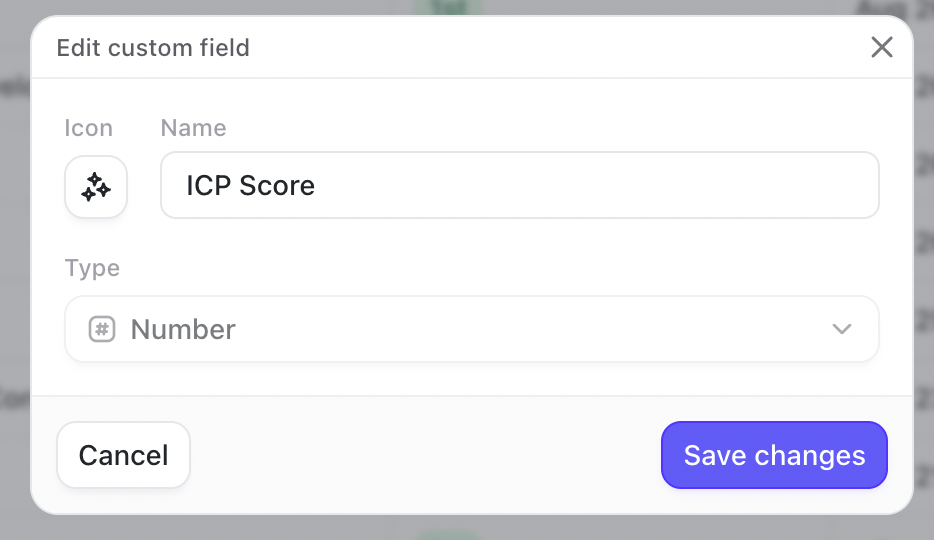 Only organization admins can create, edit, or delete custom fields.
### 4. Create the field
Click **Create field**.
The field is added as a visible column in your current view. It also becomes available everywhere else that supports fields, even if it is hidden there by default.
## Add values to custom fields
Custom field values can currently be written only through the TalkToHumans API or MCP.
This is useful for data coming from your CRM, Clay, a spreadsheet workflow, an internal tool, or an AI process.
For example, an AI workflow can score every contact against your ICP, then write the result to an **ICP score** field.
See [MCP](https://www.talktohumans.app/docs/developers/mcp), [update contact by API](https://www.talktohumans.app/docs/developers/contacts/update-contact), or [update company by API](https://www.talktohumans.app/docs/developers/companies/update-company).
## Edit or delete a custom field
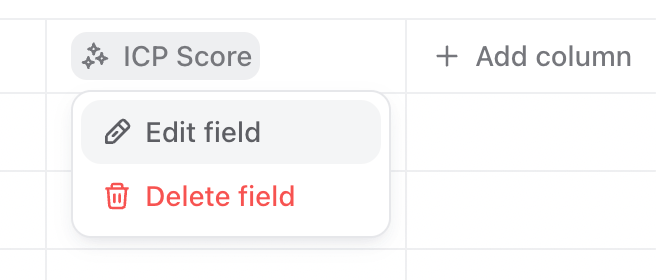
Open a contact or company view where the field is visible, click its column header, then select **Edit field** or **Delete field**.
Only organization admins can create, edit, or delete custom fields.
### 4. Create the field
Click **Create field**.
The field is added as a visible column in your current view. It also becomes available everywhere else that supports fields, even if it is hidden there by default.
## Add values to custom fields
Custom field values can currently be written only through the TalkToHumans API or MCP.
This is useful for data coming from your CRM, Clay, a spreadsheet workflow, an internal tool, or an AI process.
For example, an AI workflow can score every contact against your ICP, then write the result to an **ICP score** field.
See [MCP](https://www.talktohumans.app/docs/developers/mcp), [update contact by API](https://www.talktohumans.app/docs/developers/contacts/update-contact), or [update company by API](https://www.talktohumans.app/docs/developers/companies/update-company).
## Edit or delete a custom field
Open a contact or company view where the field is visible, click its column header, then select **Edit field** or **Delete field**.
 **Deleting a custom field permanently removes the field and all its values.** TalkToHumans also removes it from saved filters, sorts, groups, and visible columns across your views.
Deleting a custom field cannot be undone. If you only want it out of one view, hide the column instead.
**Deleting a custom field permanently removes the field and all its values.** TalkToHumans also removes it from saved filters, sorts, groups, and visible columns across your views.
Deleting a custom field cannot be undone. If you only want it out of one view, hide the column instead.